
Creating and Managing Anchors
Anchors within surveys are essentially the responses or options available in a survey question. Anchors can either be custom, created by you for your needs, or system anchors that we provide.
Selecting Anchors
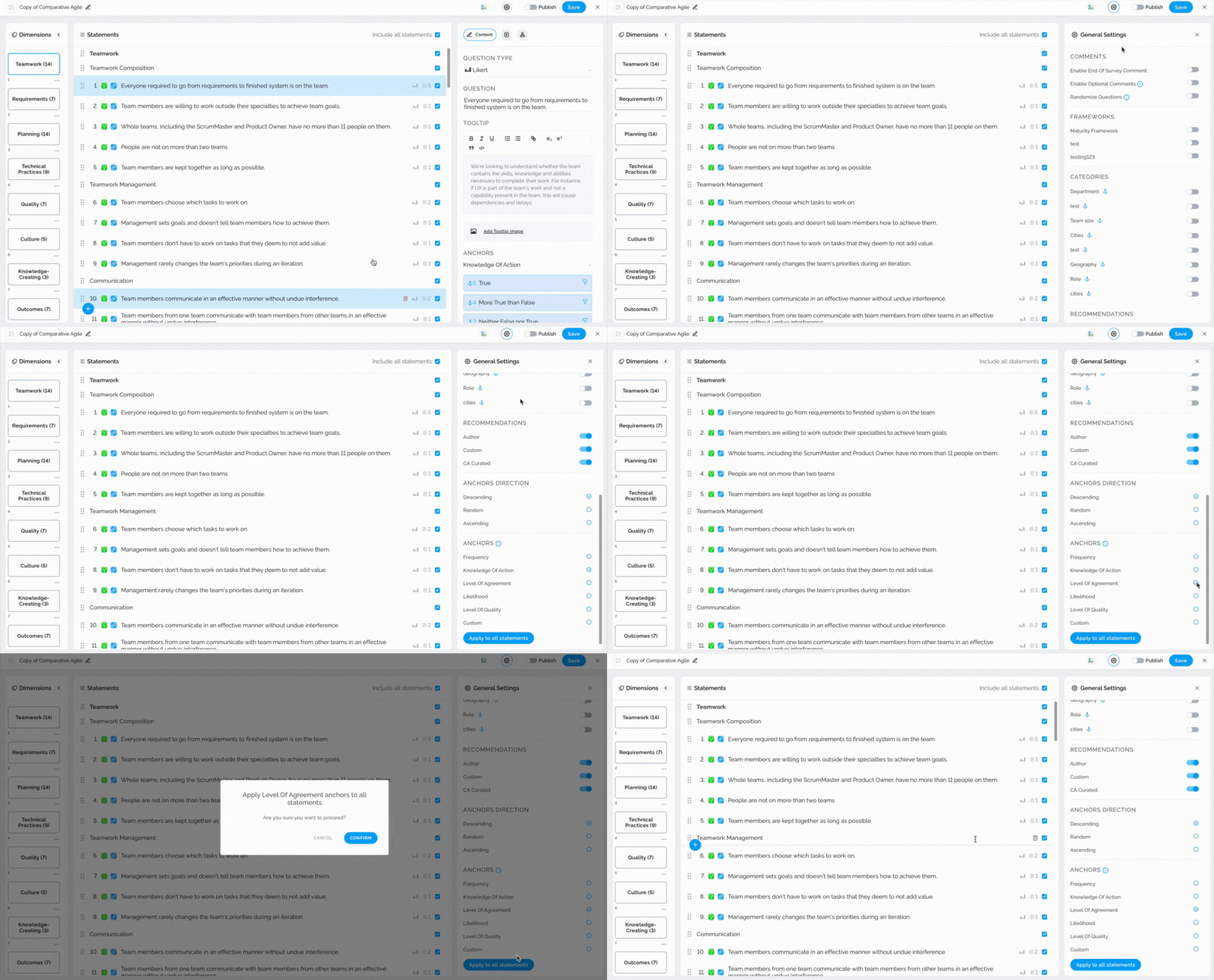
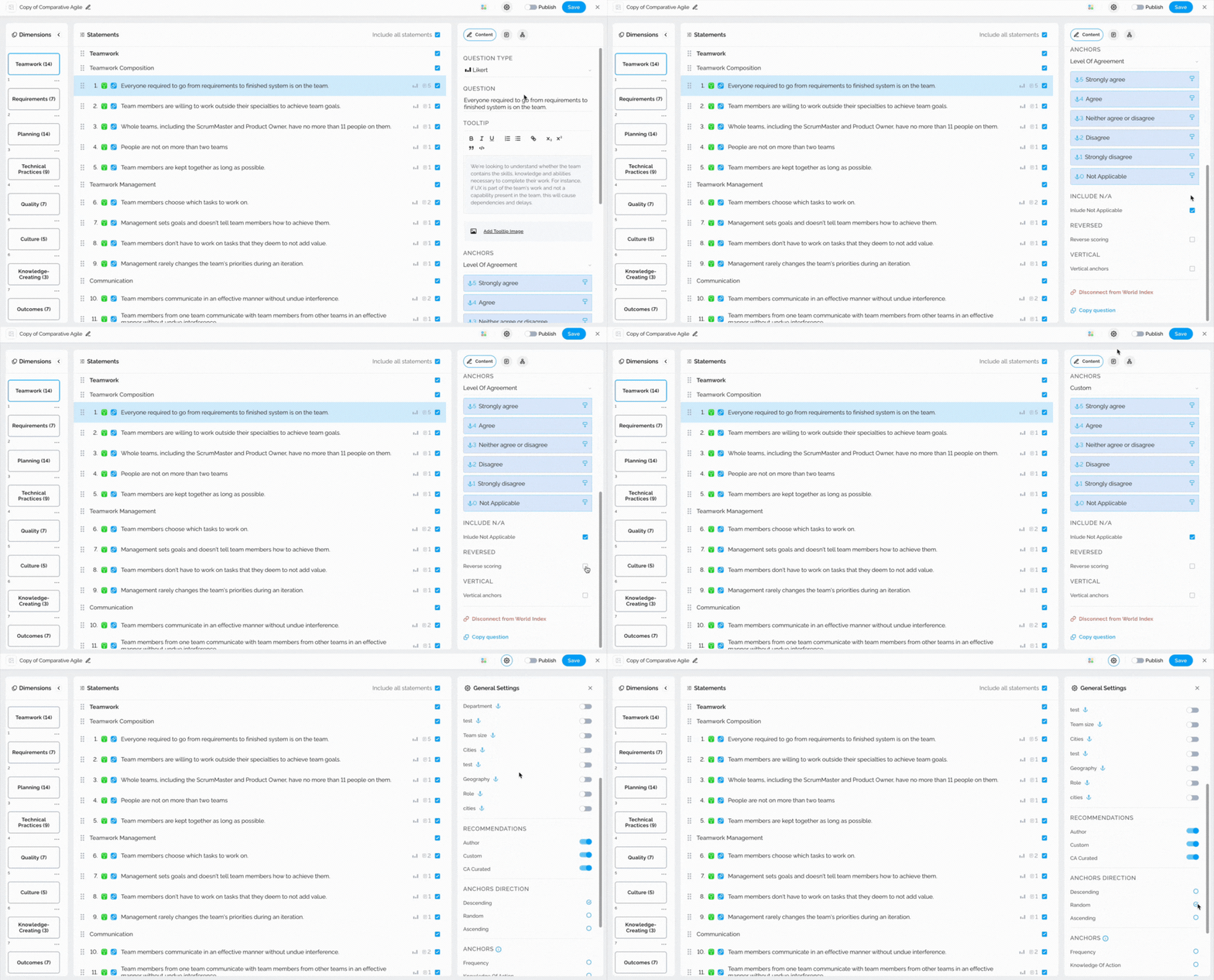
You have the flexibility to select from a range of Anchors, including Frequency, Level of Agreement, and others, or create custom anchors. To apply one of our system anchors, simply:
- Select General Settings
- Scroll to the Anchors option
- Choose one of the existing ones or create custom anchors
- Proceed with Apply to all statements
Note: You can apply a chosen type of anchor globallyfor all the statements but also individually on a single question/statement.
The video below shows you how to change the type of Anchors for all statements in the survey
Number of custom anchors
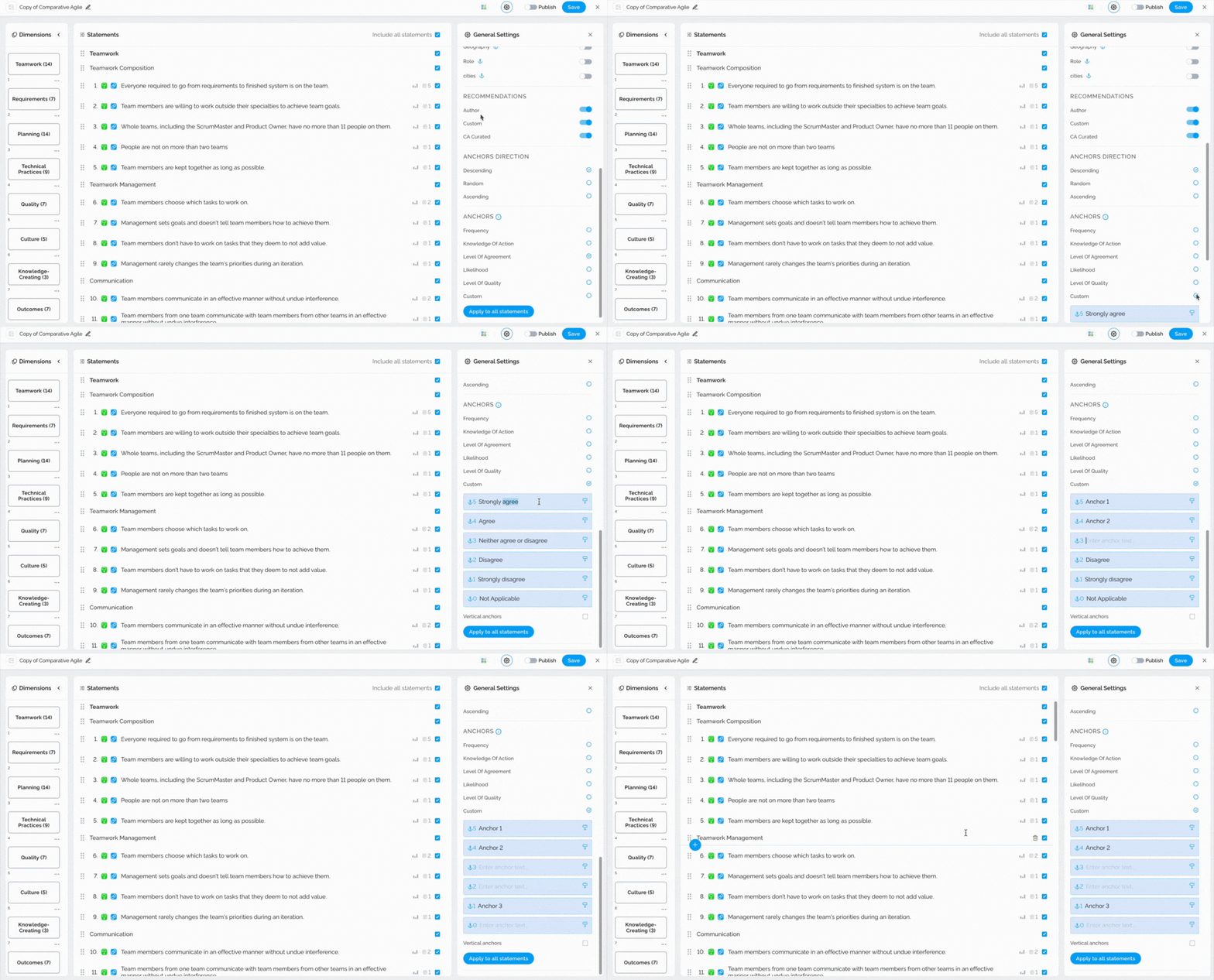
If you need to have only a few anchors instead of the default 5, you can do that by utilizing Custom Anchors.
Simply leave out the anchor field you wish not to be populated and click on Done.
Note: The value of the anchor will be calculated based on the small number in the top left corner of the anchor field that you populate.
In the short video below we show you how to apply custom anchors
Vertical Anchors
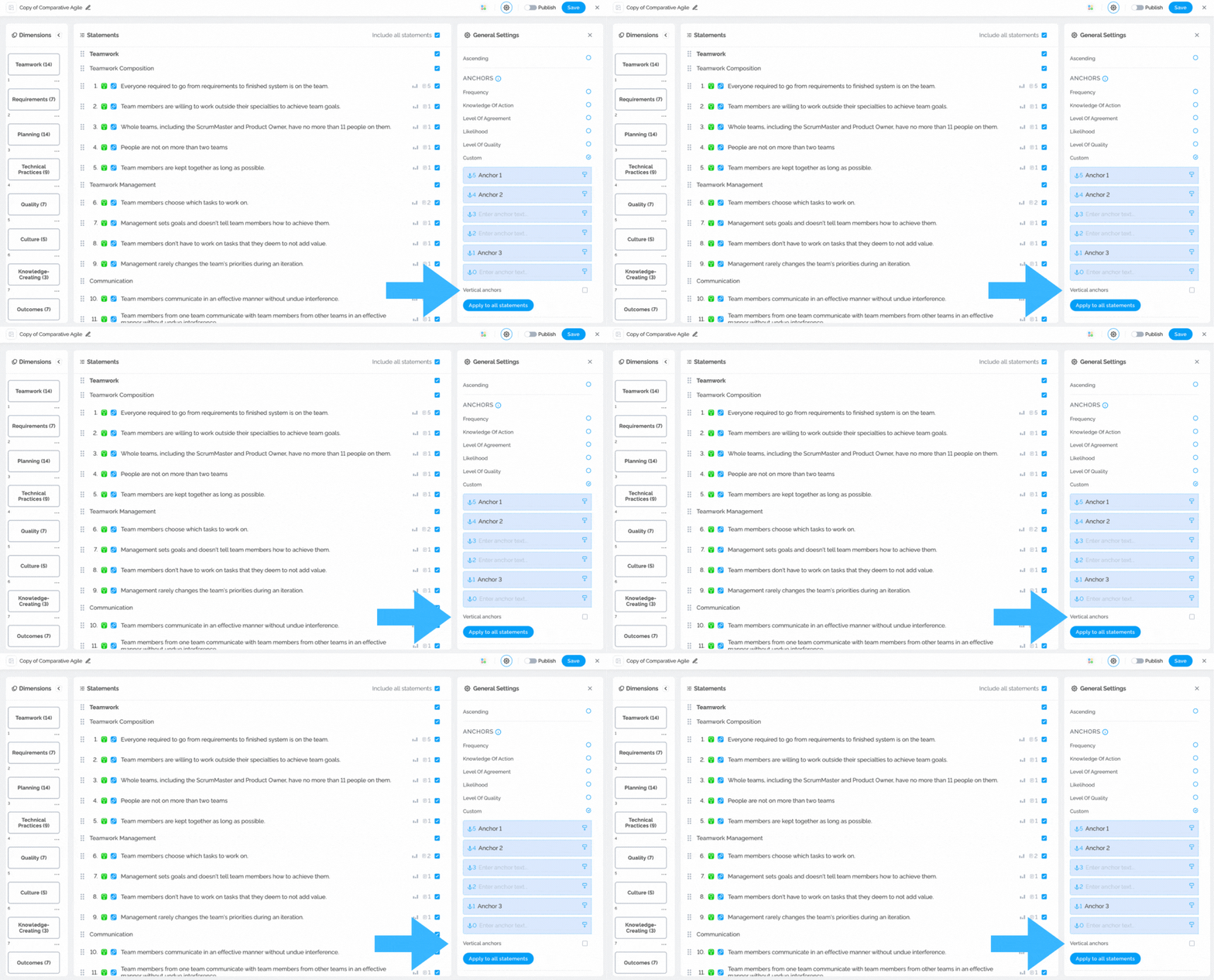
Vertical anchors in surveys refer to the responses or options listed vertically in a survey question.
To learn more about vertical anchors, please visit our Help Center article Vertical Anchors.
The screenshot below shows you what vertical anchors look like
Tooltips for custom anchors
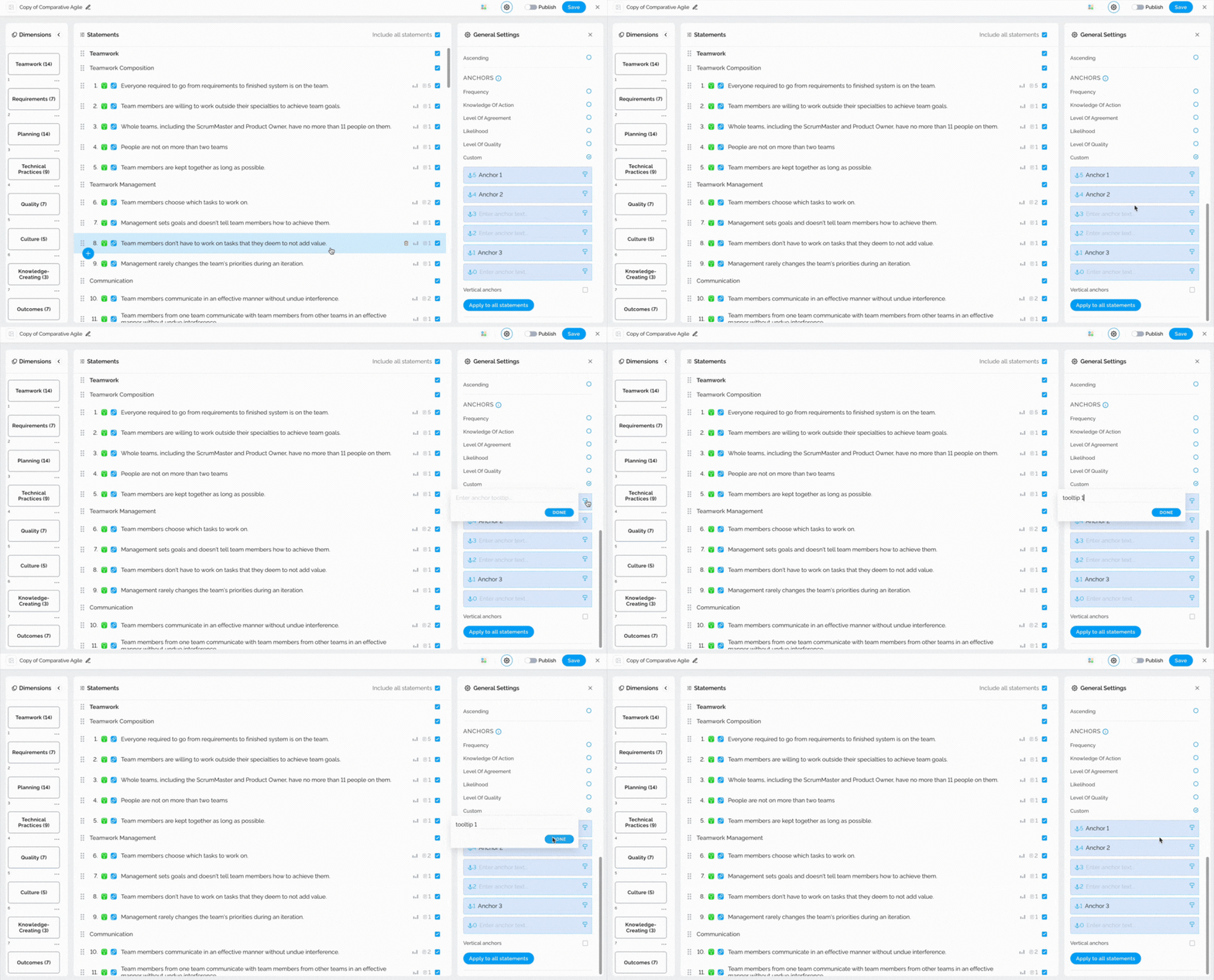
Comparative Agility offers a feature of adding tooltips to your custom anchors. To do that, simply:
- Navigate to the edit button called Add a tooltip
- Type in your tooltip
- Click on Done
Note: Adding tooltips is optional.
In the short video below we show you how to add tooltips to custom anchors
Additional options
- The “include not applicable” option is always enabled by default, but you have the opportunity to disable it if necessary.
- Reverse anchors imply that the answers will be reversed, necessitating a change in the way the question is asked.
Note: The statement needs to be unlinked from the world index in order to use reverse anchors.
- Randomized anchors entail that the responses will be randomly spread and not presented in a specific order.
The short video below shows you where to find the additional options
If you ever need any assistance or have any questions please reach out to our support team at support@comparativeagility.comand we will be more than happy to assist you.