
Users Screen
The user screen is where you can add new and manage users. This article will guide you through all the options available in the User screen in the Comparative Agility account.
Navigating to the Users Screen
- Click on Settings(left-side menu)****
- Select Account Settings(top center)
- Click on Users(left-side menu)
Users tab
This tab is the main one to add and manage users.
-
Invite a user
Click the Invite a User button
-
Add email address
-
Choose an instance if applicable
-
Select User Rolefrom the dropdown menu
-
Assign filters and Restrict data if needed
-
Click on Invite at the bottom right corner
The short video below shows you how to invite a user
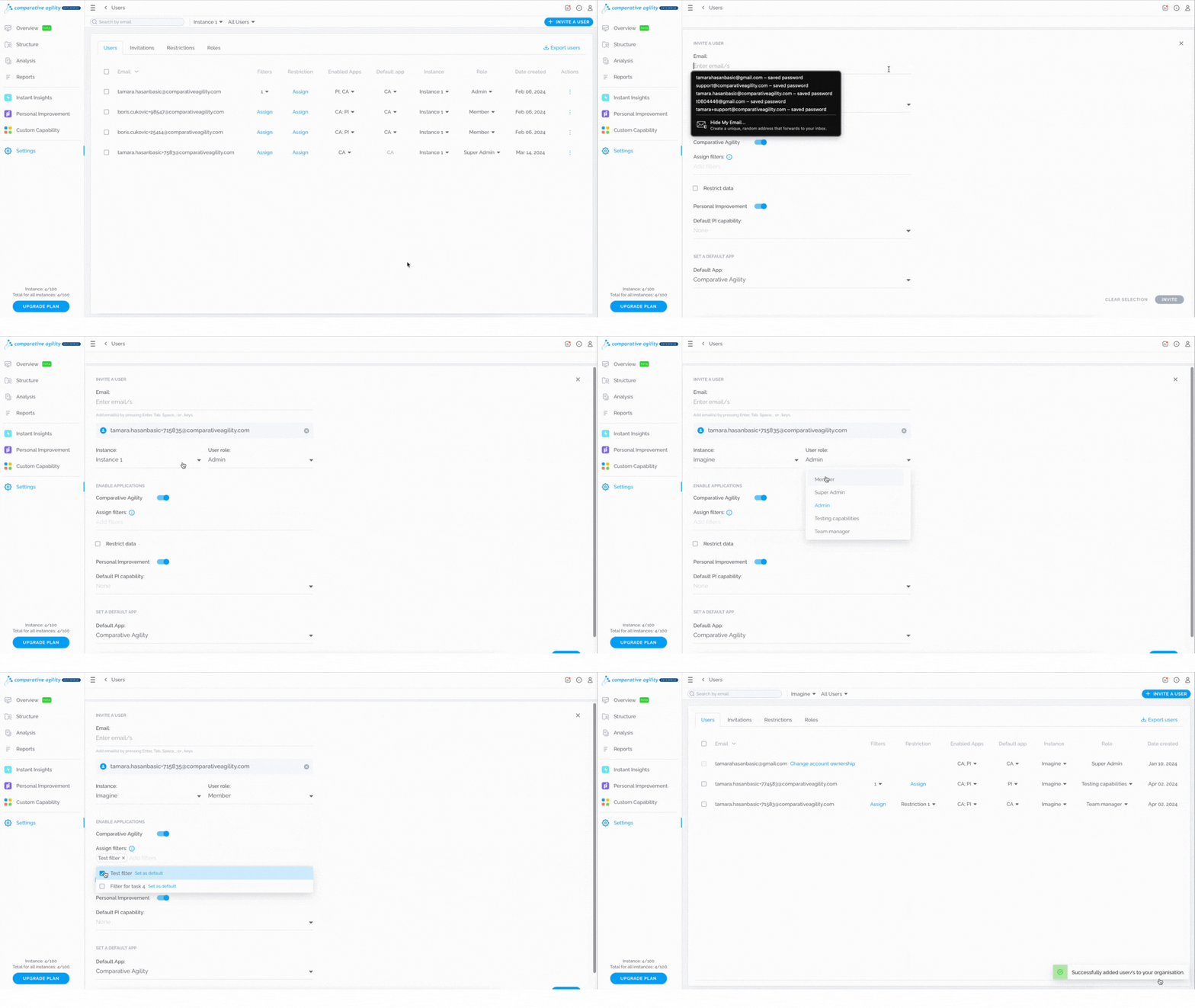 To learn more about inviting new users, please visit our Help Center article Add New Users.
-
Export users
Locate the Export Users button
-
Deselect Instances if you would like only specific ones to be included
-
Click on Export Users and a CSV file will be downloaded
In the short video below we show you how to export users
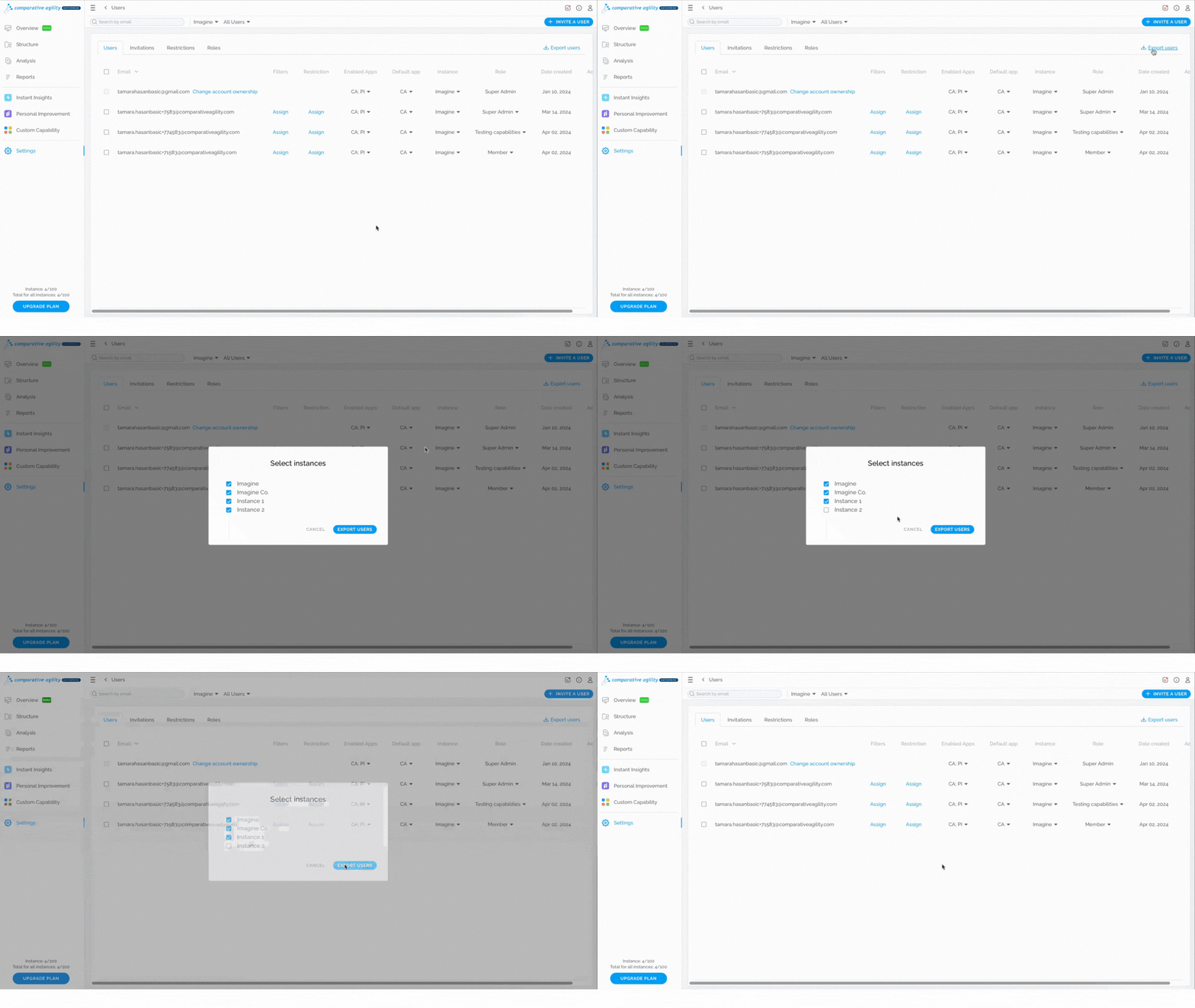 To learn more about exporting users, please visit our Help Center article How to Export the List of Users in Your Account.
-
Deactivate/Activate user
Click on the three dots next to the user
-
Toggle the option off or on
The short video below shows you how to deactivate/activate a user
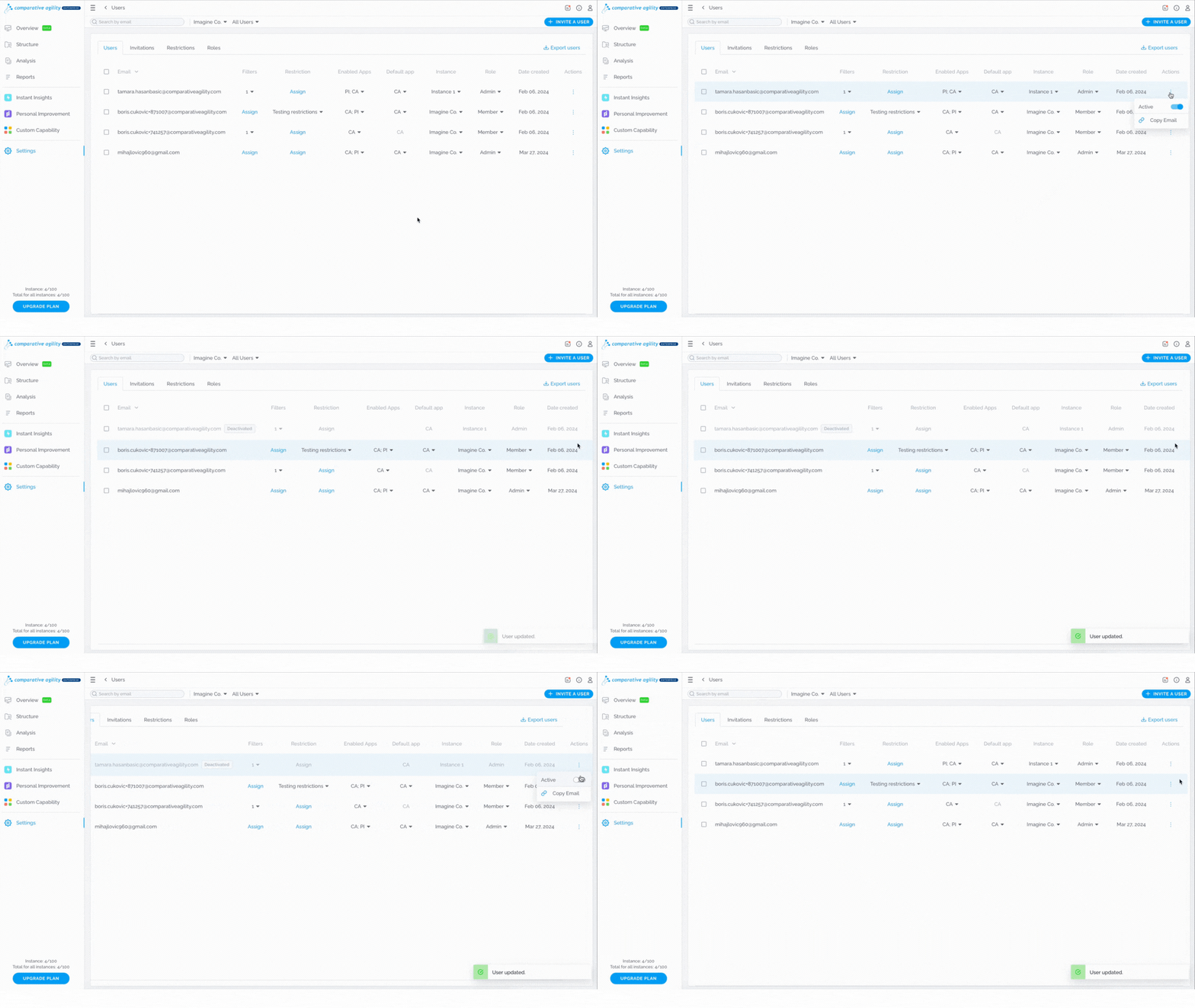
To learn more about deactivating and activating the users, please visit our Help Center article Activate and Deactivate users.
-
Assign filters
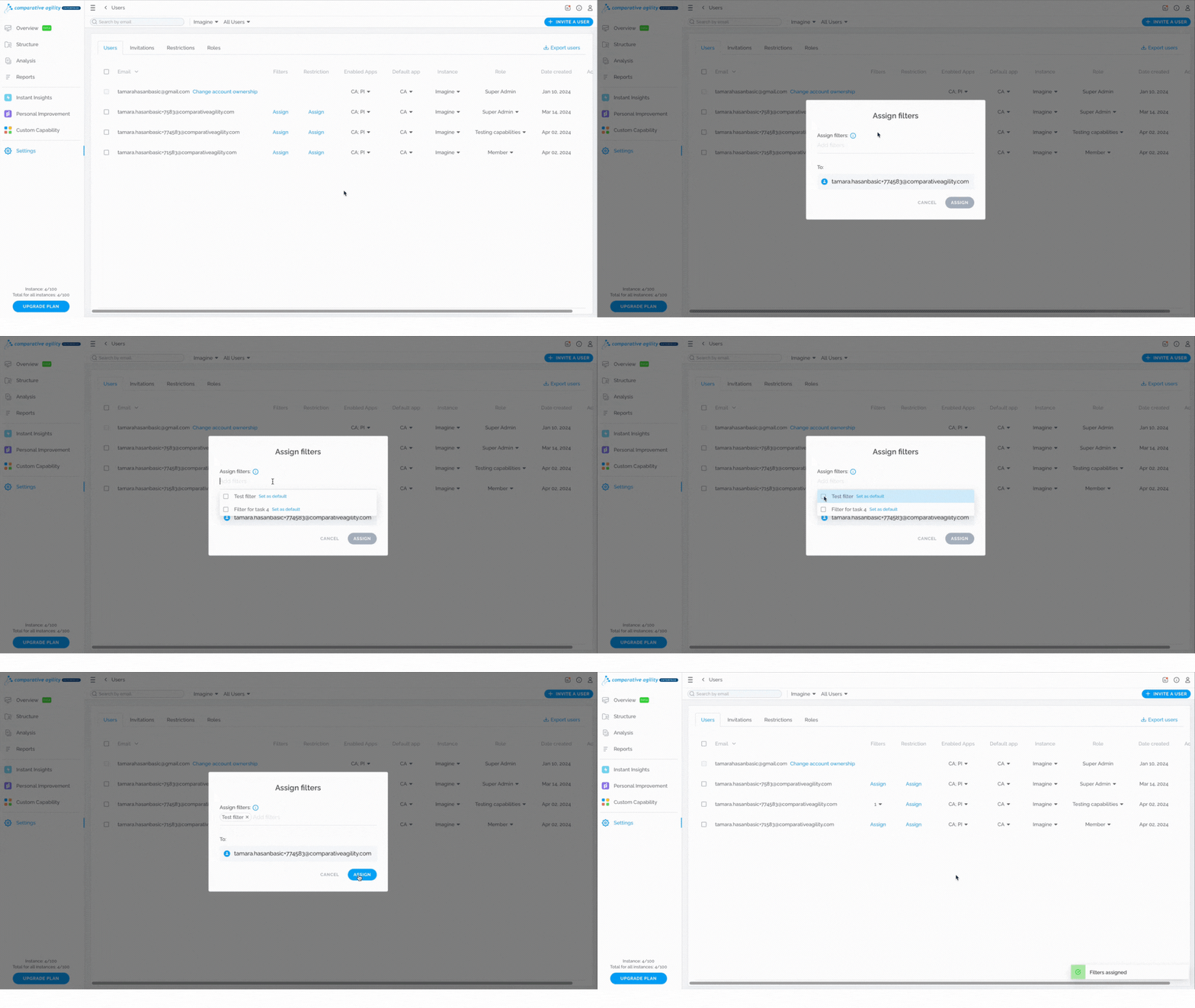
Click on the Assign button
-
Choose from already existing filters that you created
-
Select Assign
In the short video below we show you how to assign filters
-
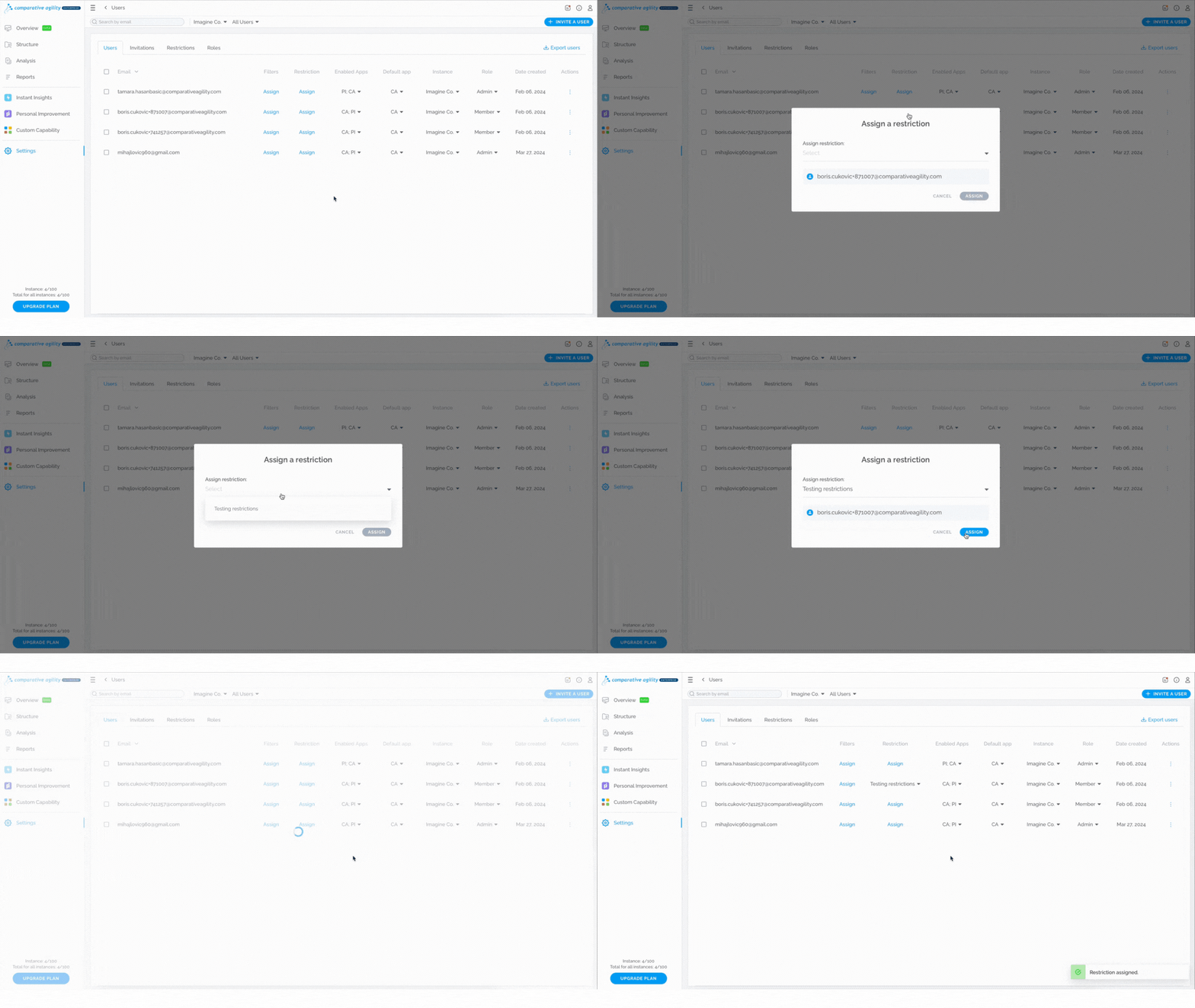
Assign restrictions
Click on the Assign button
-
Choose from already existing restrictions that you created
-
Select Assign
The short video below shows you how to assign restrictions
- Enable Apps
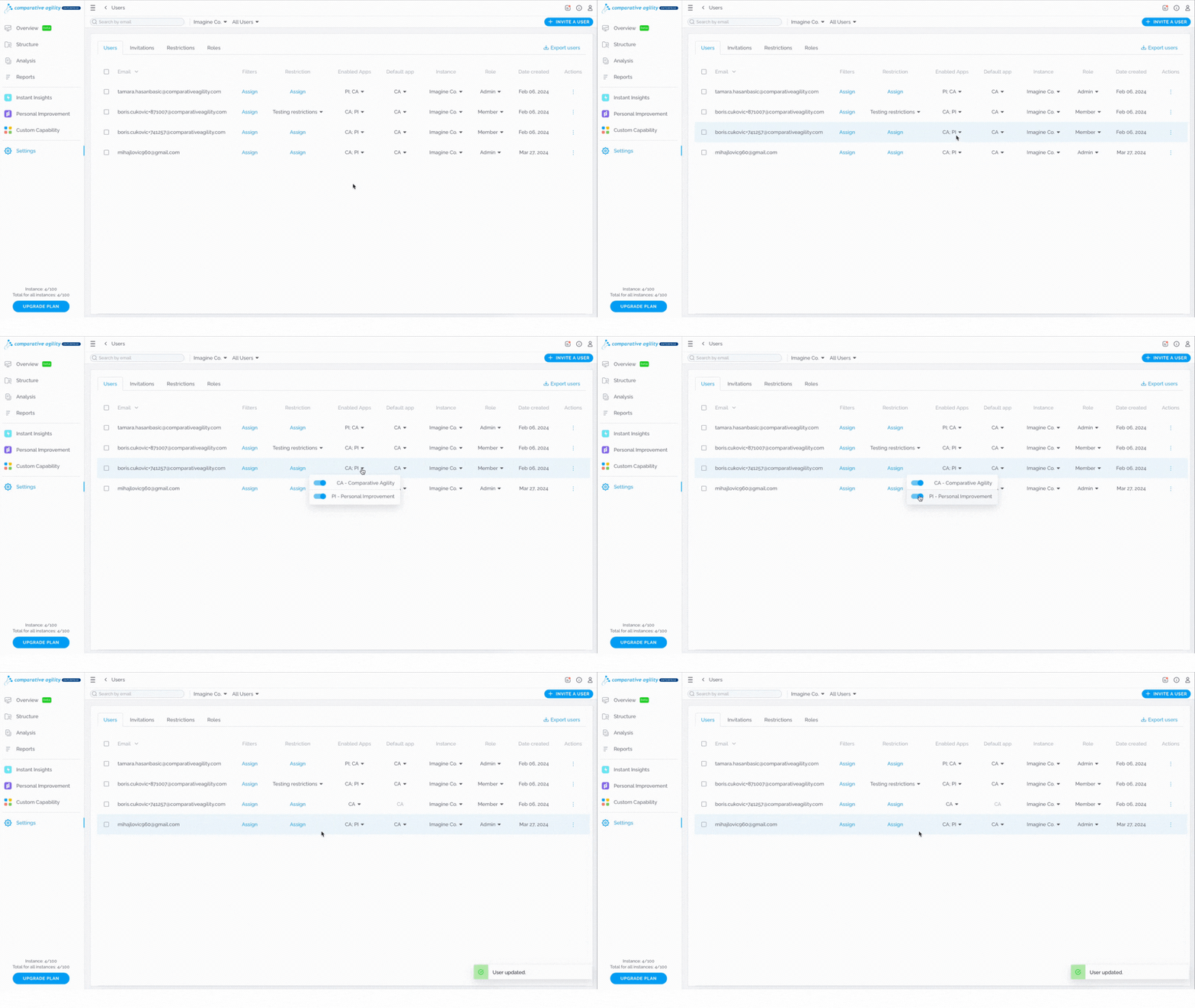
You can enable/disable access to the apps that Comparative Agility gives you. By default, both apps are enabled.
- Click on the dropdown menu
- Enable/disable access
In the short video below we show you how to enable/disable access to the apps
- Update the default app
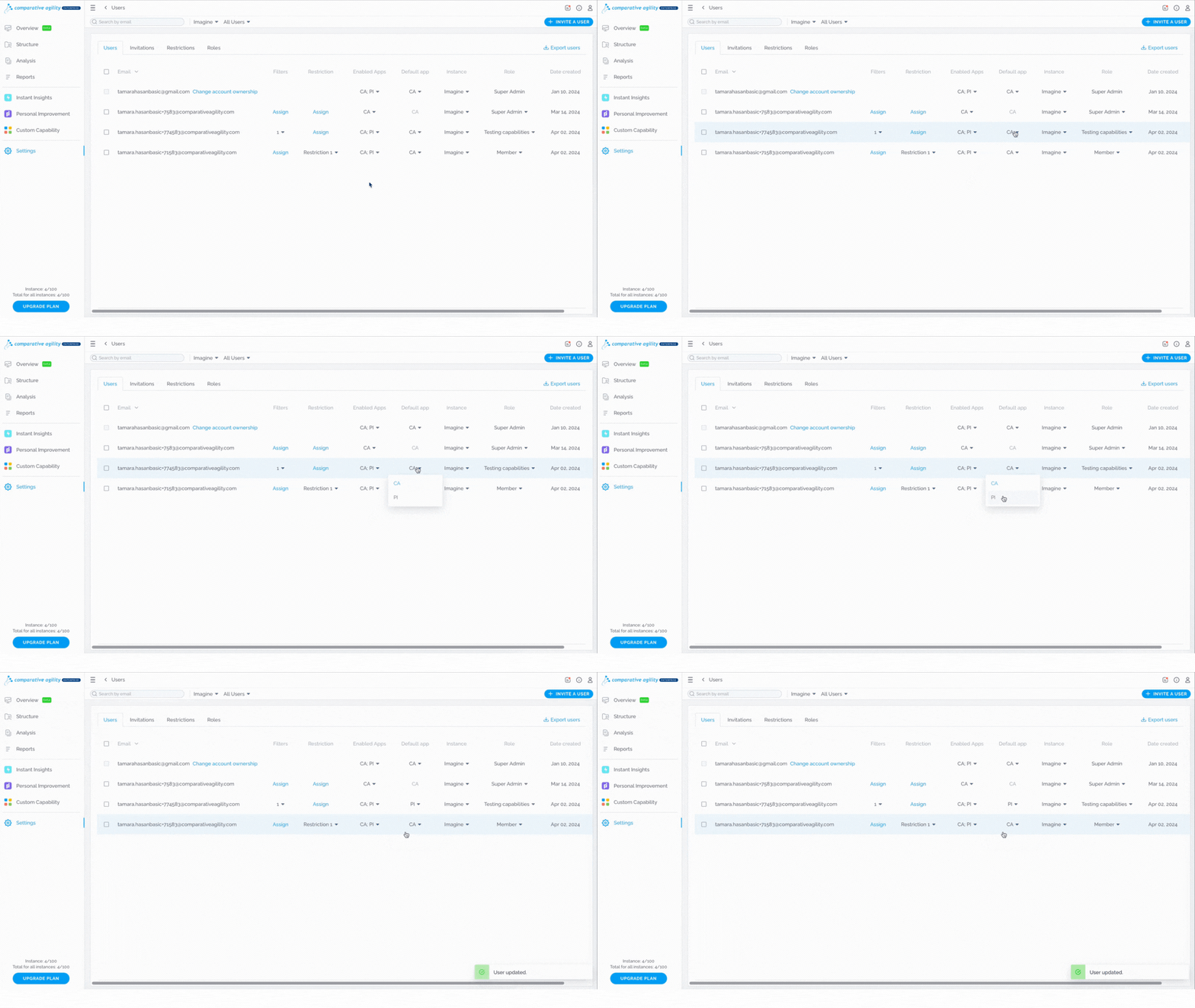
If you would like for a specific app to be the default one for your users, this option is for you.
- Click on the dropdown menu
- Select which app should be the default one
The short video below shows you how to update the default app
-
Change the instance
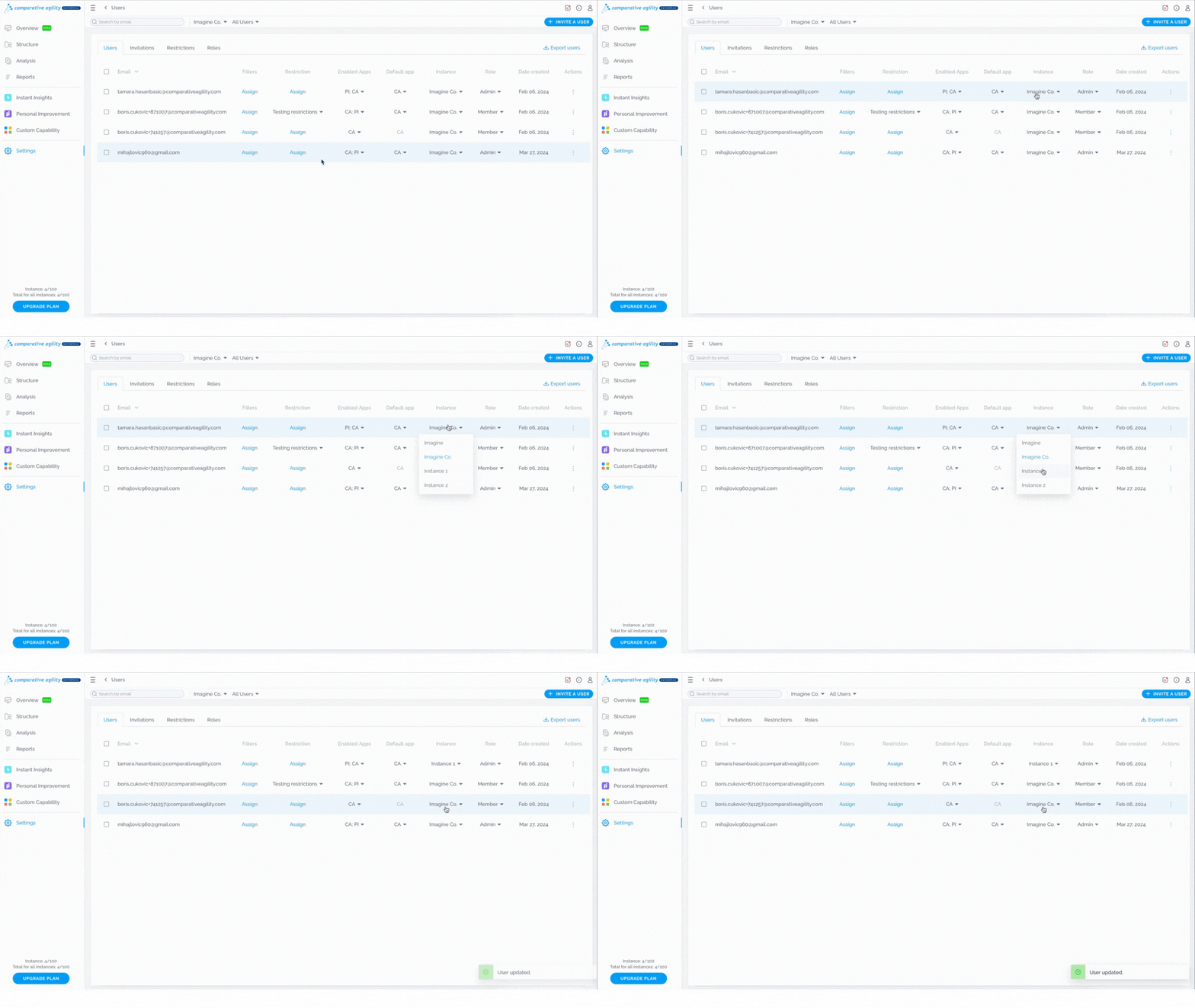
Click on the dropdown menu
-
Select the instance
In the short video below we show you how to change the instance
To learn more about the instances, please visit our Help Center article How to create and manage instances.
-
Update the role
Click on the dropdown menu
-
Select the role
The short video below shows you how to update the role
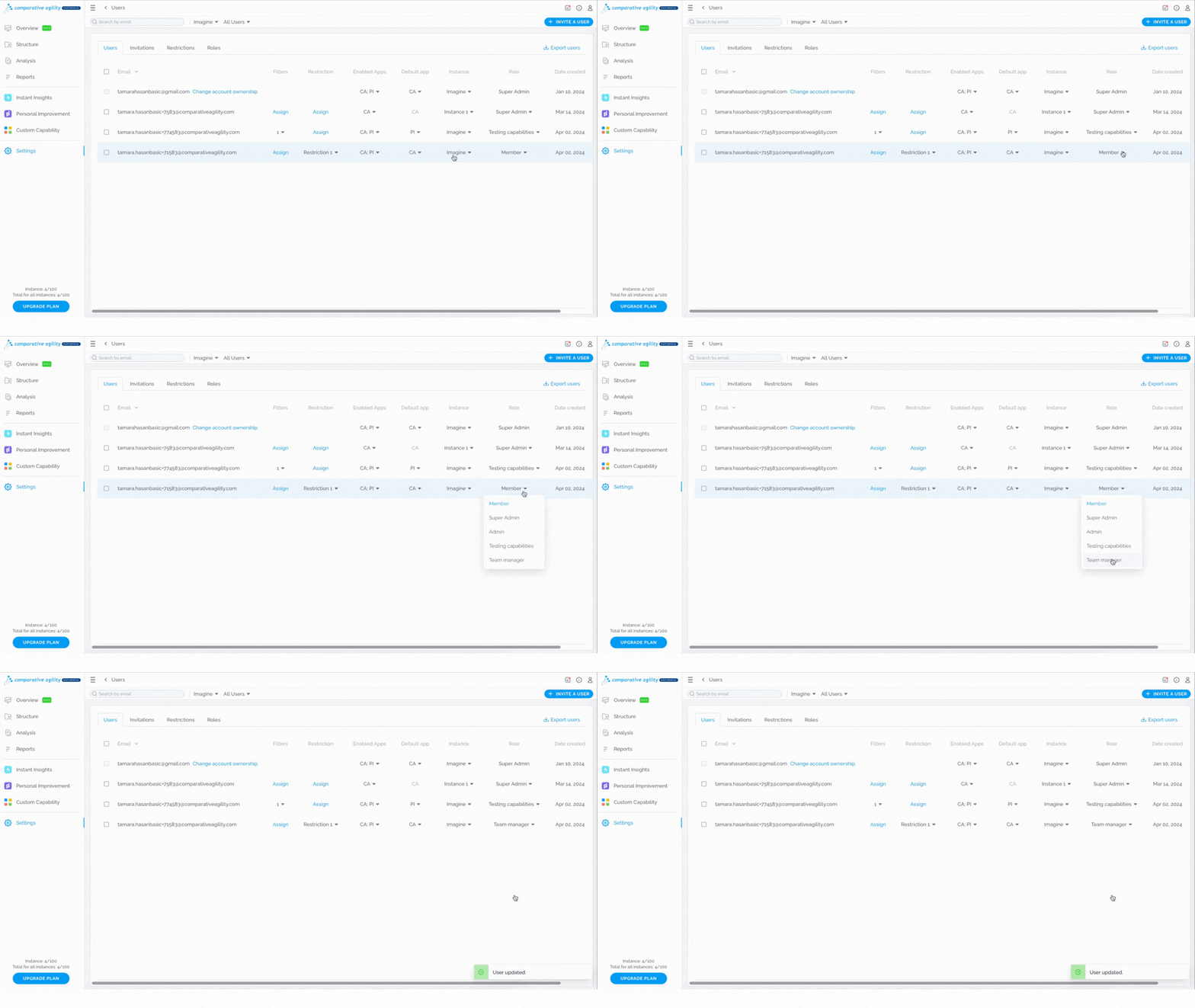
To learn more about different roles, please visit our Help Center article User Management.
-
Copy email
Click on the three dotsnext to the user
-
Select Copy Email
In the short video below we show you how to copy an email address
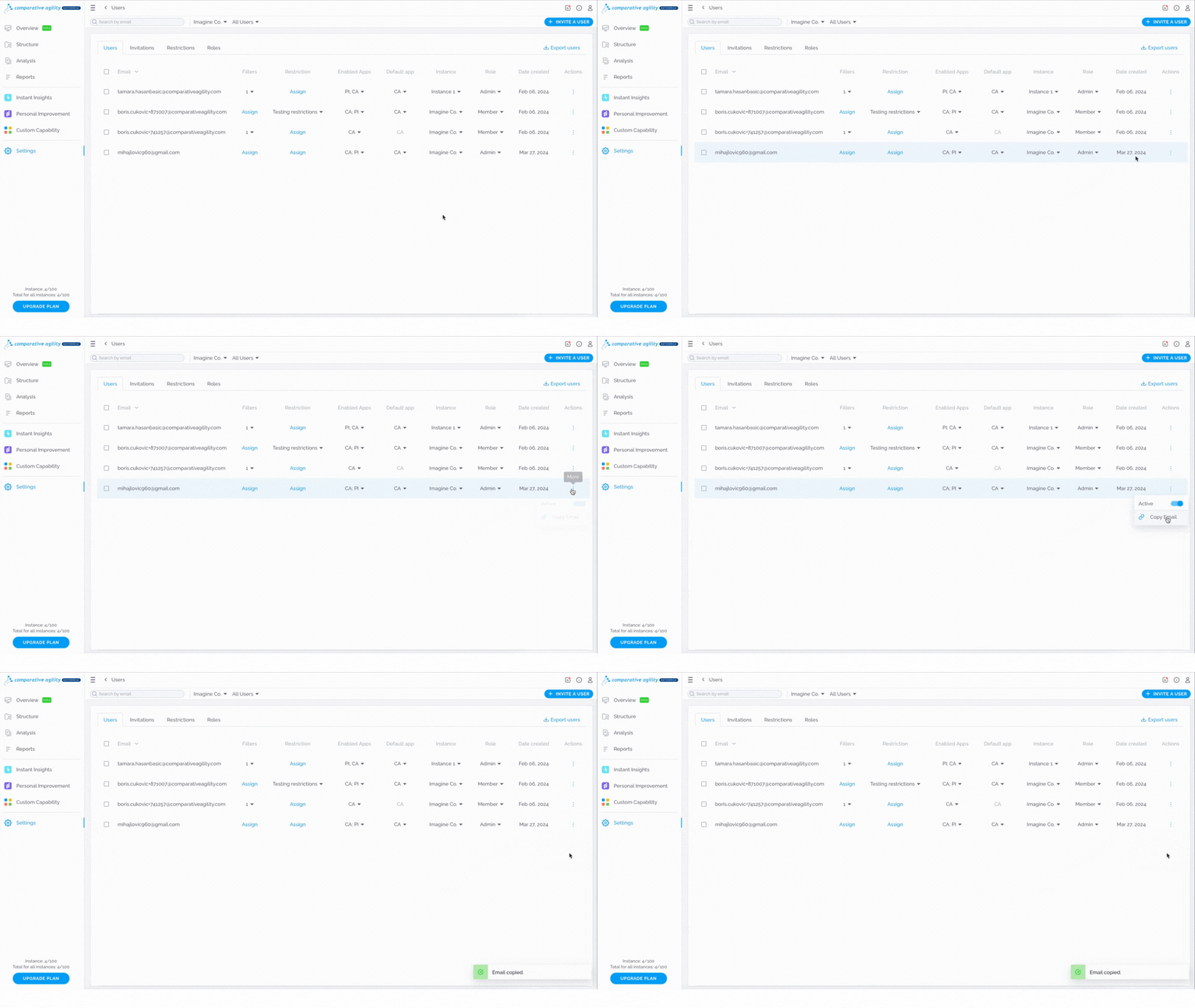
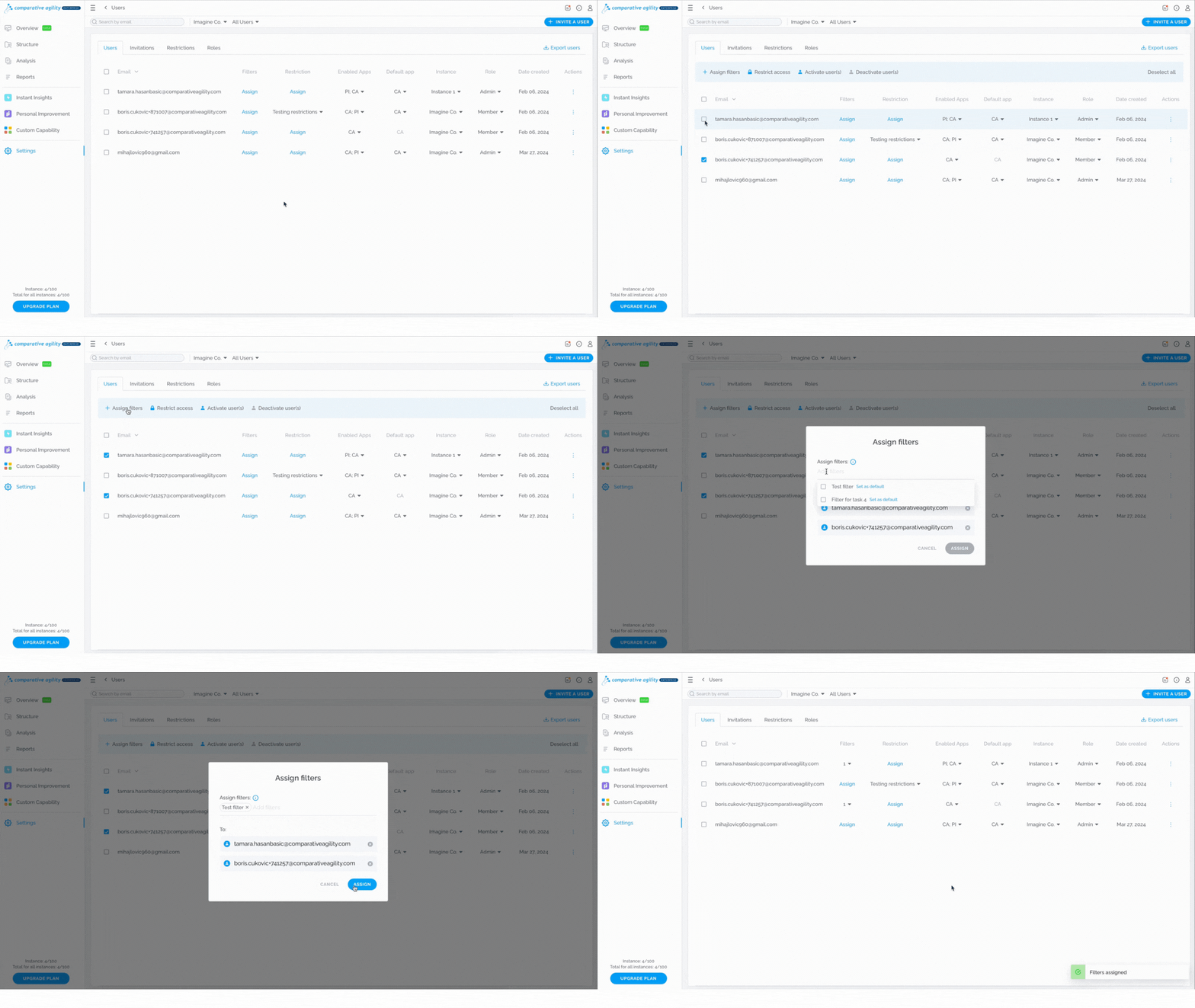
- Mass update
With the Mass update feature, you have the ability to apply options to more than one user.
- Select all the users you need for the update
- Choose between Assign filters, Restrict access, Activate or Deactivate users
The short video below shows you how to use the Mass Update feature
Invitations tab
There are a few options on the Invitations tab that you can use.
-
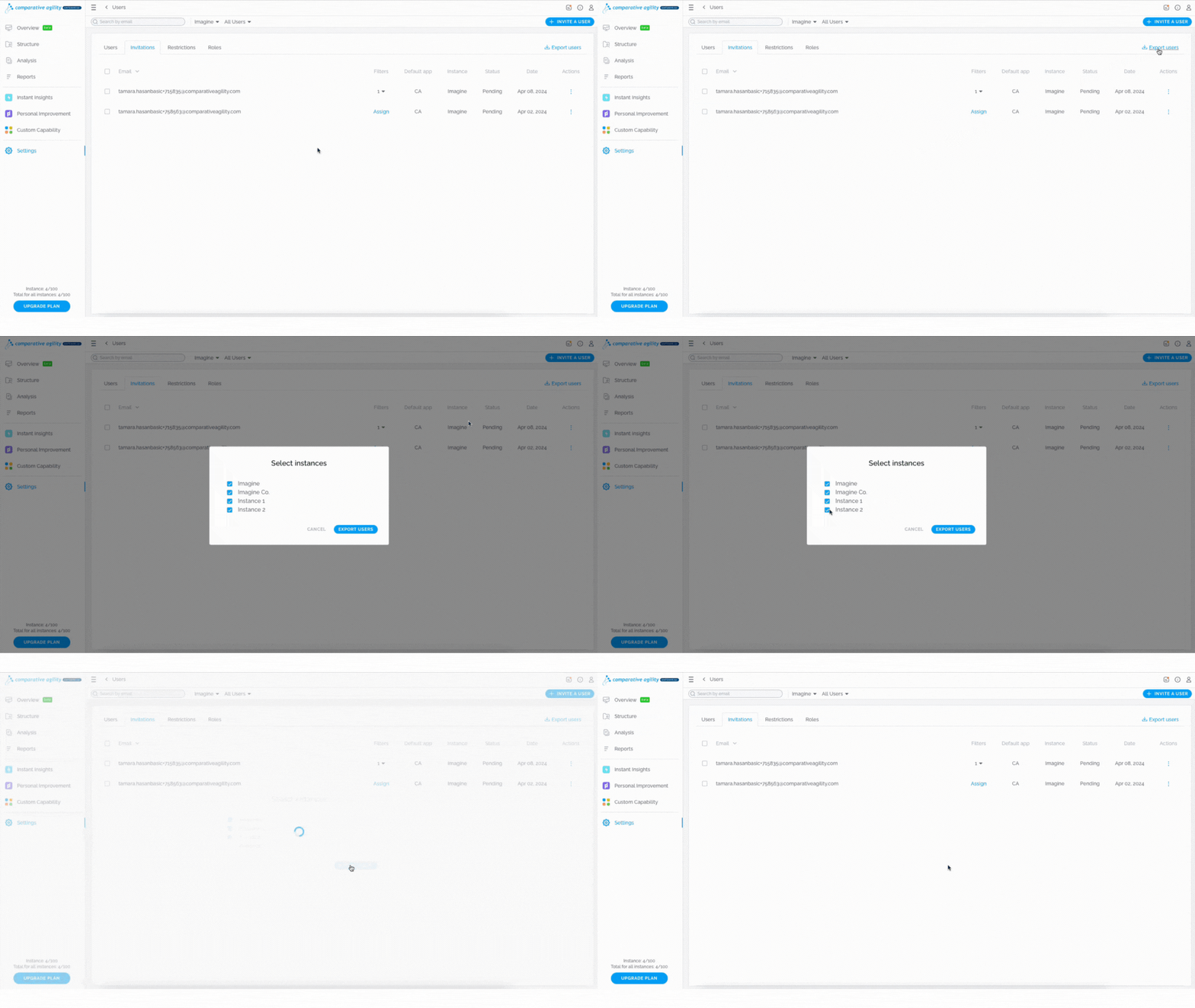
Export users
Click on the Export Users button
-
Deselect instances if necessary
-
Click on Export Users
-
The list of pending users will be downloaded
In the short video below we show you how to export pending users
-
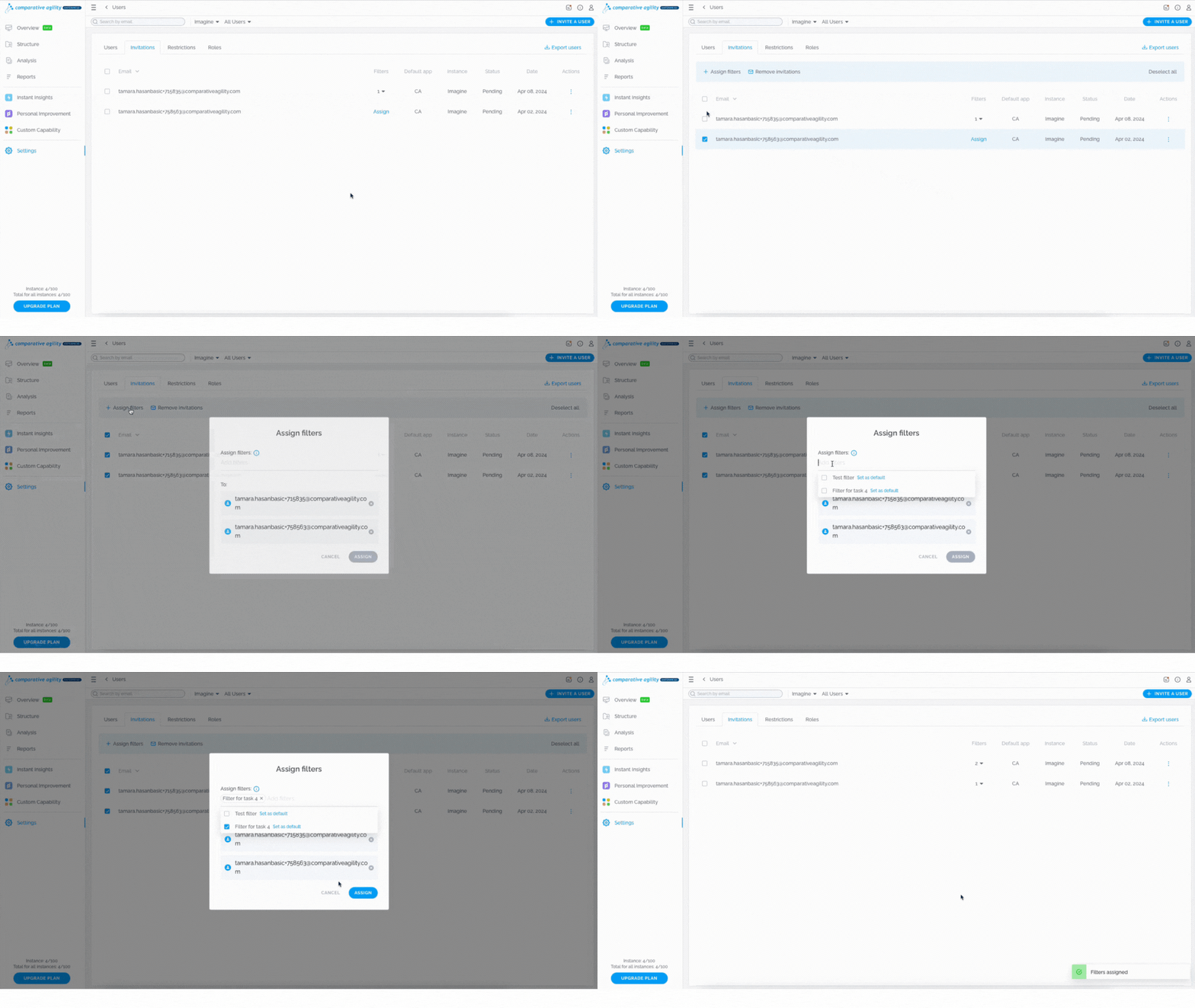
Mass updates
Select all the users
-
Choose between assigning filters or removing invitations
-
Follow the prompts on your screen
The short video below shows you how to use mass updates
-
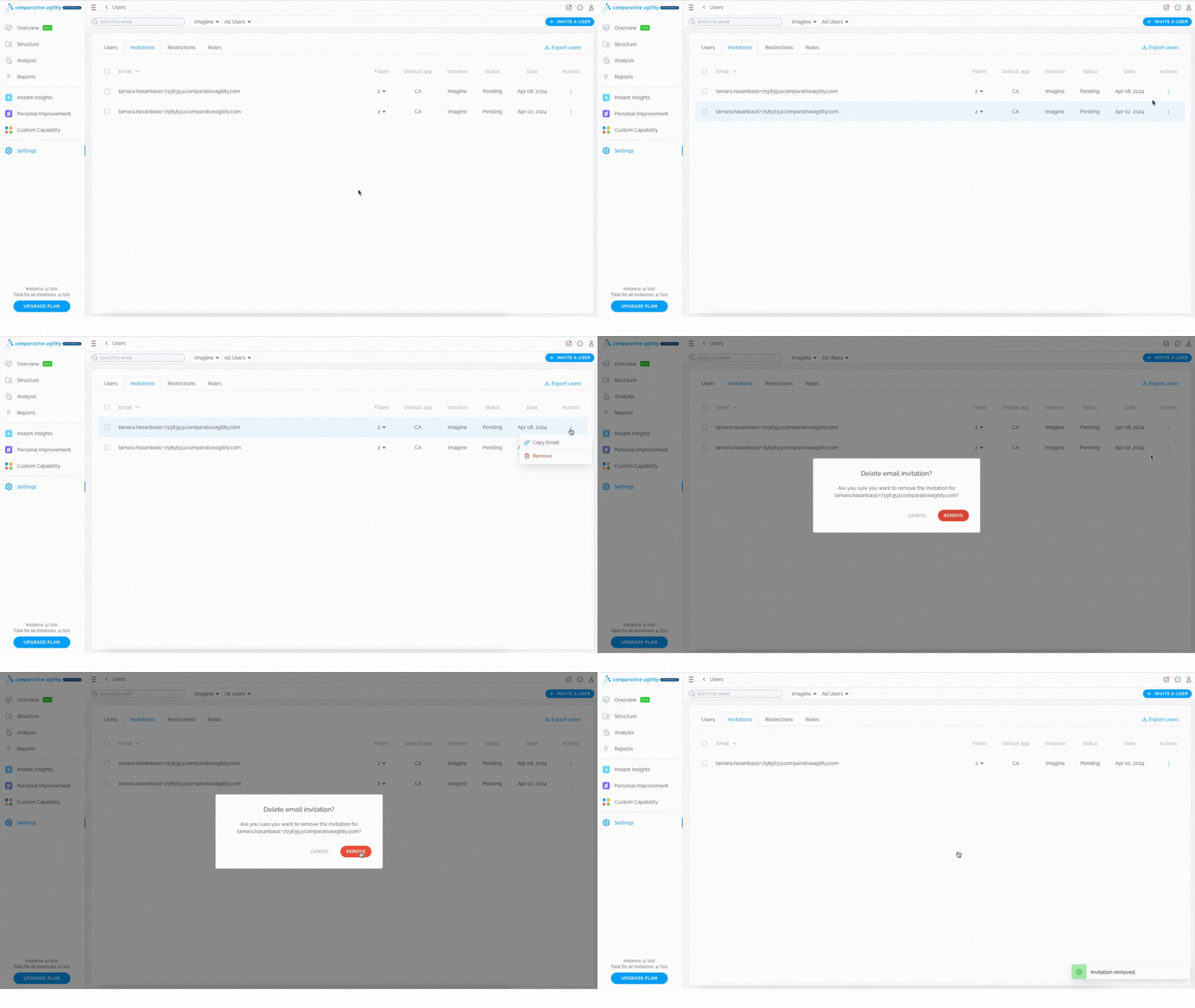
Remove pending invitation
Click on the three dots next to the user
-
Select Remove
In the short video below we show you how to remove pending invitations
-
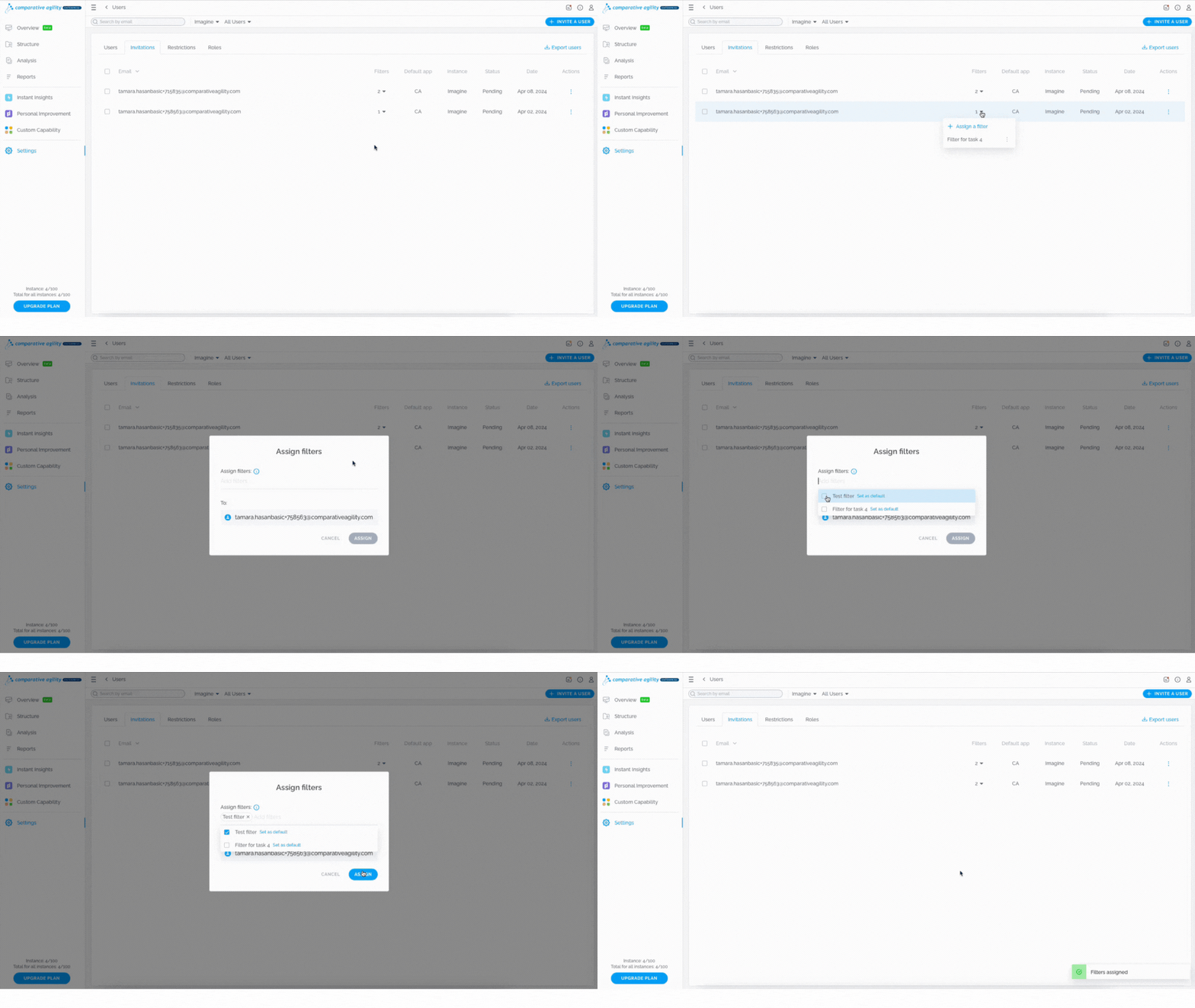
Assign filters
Click on the Assign button
-
Choose from already existing filters that you created
-
Select Assign
The short video below shows you how to assign filters
-
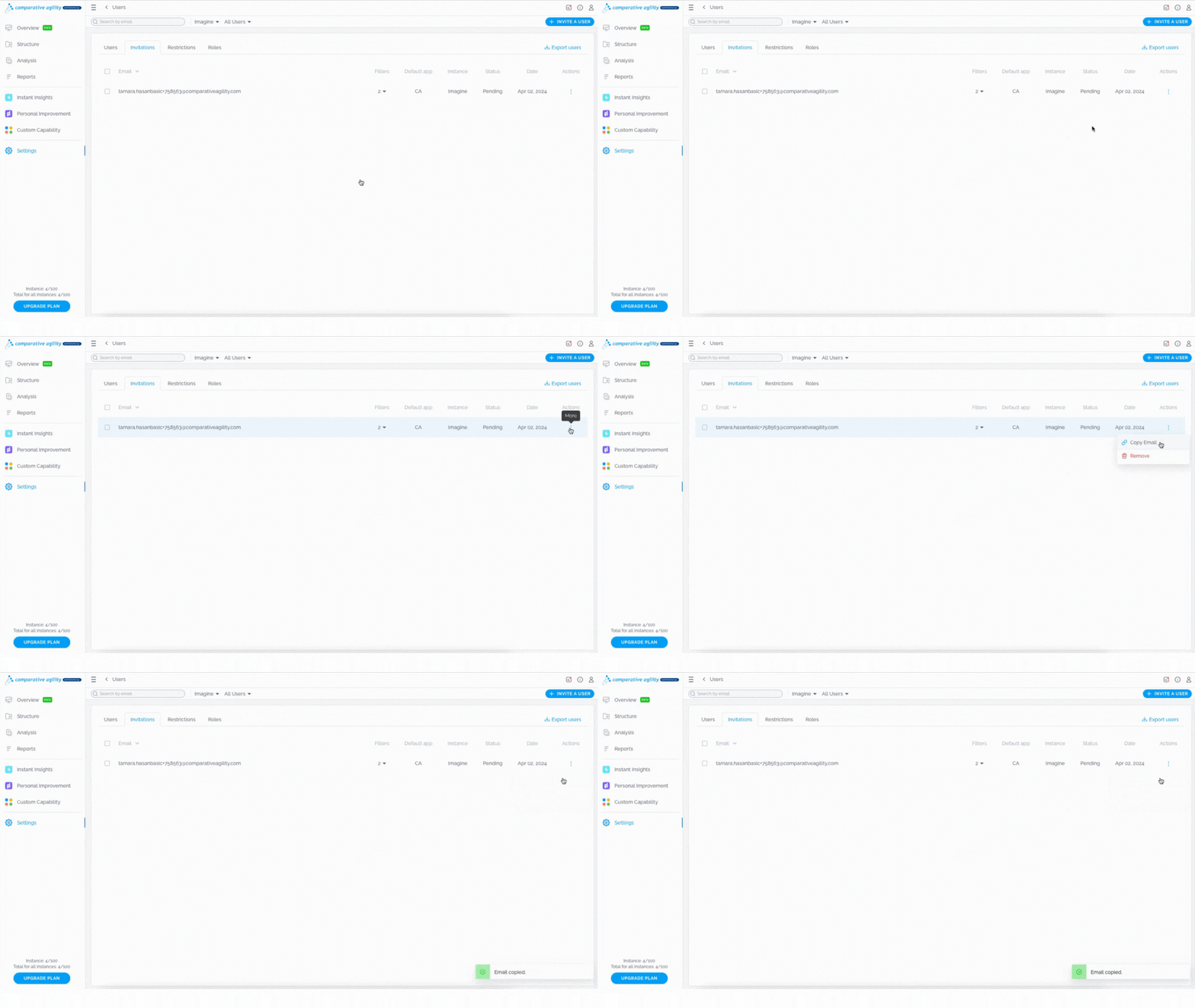
Copy email
Click on the three dots next to the user
-
Select Copy Email
-
Email will be copied to your clipboard
In the short video below we show you how to copy an email
 Restrictions tab
On this tab, you can create restrictions and assign them to the users.
-
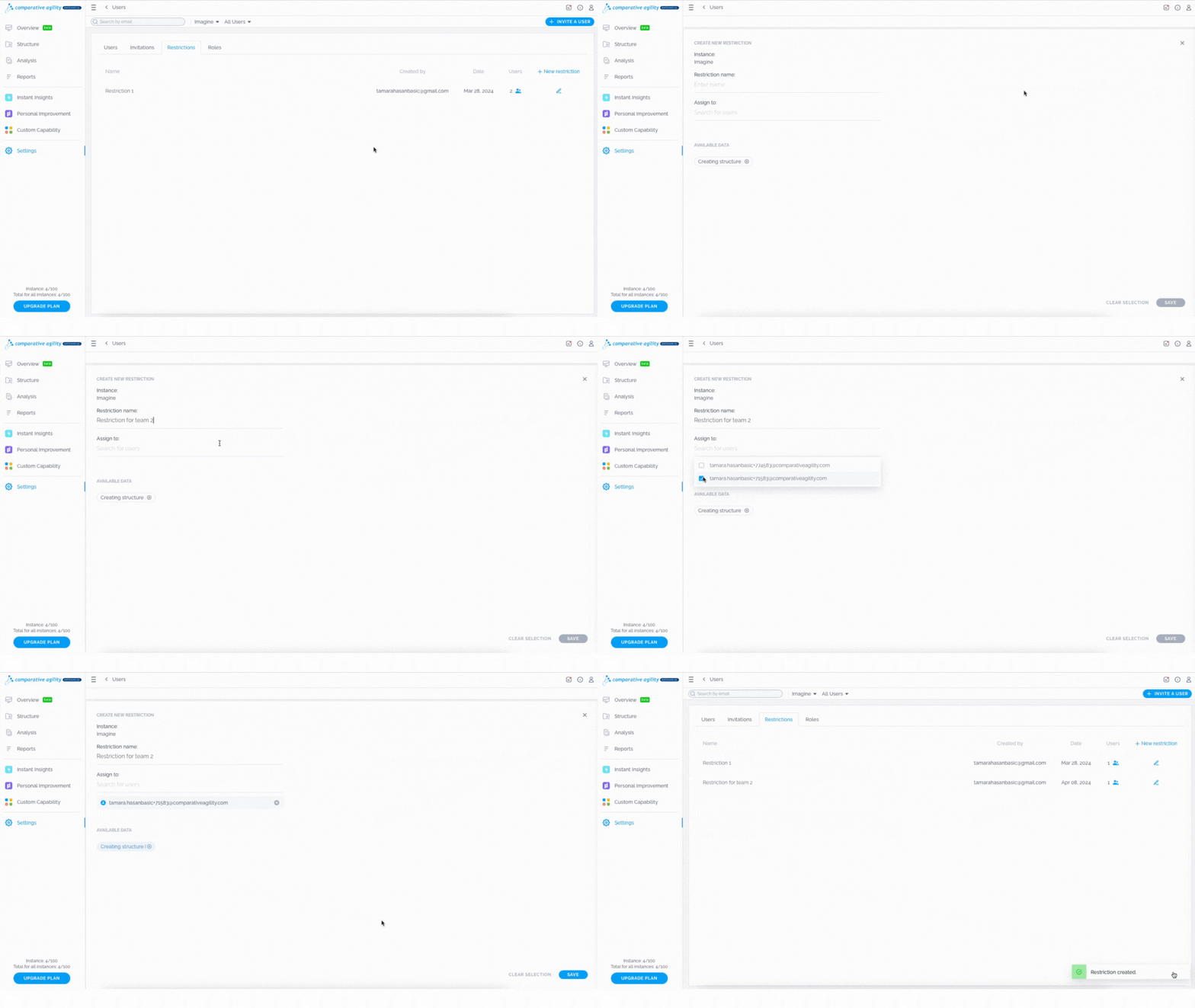
Create New Restriction
Click on New restriction
-
Add Restriction name
-
Assign to a user or users
-
Choose between available data
-
Save
The short video below shows you how to create restrictions and assign them
-
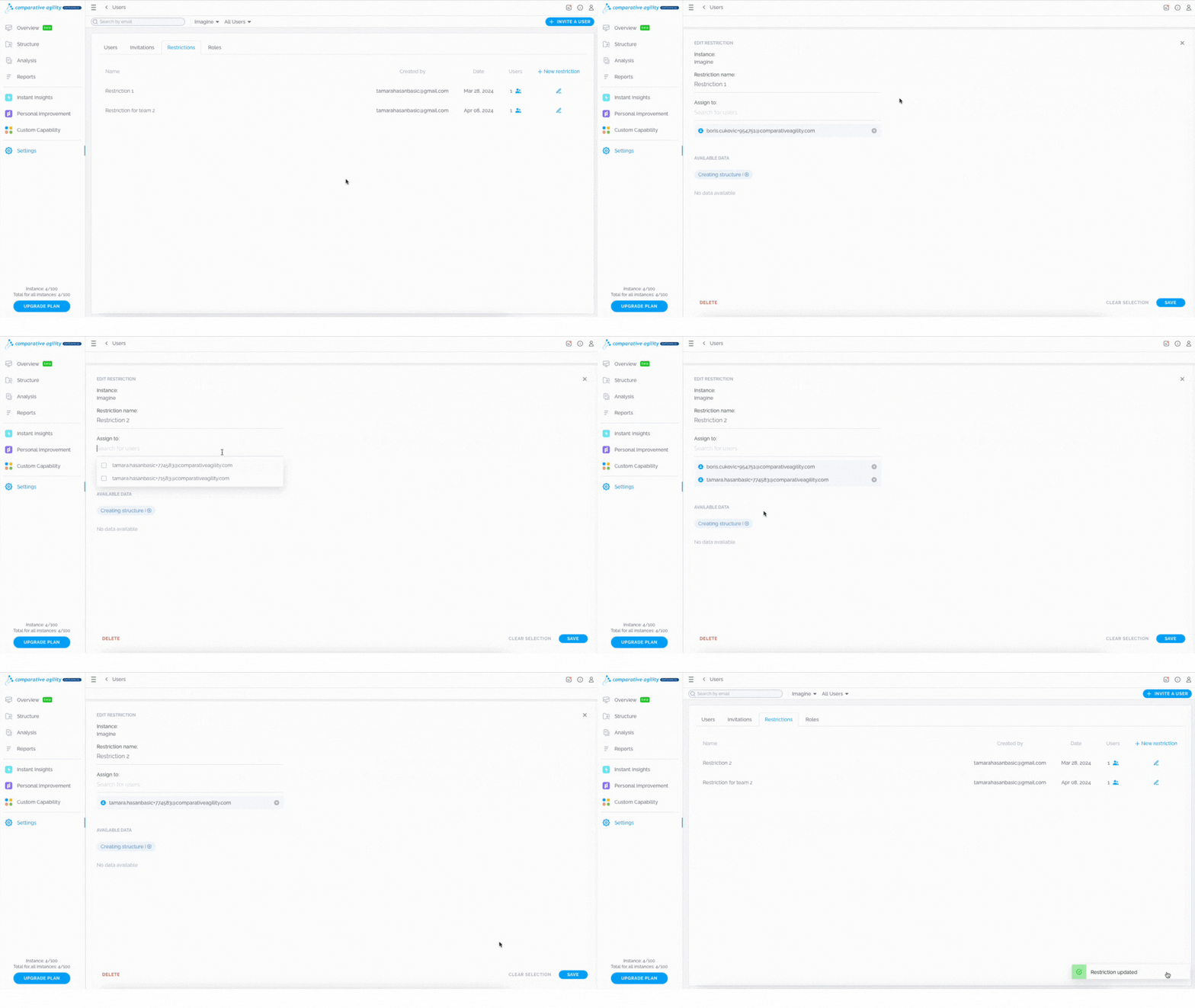
Edit existing restrictions
Click on the Edit button next to the restriction itself
-
Edit the name of the restriction, add/remove the users, and/or change the available data
-
Save
In the short video below we show you how to edit existing restrictions
-
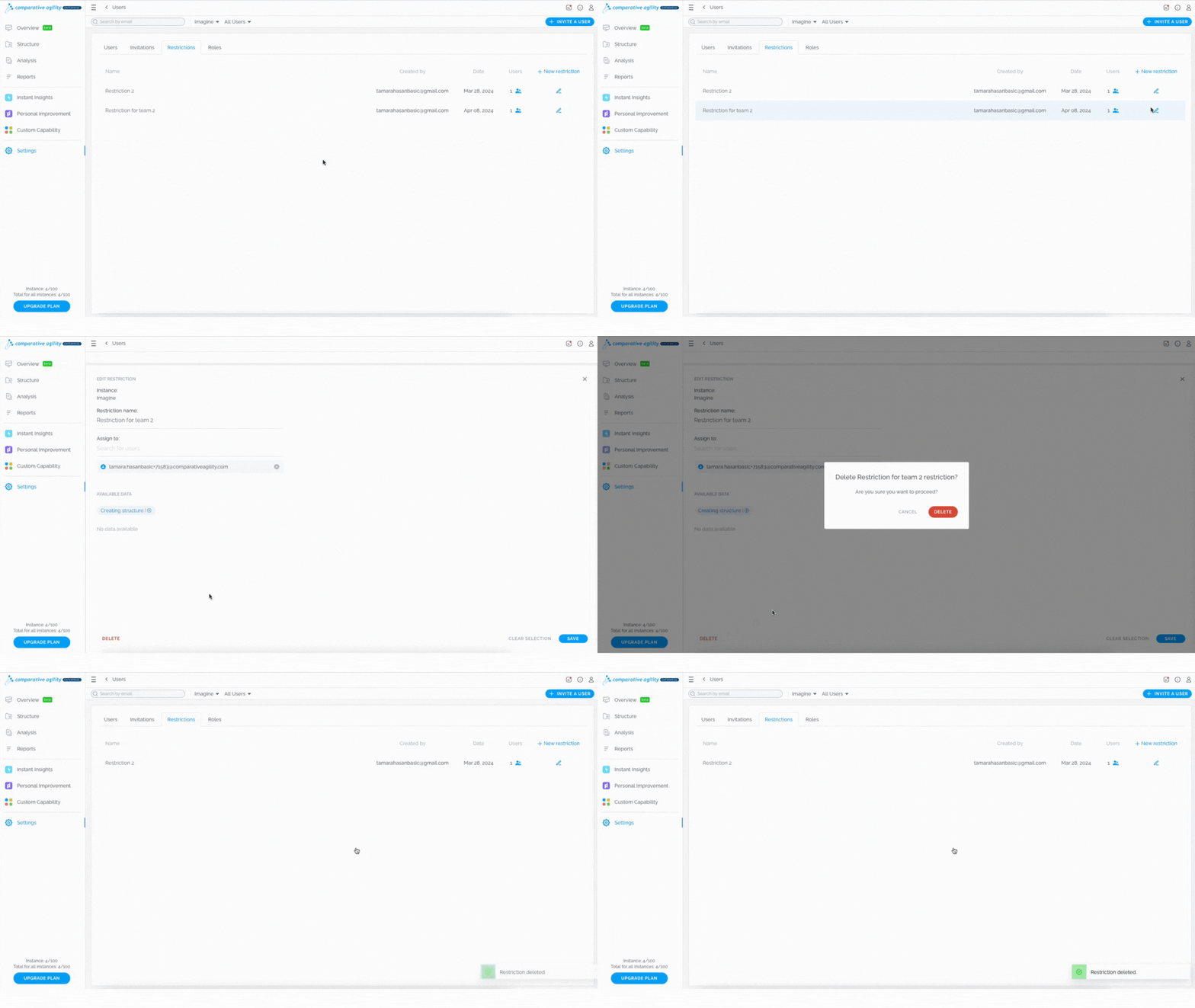
Delete restriction
Click on the Edit button next to the restriction itself
-
Select the Delete button
-
Confirm by clicking on the Delete button one more time
The short video below shows you how to delete a restriction
 Roles tab
The roles tab shows you all the roles that Comparative Agility offers as well as your custom roles. On this tab, you could do a few things:
-
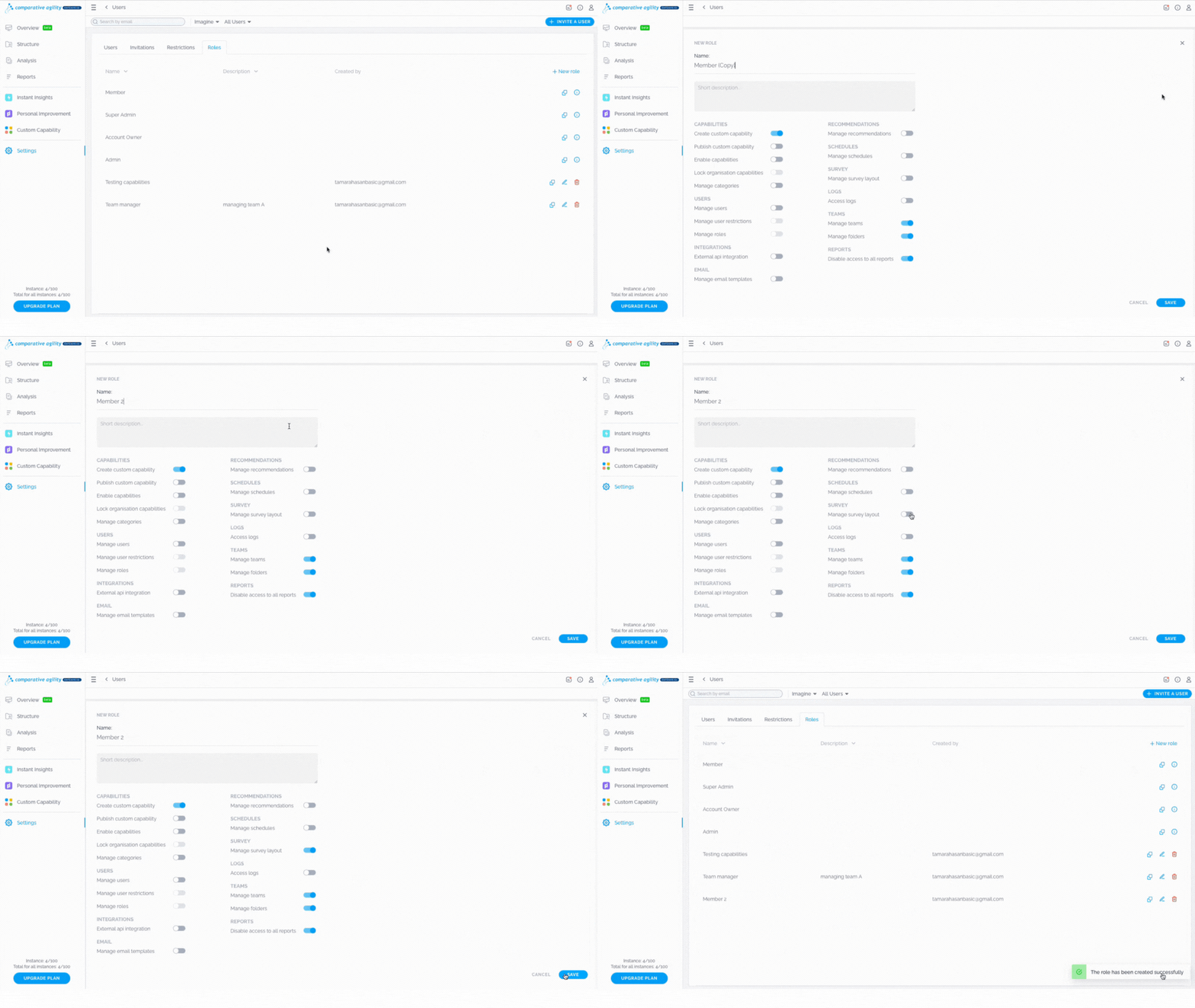
Clone existing role
Locate the Clone icon
-
Rename it
-
Update what that role can do if necessary
-
Save
The short video below shows you how to clone existing role
-
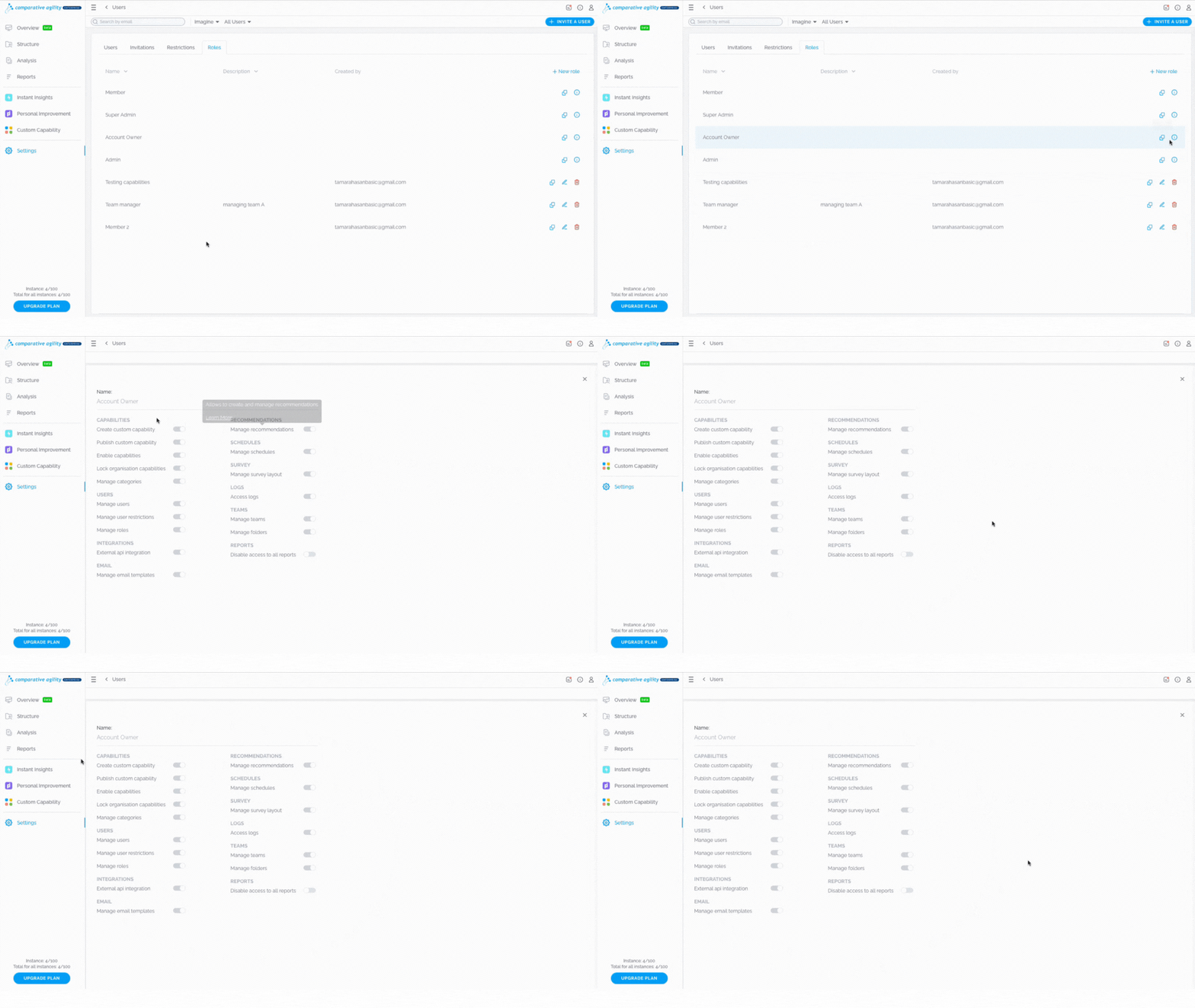
See all the options tied to a specific role
Click on the Info icon
-
All the options that are enabled or disabled will be visible
In the short video below we show you how to see all the options tied to a specific role
-
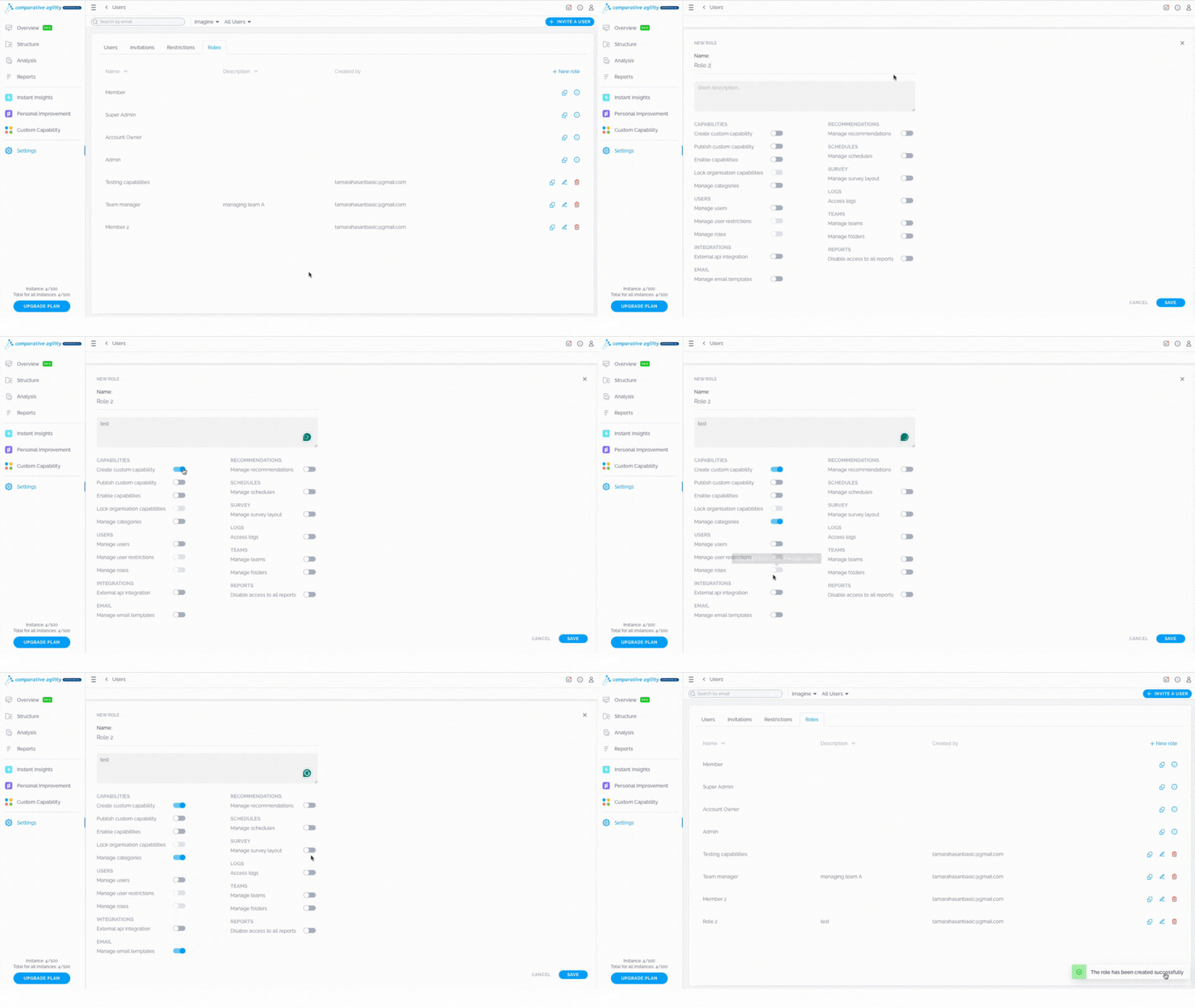
Create New role
Select the New Role button
-
Name it
-
Add description (optional)
-
Enable all the options that you need
-
Save
The short video below shows you how to create a new role
-
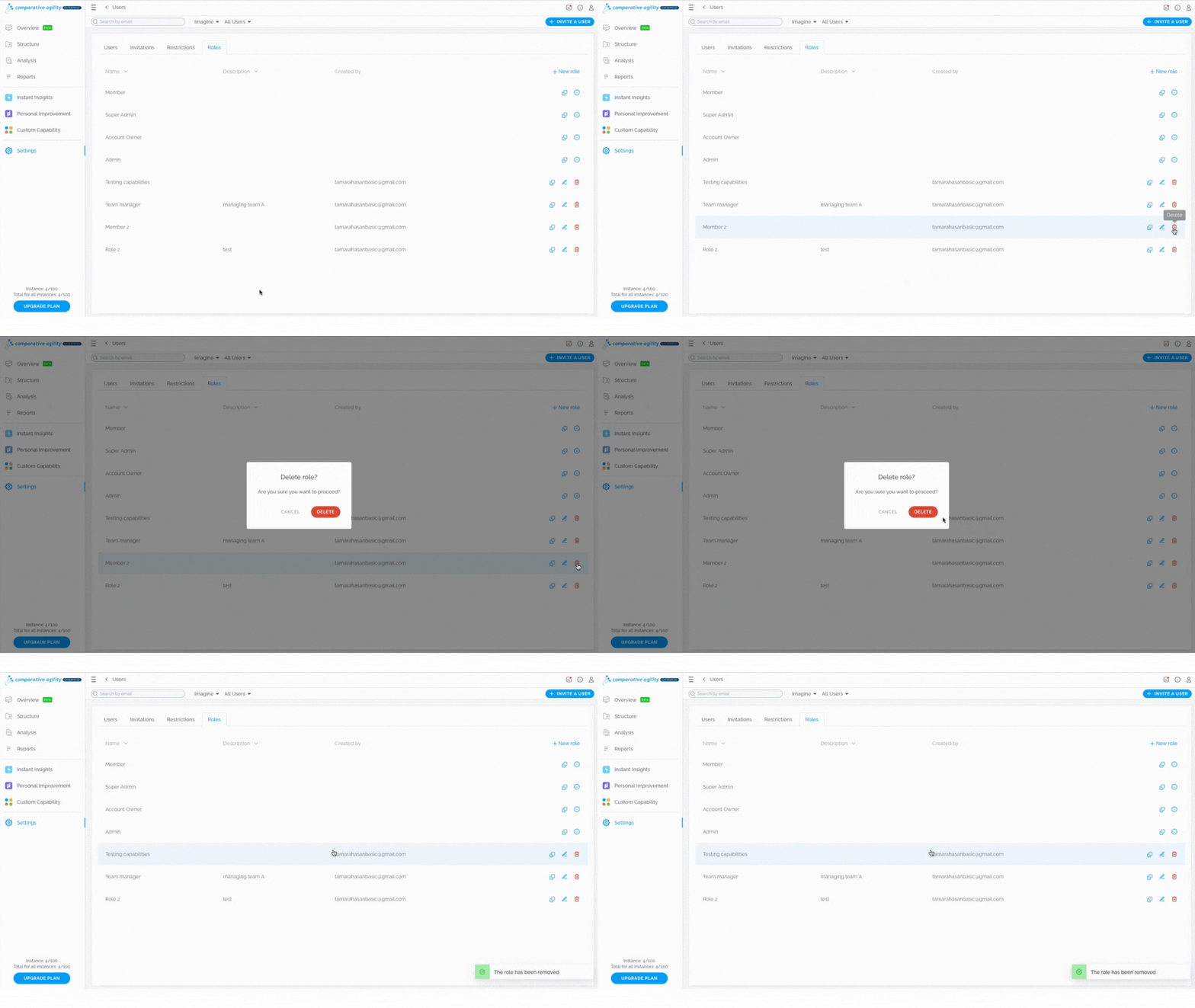
Delete the custom role
Click on the trash icon
-
Select Delete
In the short video below we show you how to delete a custom role
-
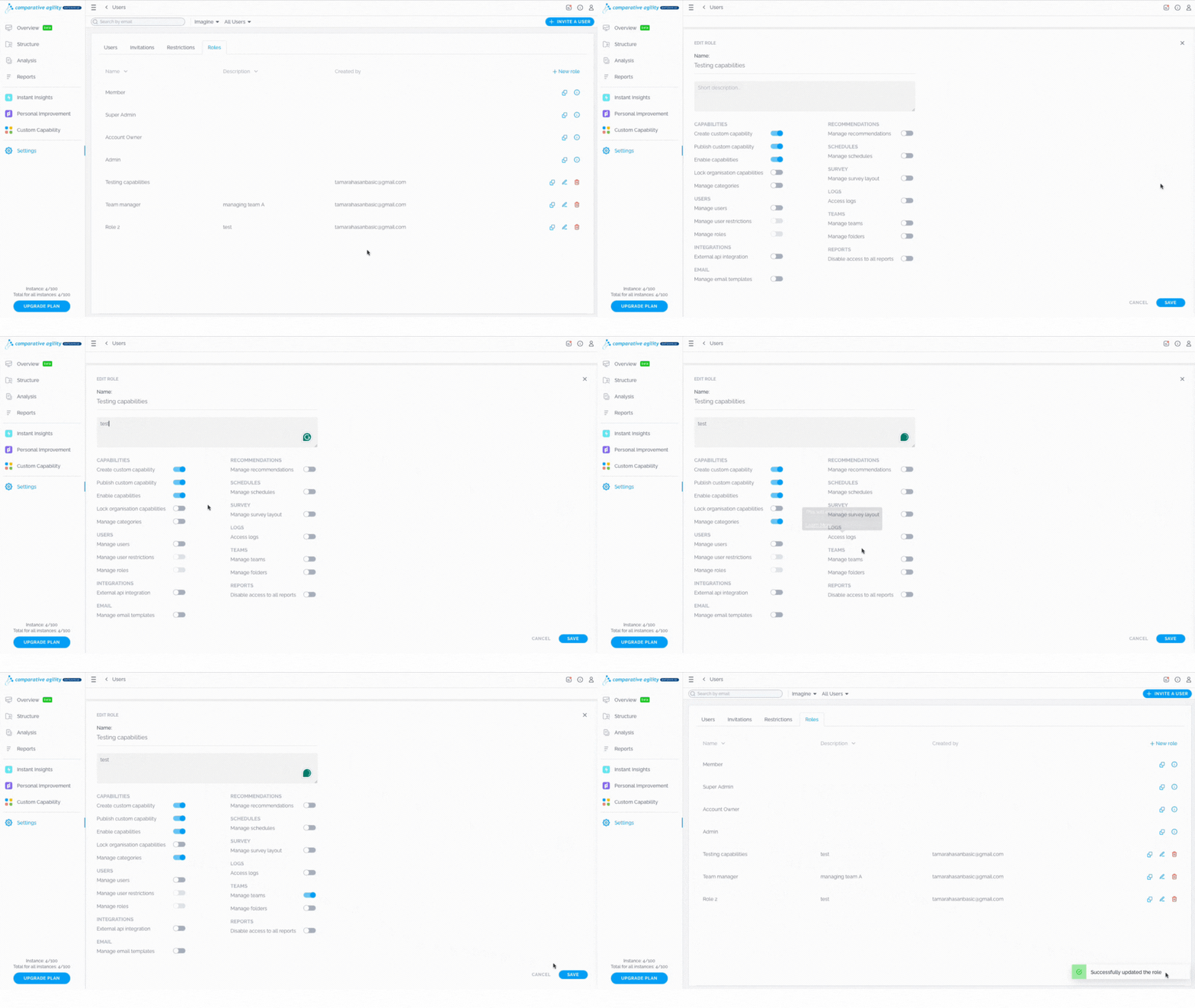
Edit custom role
To edit a custom role, click on the Edit icon
-
Edit name
-
Enable/disable options
-
Save
The short video below shows you how to edit a custom role
To learn more about the custom roles, please visit our Help Center article Custom Roles.
If you ever need any assistance or have any questions please reach out to our support team at support@comparativeagility.comand we will be more than happy to assist you.