
Using Tags In Reports
In this article, we will show you how to utilize, add, and remove tags on your reports. This is a powerful feature as it allows you to easily sort and search for your data.
Navigating to the Reports Screen
- Log in to your Comparative Agility account
- Open Reports
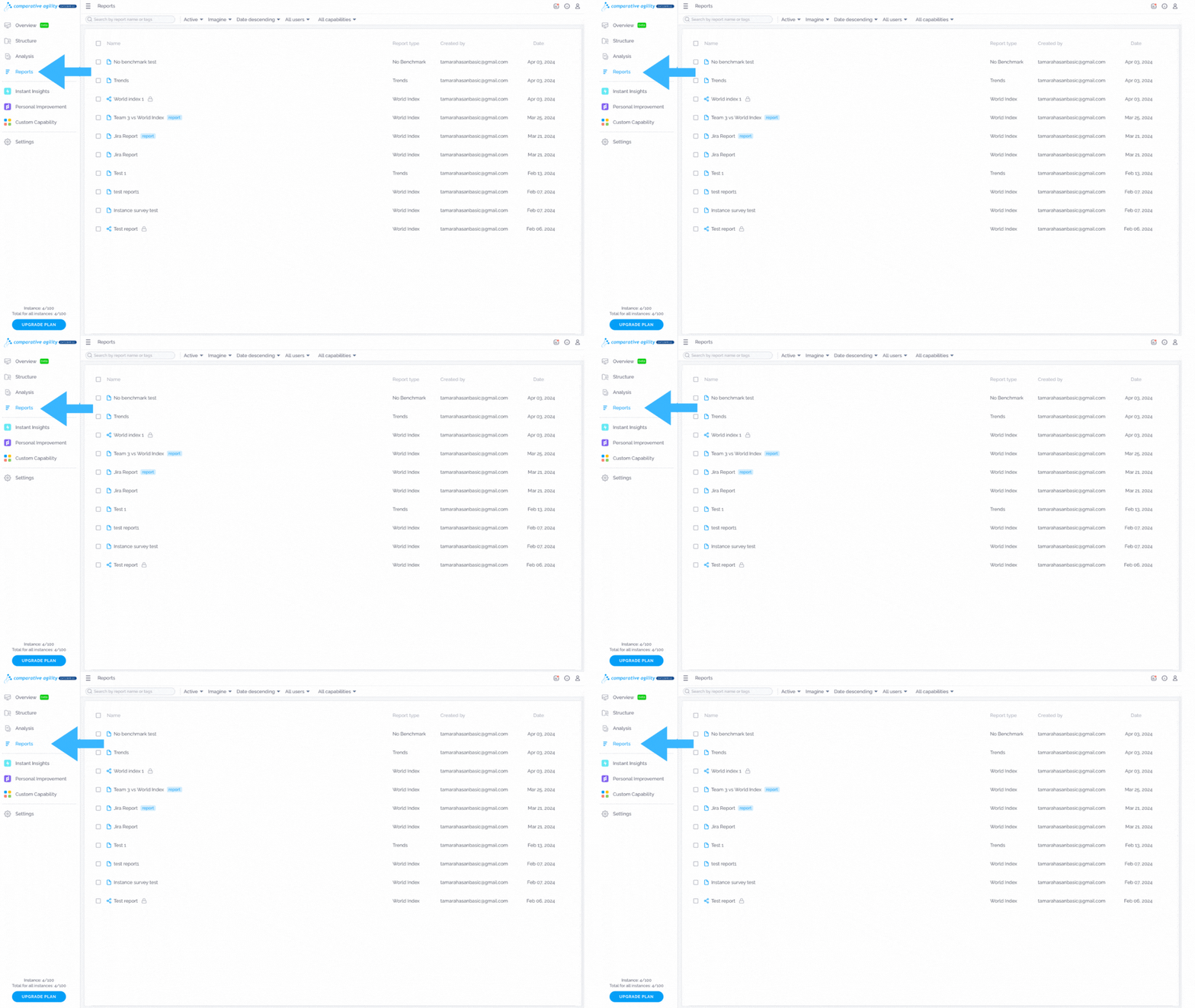
The screenshot below will show you where to find the report screen
Create a tag
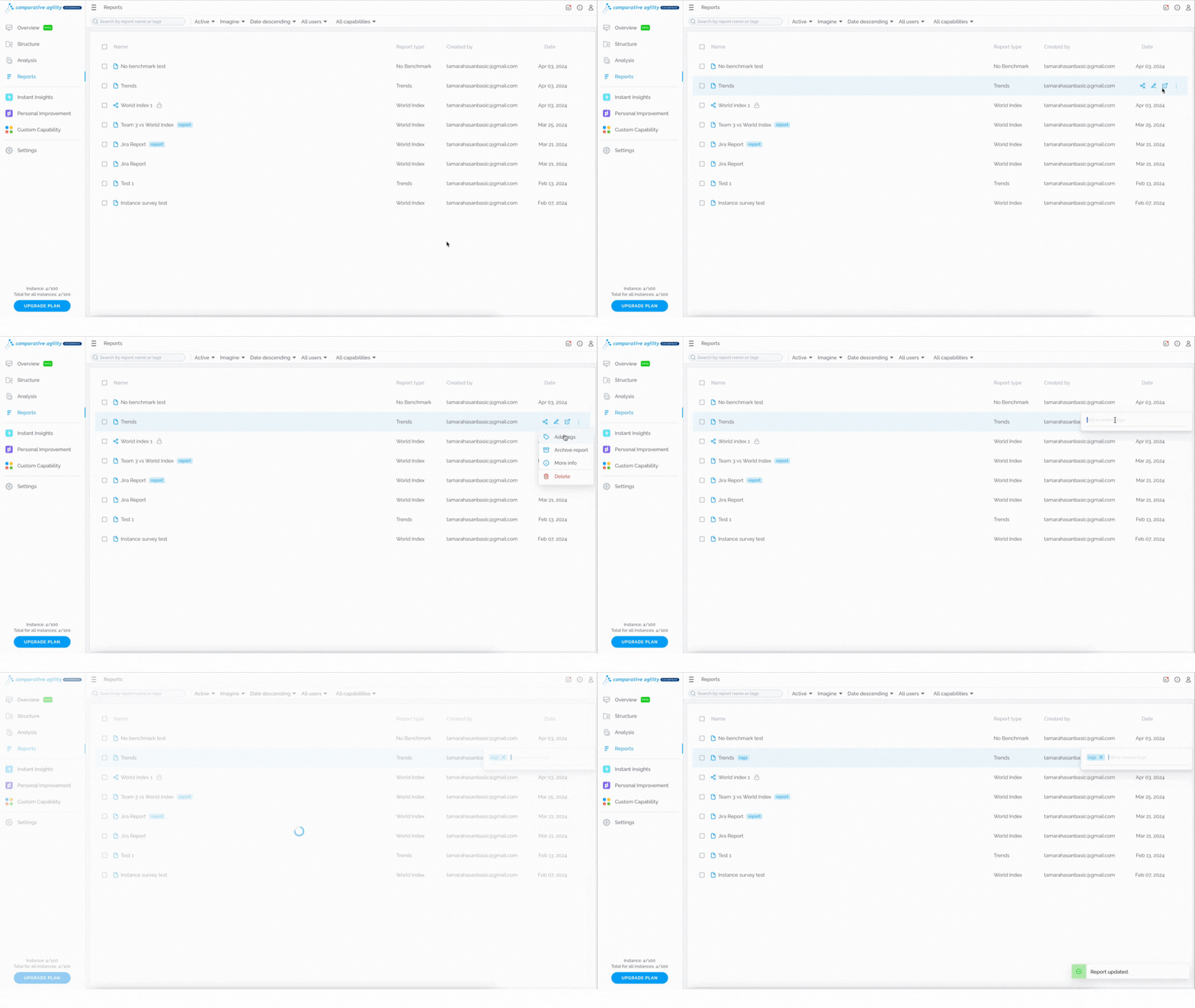
- Locate the desired report
- Click on the three dots (or right-click on the report)
- Select Add tags
- Add a new tag or remove the existing one
- If you add a new tag, click on the Enter button on your keyboard
In the video below we show you how to create a tag
 Search by tags
This feature allows you to easily sort and search for your data.
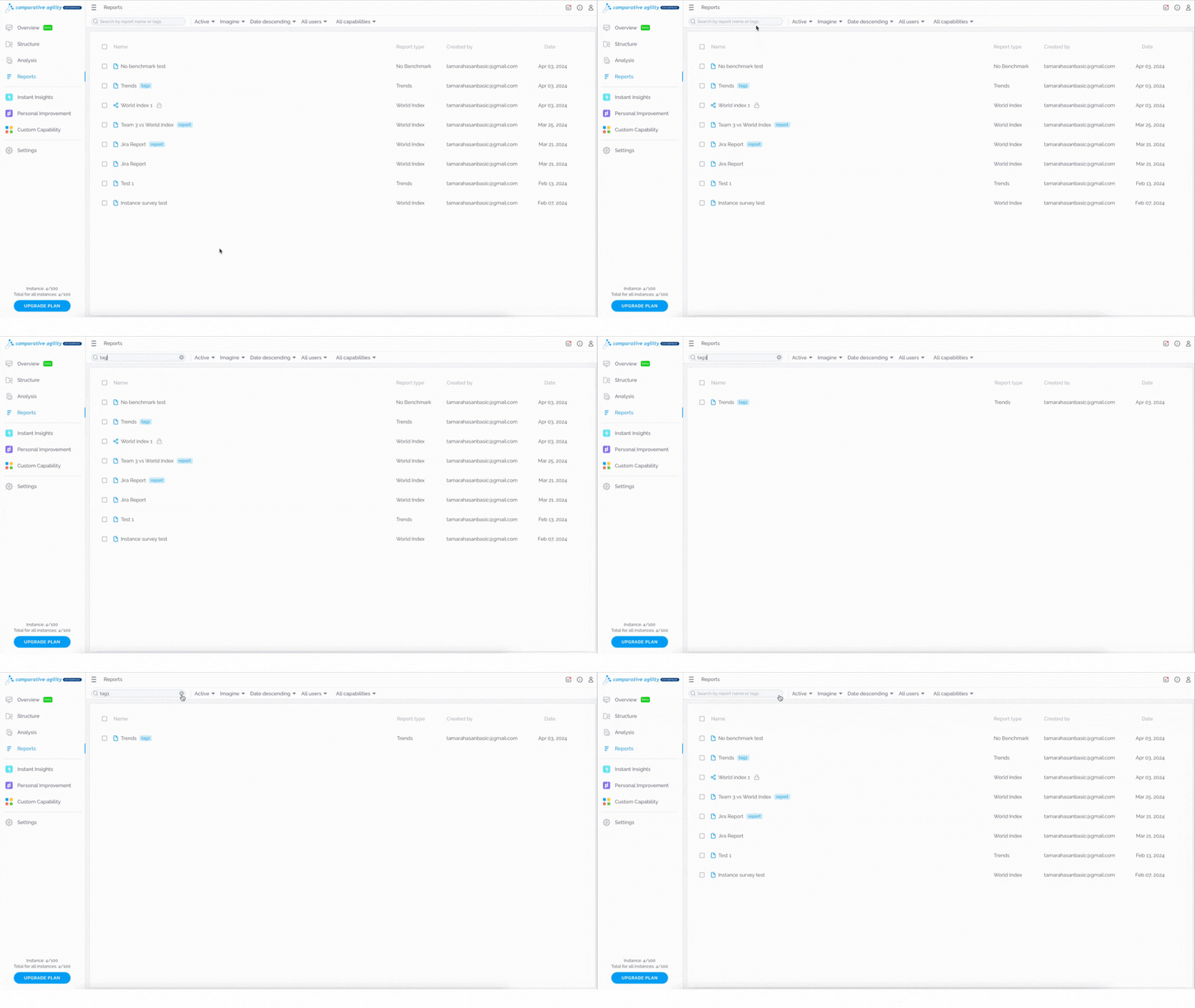
- Navigate to the Search bar
- Search report by nameortags
The short video below shows you how to search for a report
 Delete a tag
If you would like to delete a tag, simply:
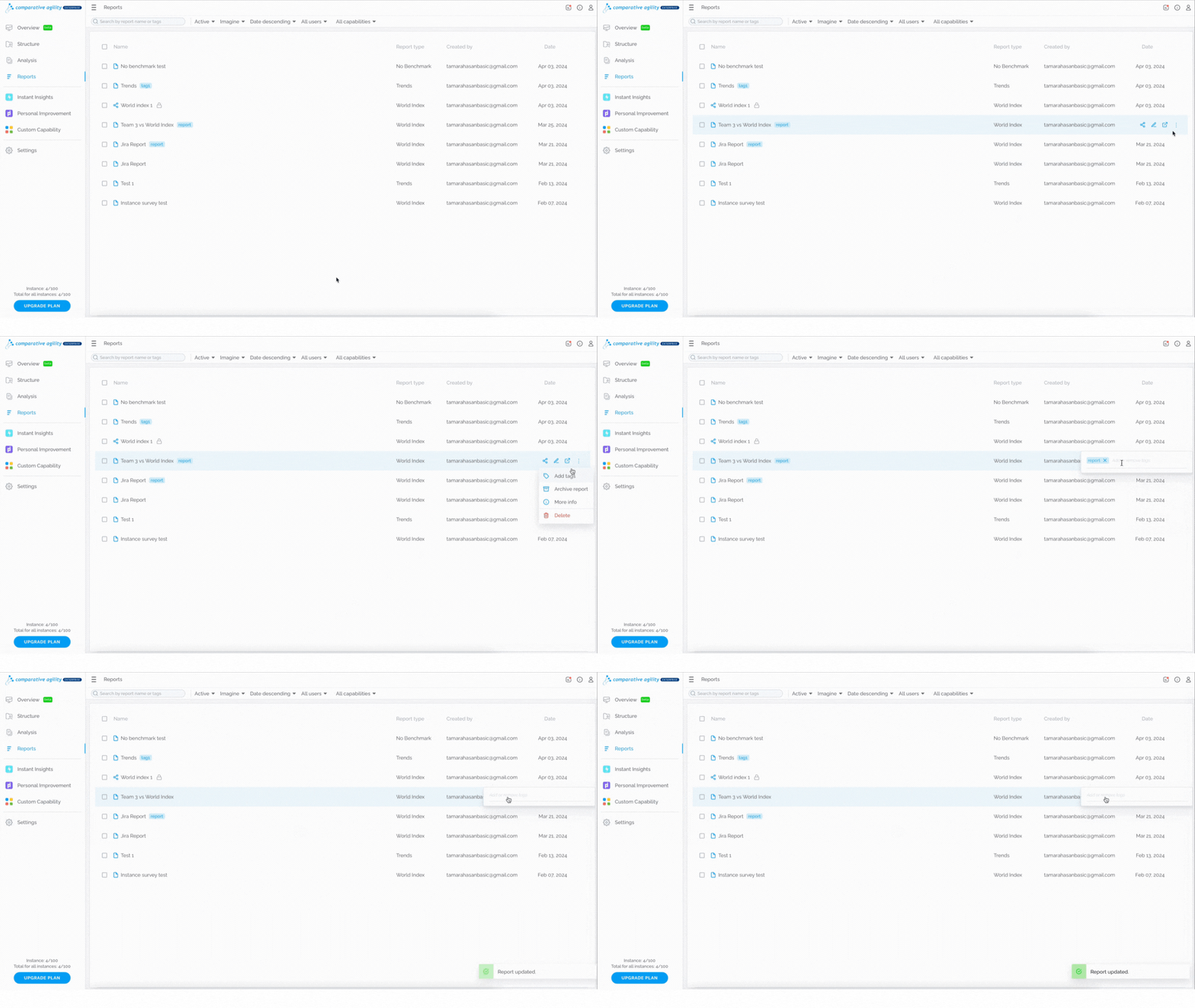
- Locate the desired report
- Click on the three dots (or right-click on the report)
- Navigate to the x icon next to the specific tag
- Your tags will be deleted instantly
In the short video below we show you how to delete a tag
 To learn more about managing reports, please visit our Help Center article Reports Screen.
If you ever need any assistance or have any questions please reach out to our support team at support@comparativeagility.comand we will be more than happy to assist you.