
Managing Users in Account Settings
Overview
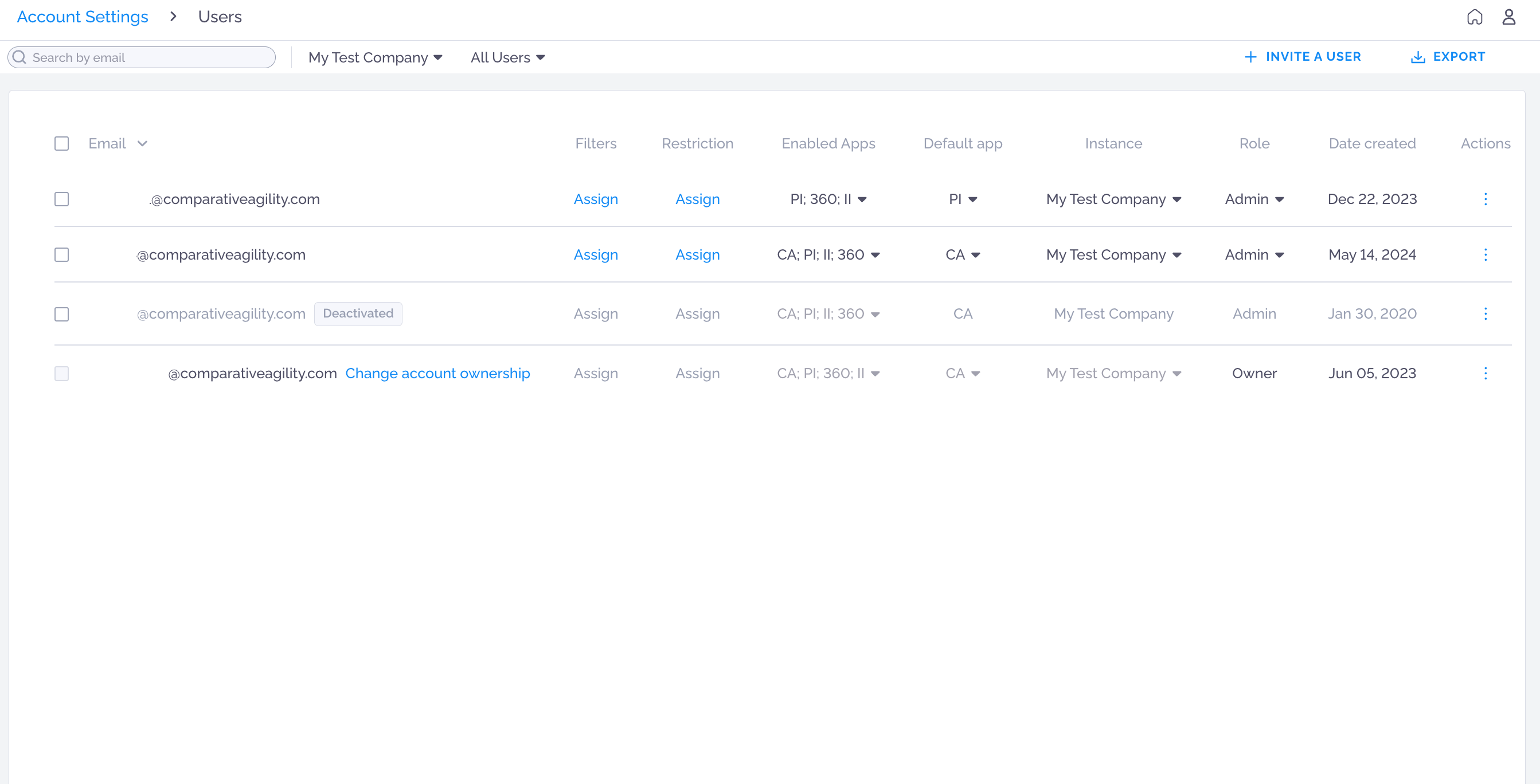
Section titled “Overview”The Settings > Account Settings > Users page is your central hub for managing all users within your Comparative Agility organization. From here, administrators and account owners can invite new users, configure their app access, assign roles and restrictions, and manage existing user accounts.
Managing Users
Section titled “Managing Users”The main area of the page displays all users in your account as a table. Each row represents one user and contains the following columns:
Email — The user’s email address, which serves as their unique identifier and login credential. A sort indicator (↓) appears next to this column, allowing you to sort the list alphabetically. Some users may display a special inline link such as “Change account ownership” directly next to their email.
Filters — Shows whether structural filters have been assigned to this user. If no filter has been set, an “Assign” link appears in blue, allowing you to quickly assign one from this view.
Restriction — Displays the data restriction applied to the user, controlling what data they are permitted to see. If no restriction has been assigned, an “Assign” link appears in blue for quick access.
Enabled Apps — Lists all applications the user currently has access to (e.g., PI, 360, II, CA). A dropdown arrow (▼) allows you to change their app access directly from this column without opening the full user settings.
Default App — Shows which application opens by default when this user logs in. A dropdown arrow (▼) lets you change the default app inline.
Instance — Indicates which organizational instance (e.g., “My Test Company”) the user belongs to. This can also be changed via its dropdown (▼).
Role — Displays the user’s current permission level (e.g., Admin, Owner). The role can be changed inline via the dropdown (▼). Roles determine what actions the user can perform within the platform.
Date Created — The date the user account was first created in the platform.
Actions — A three-dot menu (⋮) at the far right of each row provides following additional options for managing that user:
- Activate / Deactivate User
- Copy email address