
Customize your Surveys
In this article, we will be showing you how to customize your survey layout in Comparative Agility. There are 3 customization options: Survey Mode, Survey Format, and Survey Message. This is a powerful feature for fighting survey fatigue and making the survey-taking experience much more interesting for the respondents.
Navigating to the Survey layout Screen
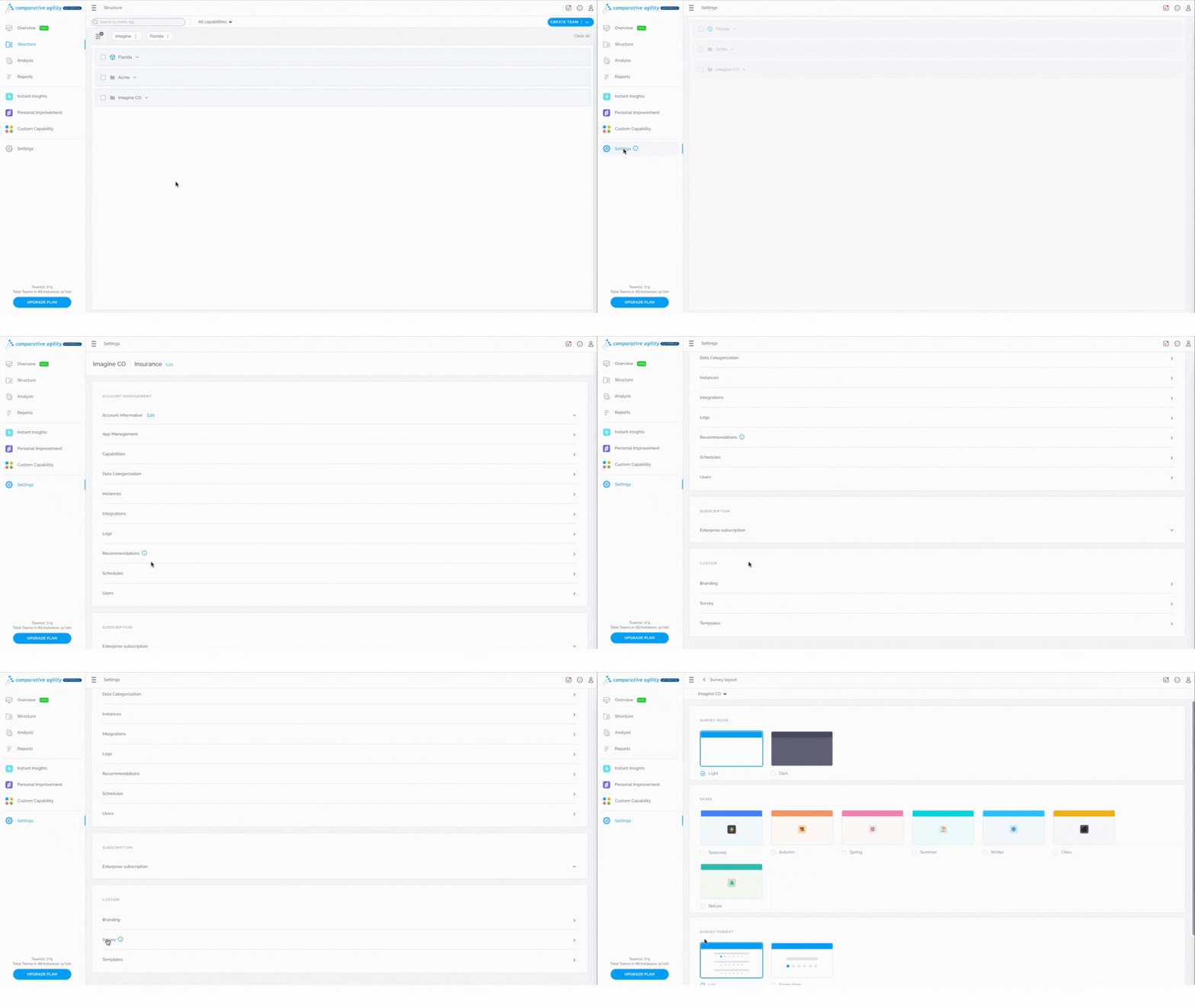
- Navigate to the Settings menu
- Select Survey under the Customsection
The short video below shows how to navigate to the Survey layout in Comparative Agility
Survey mode
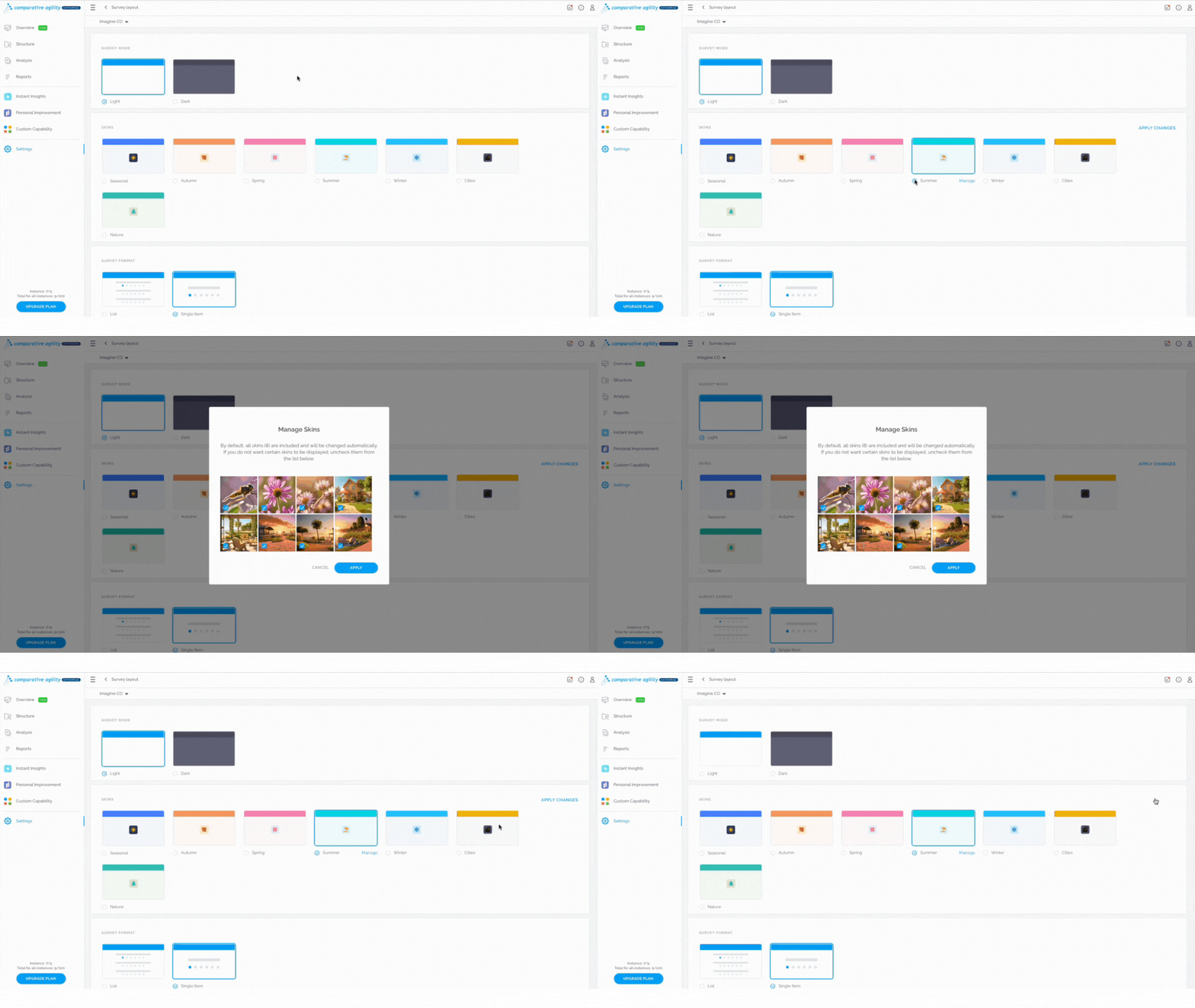
To make your Survey look more compelling, you can choose from a variety of modes in Comparative Agility. Aside from the classic Light and Dark modes, you are also able to select Skins. To do this click on your selection under **Survey mode,**and save your decision by clicking on Apply Changes.
In the short video below we show you how to enable seasonal skins for your survey
Survey format
There are two formats in Comparative Agility, List and Single item. The survey format can be changed in two different places in Comparative Agility; in Settings under Survey and on the Team level.
-
Making changes through settings
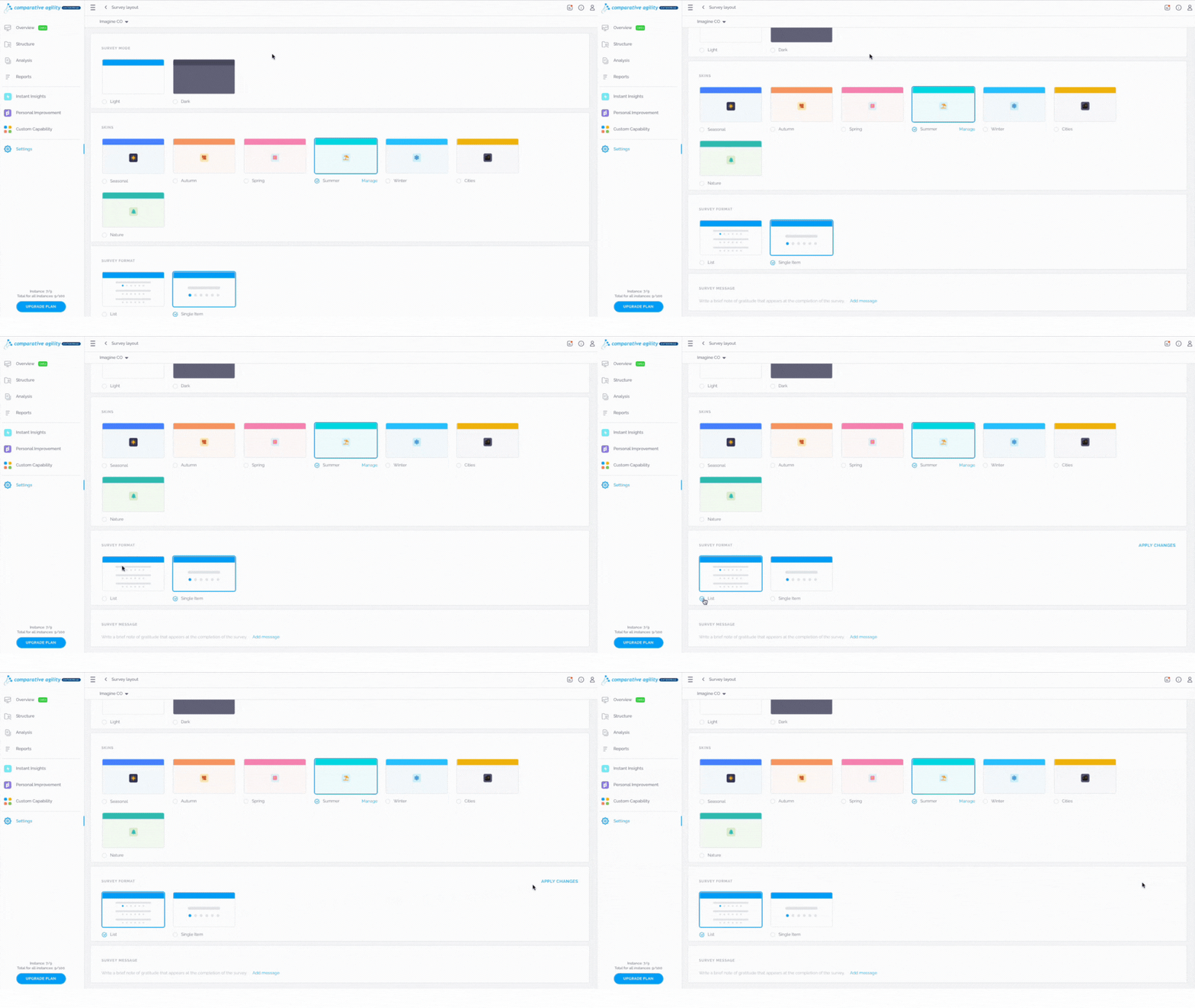
Locate the Survey Format section
-
Choose between the two formats
-
Proceed with the Apply Changes button
In the short video below we show you how to change your survey format in the Settings screen
-
Making changes from the Structure screen
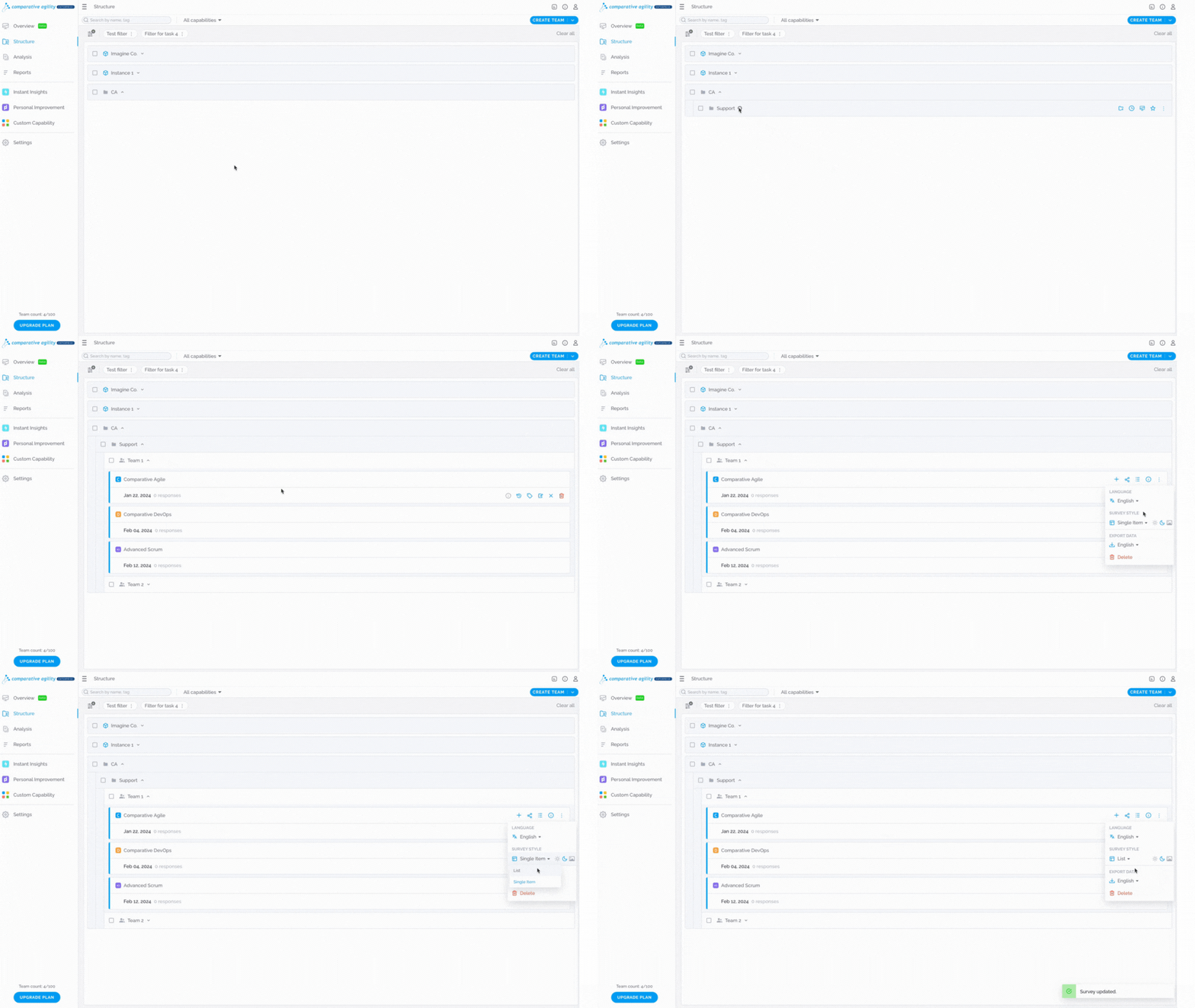
Navigate to the team where the survey is added
-
Select More
-
In the dropdown menu choose the preferred format
The short video below shows you how to change the Survey format in the Structure screen
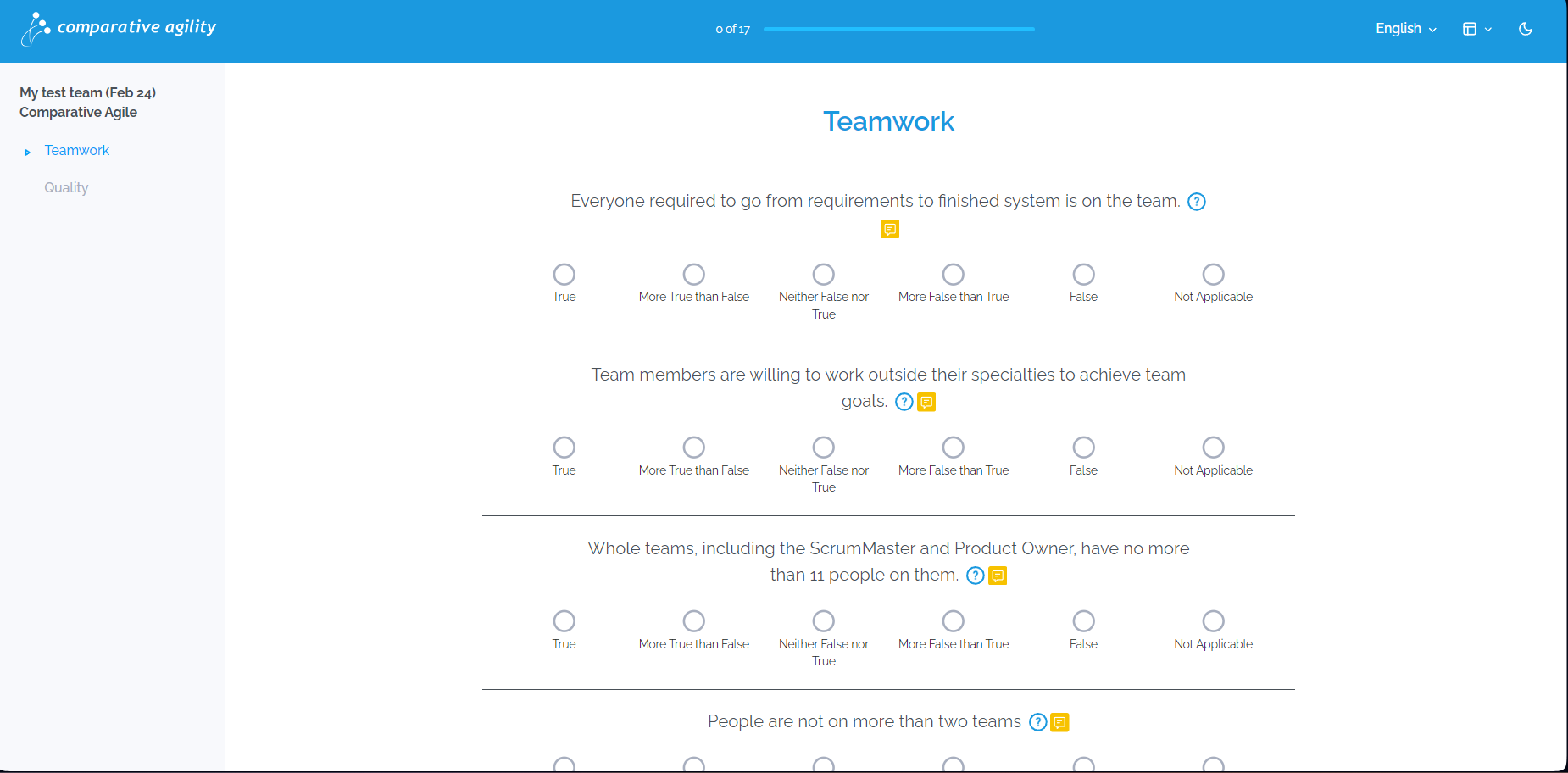
In the screenshot below we show you how the List View survey format looks when applied to a survey
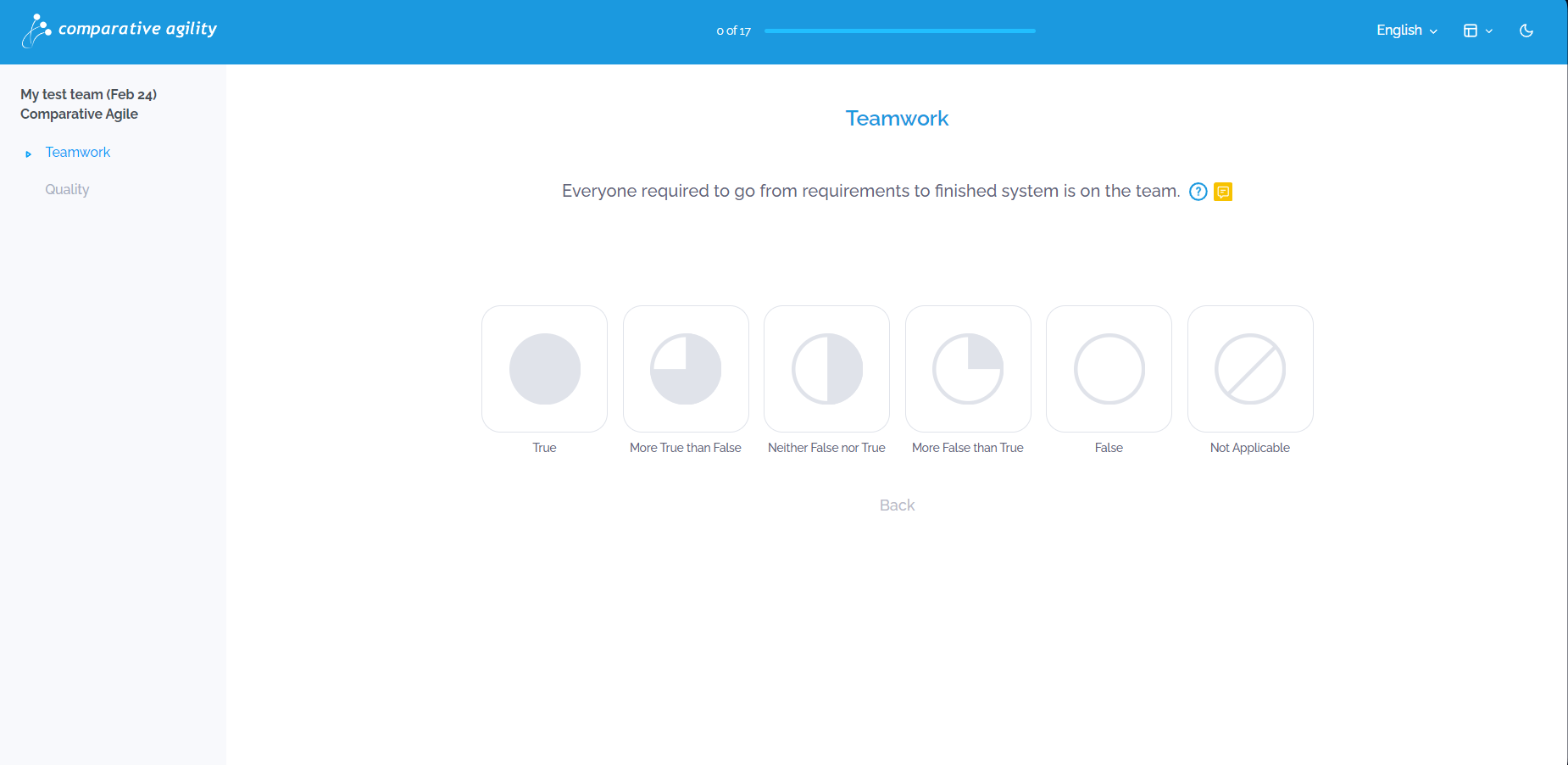
The screenshot below shows you how the Single Item survey format looks when applied to a survey
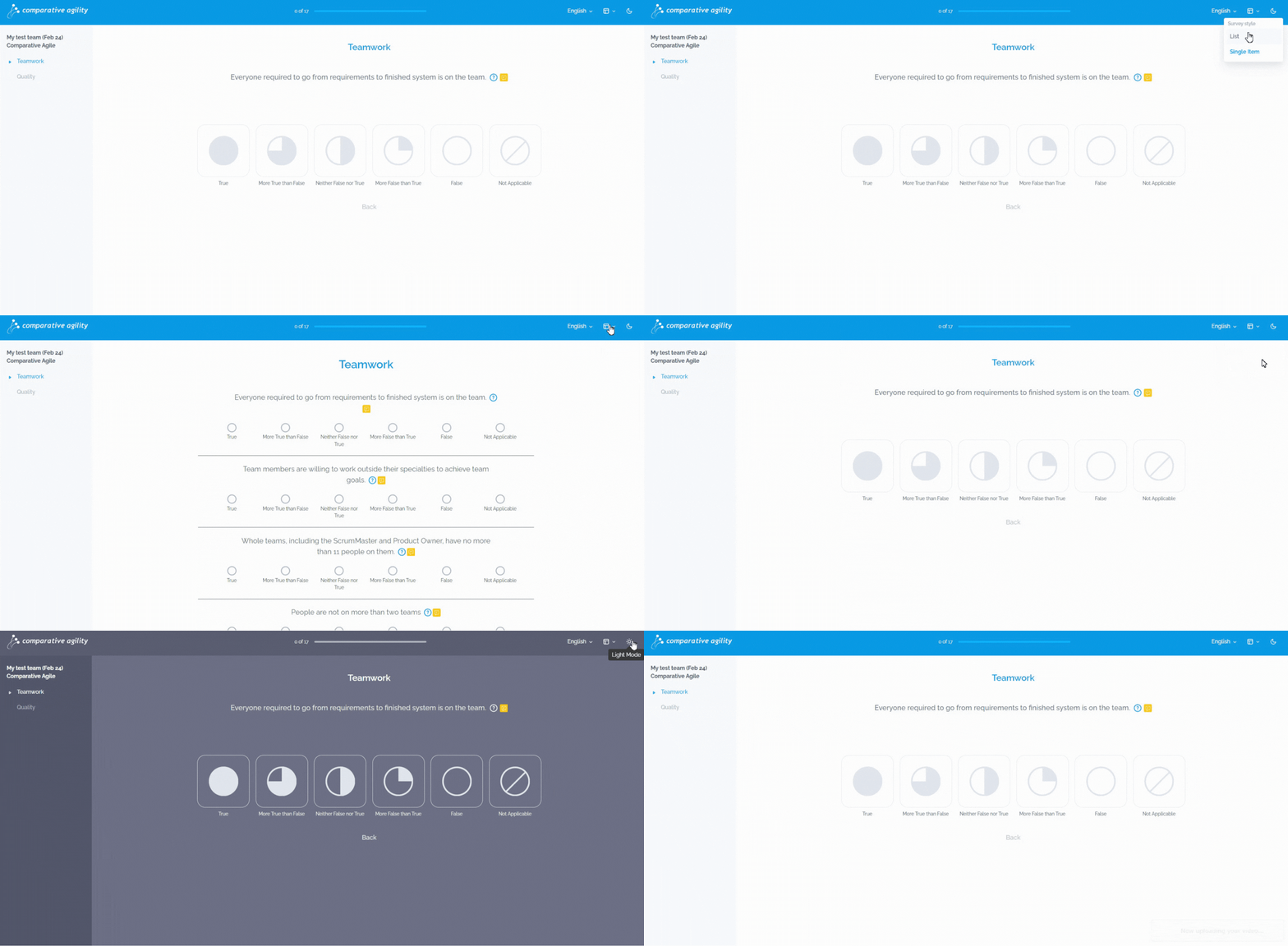
Note: Survey layout and the Dark and Light mode can be additionally changed by the respondents while taking the survey.
In the short video below we show you how to Change the Survey layout and choose between Dark or Light mode during the survey
Survey Message
If you would like to write a brief note of gratitude that appears at the completion of the Survey, simply:
- Under the Survey message section type your desired text
- Proceed with Saving the changes
The short video below shows you how to add a message at the end of your surveys
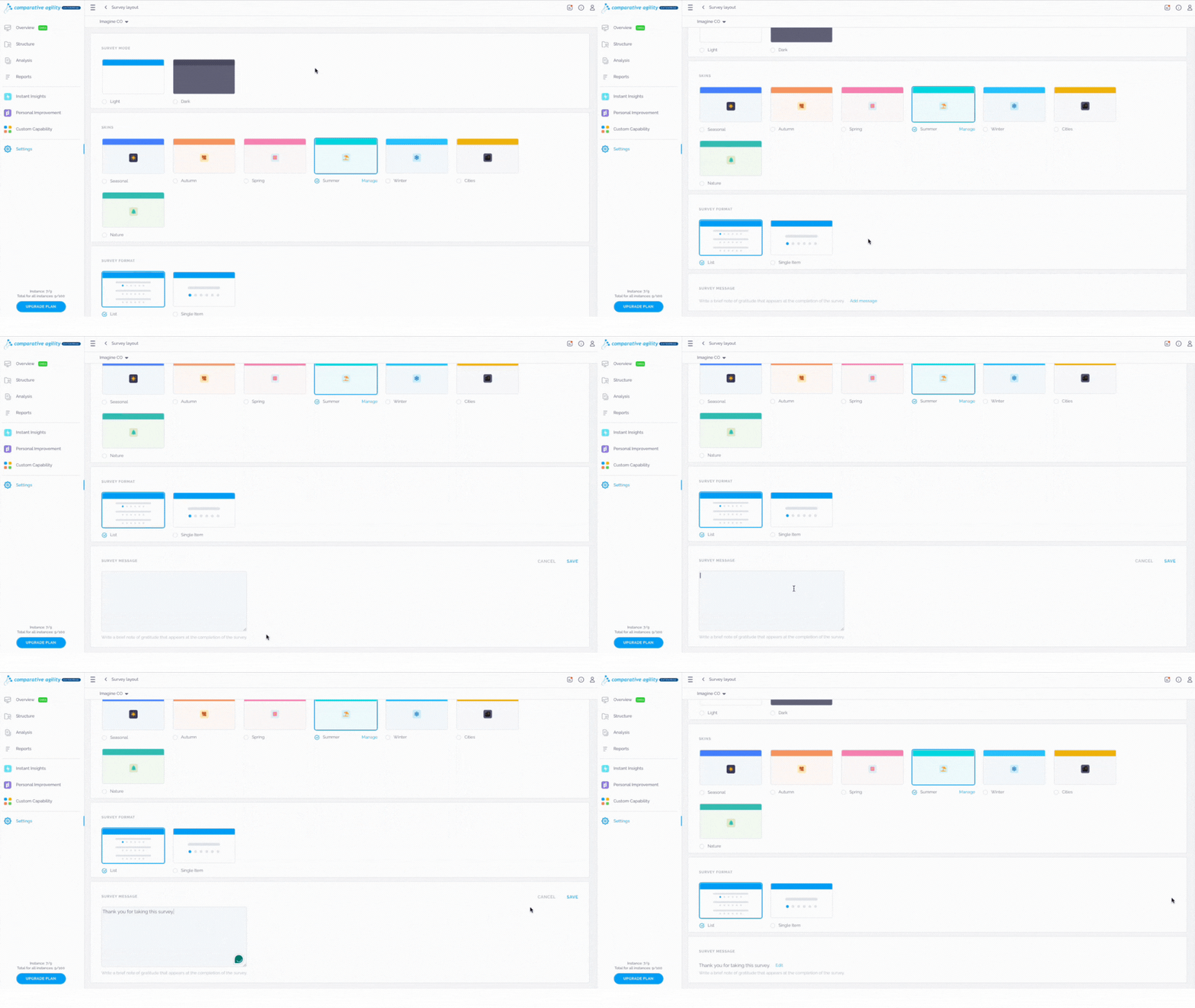
In the screenshot below we show you how the message will appear at the end of the survey

Note: Please remember that after any change you make, you need to click on Apply Changes. Otherwise, your customization will not be saved.
If you ever need any assistance or have any questions please reach out to our support team at support@comparativeagility.comand we will be more than happy to assist you.