
Managing Capabilites
Managing capabilities in Comparative Agility allows you to customize and fine-tune your assessment process according to your organization’s needs. This article provides a comprehensive guide on how to manage capabilities effectively.
Content
Section titled “Content”- Capabilities Screen
- Enabling or Disabling Capabilities
- Data Categories
- Apply Maturity Frameworks
- Configure Capability
- Create New from Template
- Preview Statements
- Exploring Capability Details
- Download Questions
- Export data
Navigating to the Capabilities Screen
Section titled “Navigating to the Capabilities Screen”- Open Settings
- Click on Capabilities
In the short video below we show you how to navigate to the Capabilities Screen
*### Enabling or Disabling Capabilities
To differentiate enabled and disabled capabilities, enabled ones will be indicated by a blue color, while disabled capabilities will be grayed out.
The short video below shows you how to enable/disable capabilities
**Note:**Only enabled capabilities will be seen when you want to add a new survey and send it out.
Data Categories
Section titled “Data Categories”The Data Categories allow survey creators to define categories like location, preference, or role when setting up a survey. If you would like to include Data Categories into a specific capability, simply enable the ones you prefer.
In the screenshot below we show you how to add categories to the specific capability
To learn more about data categories, please visit our Help Center article Creating and Managing Data Categories.
Maturity Framework
Section titled “Maturity Framework”The maturity framework offers a structured approach to assess and track team progress. By defining and visualizing maturity levels, teams gain a clearer understanding of their capabilities and areas for improvement.
The screenshot below shows you where to find the Maturity Framework option
To learn more about it, please visit our Help Center article Maturity Framework.
Configure Capability
Section titled “Configure Capability”With this option, you will be able to edit a specific capability based on your preferences. Whether you would like to select/deselect statements, edit recommendations, enable/disable categories, and much more, everything can be done from one screen.
In the screenshot below we show you where to find the Select Statements option
To learn more about the possibilities on this screen, please visit our Help Center article Configure Capability.
Create New from Template
Section titled “Create New from Template”Comparative Agility gives you the option to create new capabilities from a specific capability template.
The screenshot below shows you where to find the Create New from Template option
Preview Statements
Section titled “Preview Statements”The Preview Statements section is the screen where you can view information regarding your survey in an easy and intuitive way.
In the screenshot below we show you where to find the Preview Statements option
To learn more about this option, please visit our Help Center article Preview Statements Screen.
Exploring Capability Details
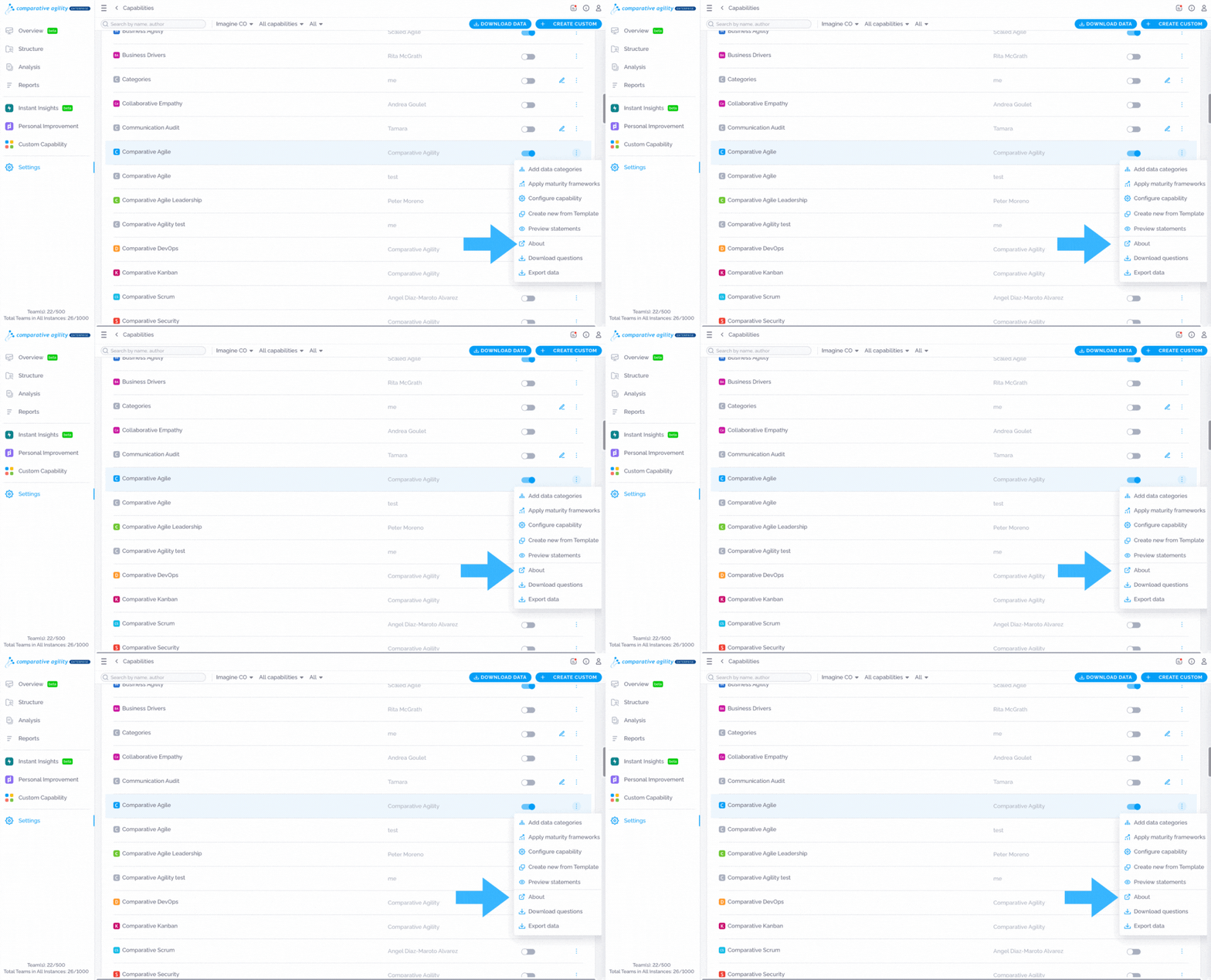
Section titled “Exploring Capability Details”To learn more about a desired capability, use the About option.
The screenshot below shows you where to find the capability details*
Download Questions
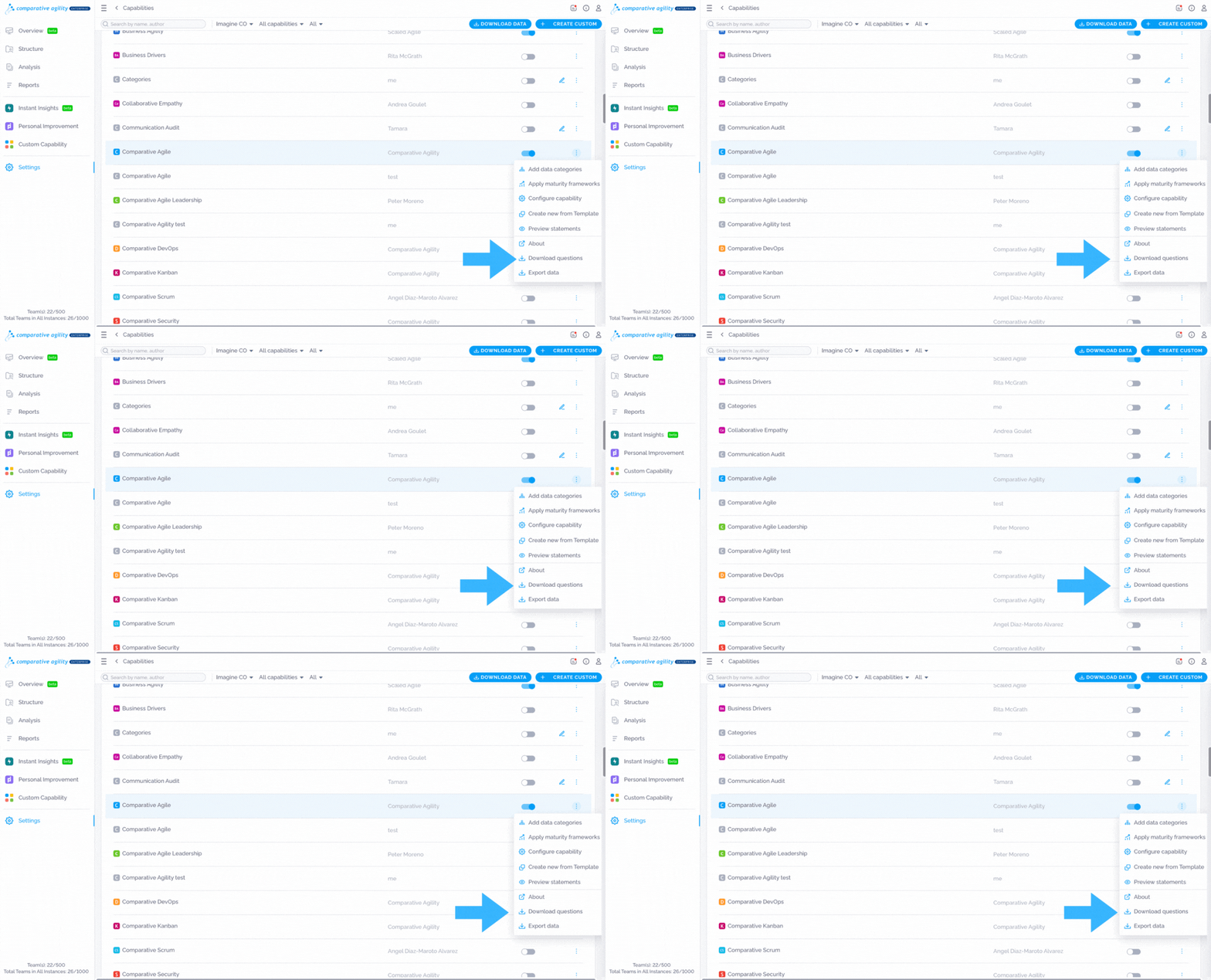
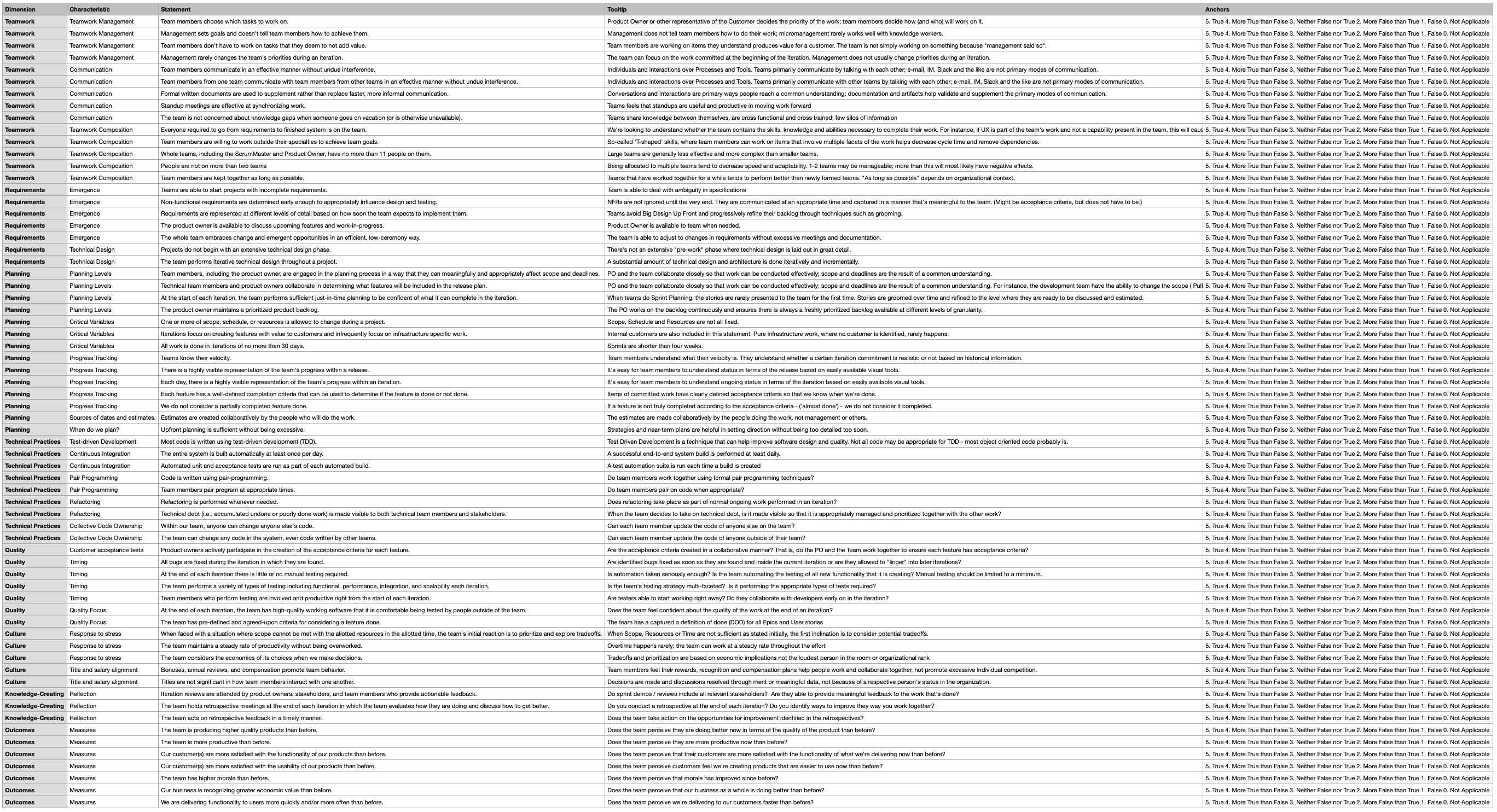
Section titled “Download Questions”If you would like to download a file for a specific capability, which will include statements, tooltips, and anchors, simply use the download questions option.
In the screenshot below we show you where to find the Download Statements option
The screenshot below shows you what the file looks like
Export Data
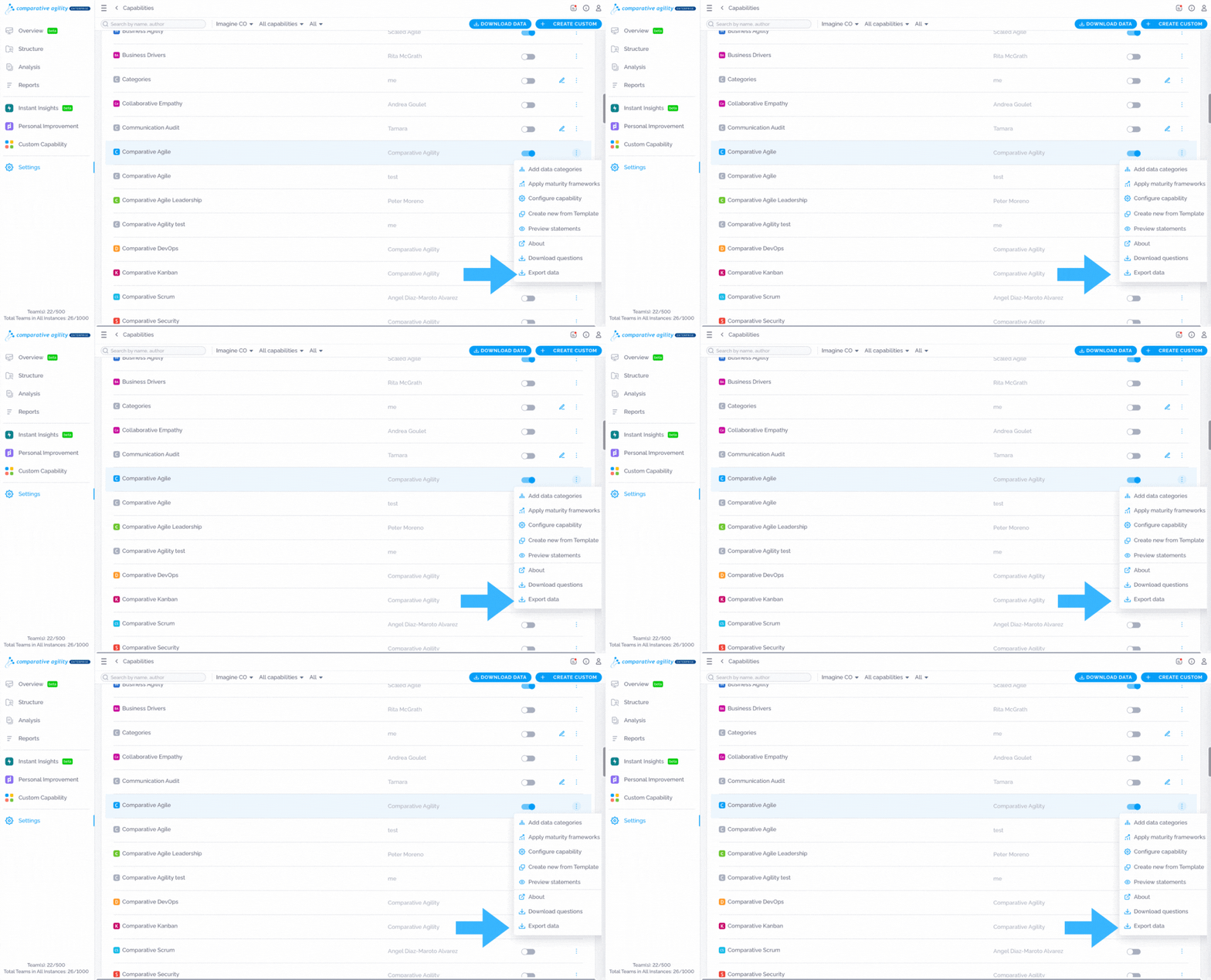
Section titled “Export Data”With this feature, you have the ability to extract survey data. Depending on your needs, you can extract data from one specific capability or from all enabled ones.
In the screenshot below we show you where to find the Export Data option
To learn more ways of extracting data, please visit our Help Center article Download Survey Data.
If you have any questions or need assistance, don’t hesitate to reach out to our support team at support@comparativeagility.comand we will be more than happy to help you.