Overview Screen
Set Your View
Section titled “Set Your View”The top bar of the Overview screen controls what data you see. Use Data range to pick the time period you want to analyze, and Filters to narrow results to specific teams, surveys, or other criteria. When you’re ready to share your findings, use Print for a hard copy or Share to send the overview to colleagues.
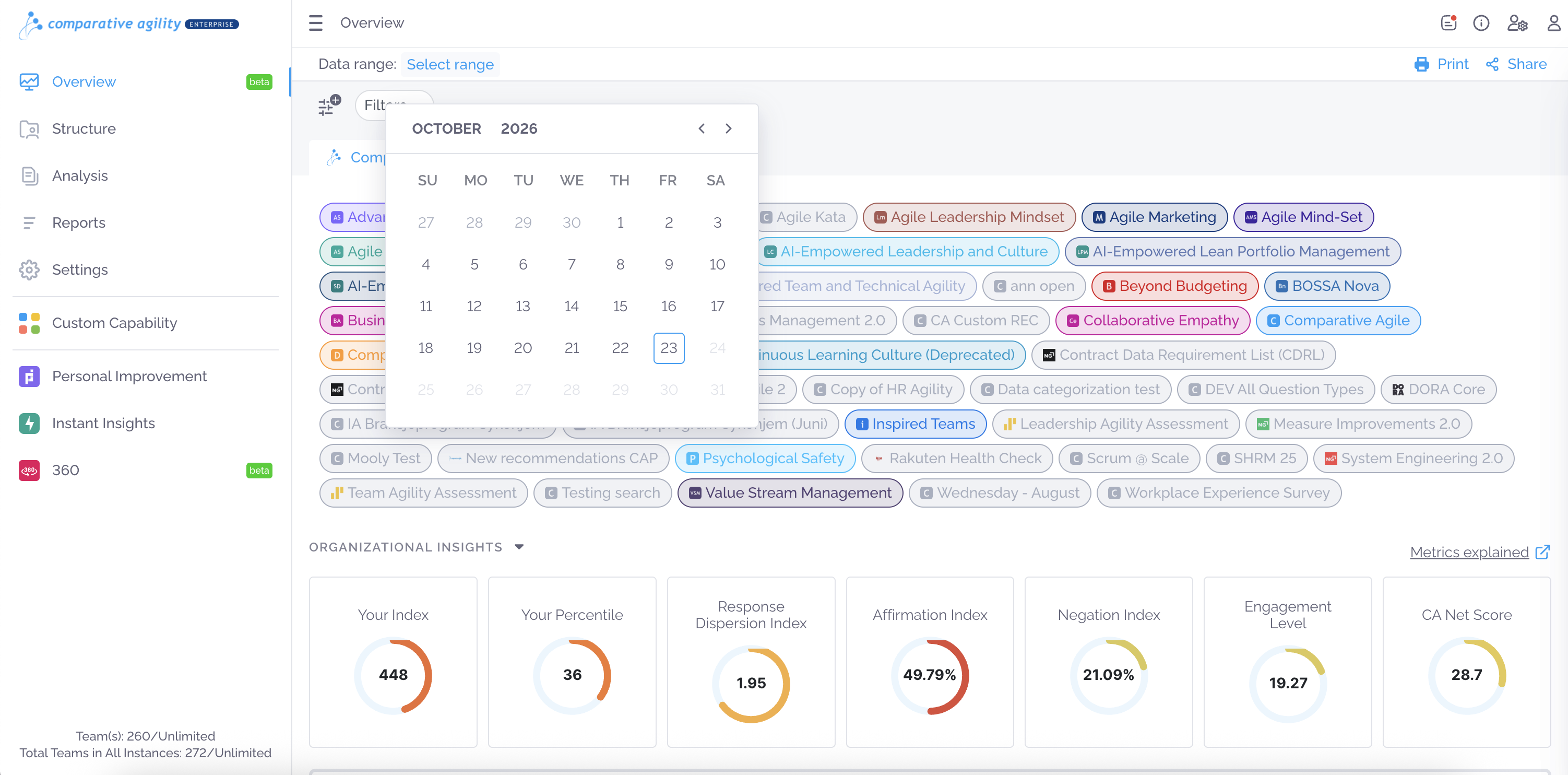
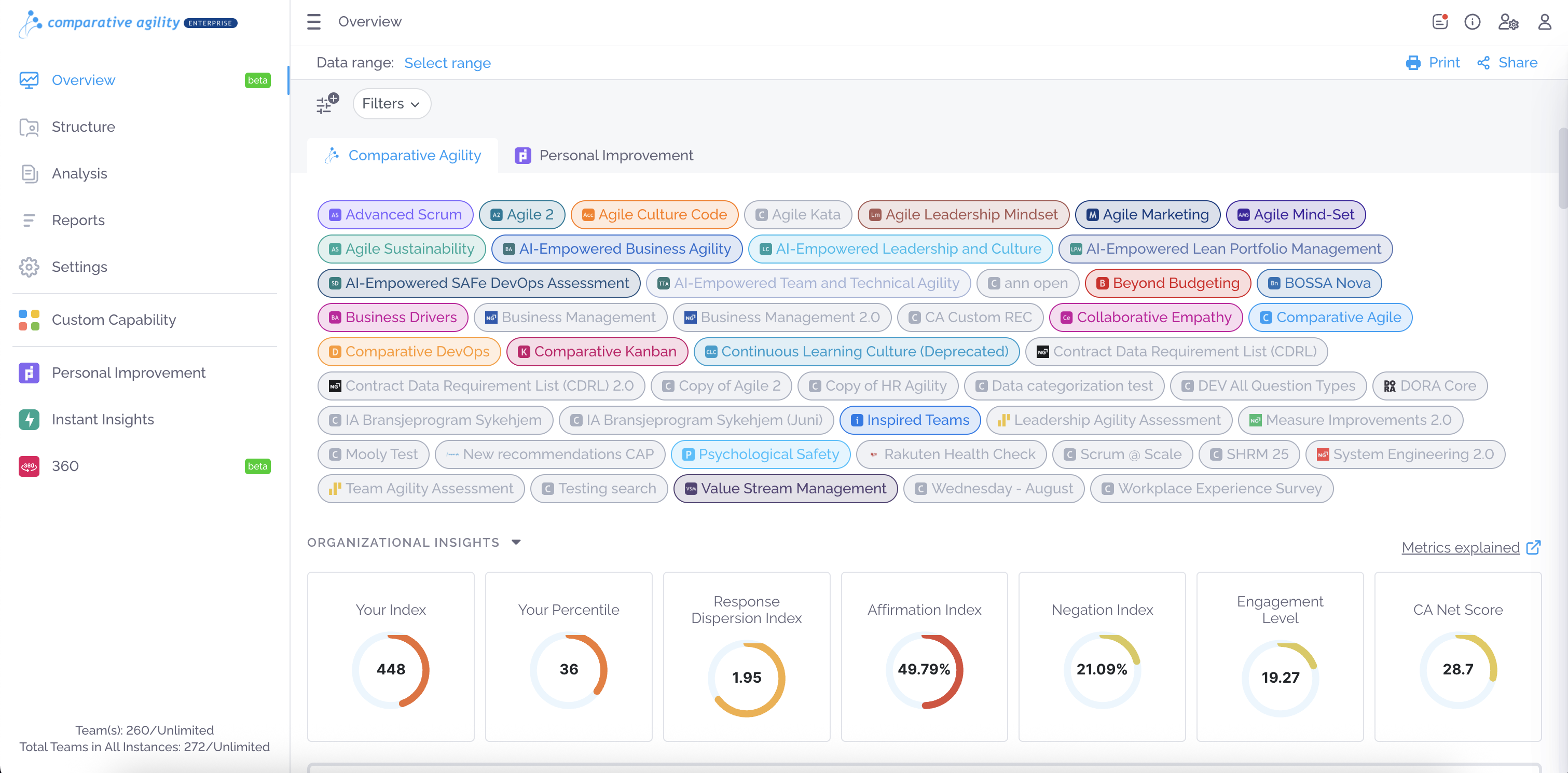
Choose Surveys and Review Organizational Insights
Section titled “Choose Surveys and Review Organizational Insights”Use the Comparative Agility and Personal Improvement tabs to switch between team-level assessments and individual development data. Below the tabs, each chip represents a survey. Click the chips to choose which surveys are included in the overview: highlighted chips are included, and greyed-out ones are not. The Organizational Insights cards then summarize your results in key metrics: Your Index, Your Percentile compared with other organizations, Response Dispersion Index (how much answers vary), Affirmation and Negation Index (the share of positive and negative responses), Engagement Level, and CA Net Score. Click Metrics explained for a full definition of each metric.
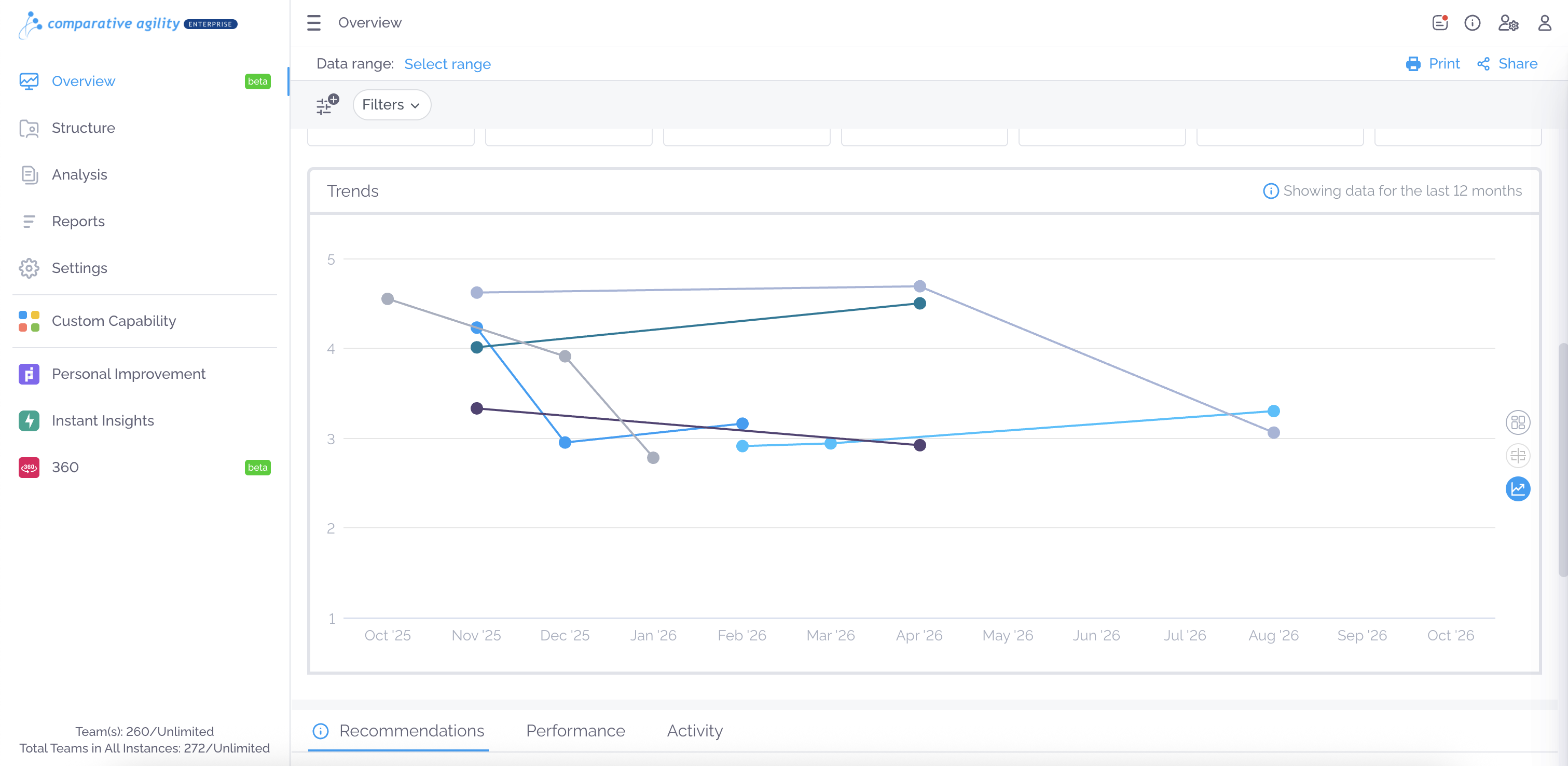
Track Trends Over Time
Section titled “Track Trends Over Time”The Trends chart shows how your assessment scores have moved over the last 12 months. Each line represents a different survey or capability, plotted on a 1–5 scale, so you can quickly spot what’s improving, what’s declining, and where progress has stalled. Use the icons on the right side of the chart to switch between the trend view and other visualizations, such as the Tree Map.
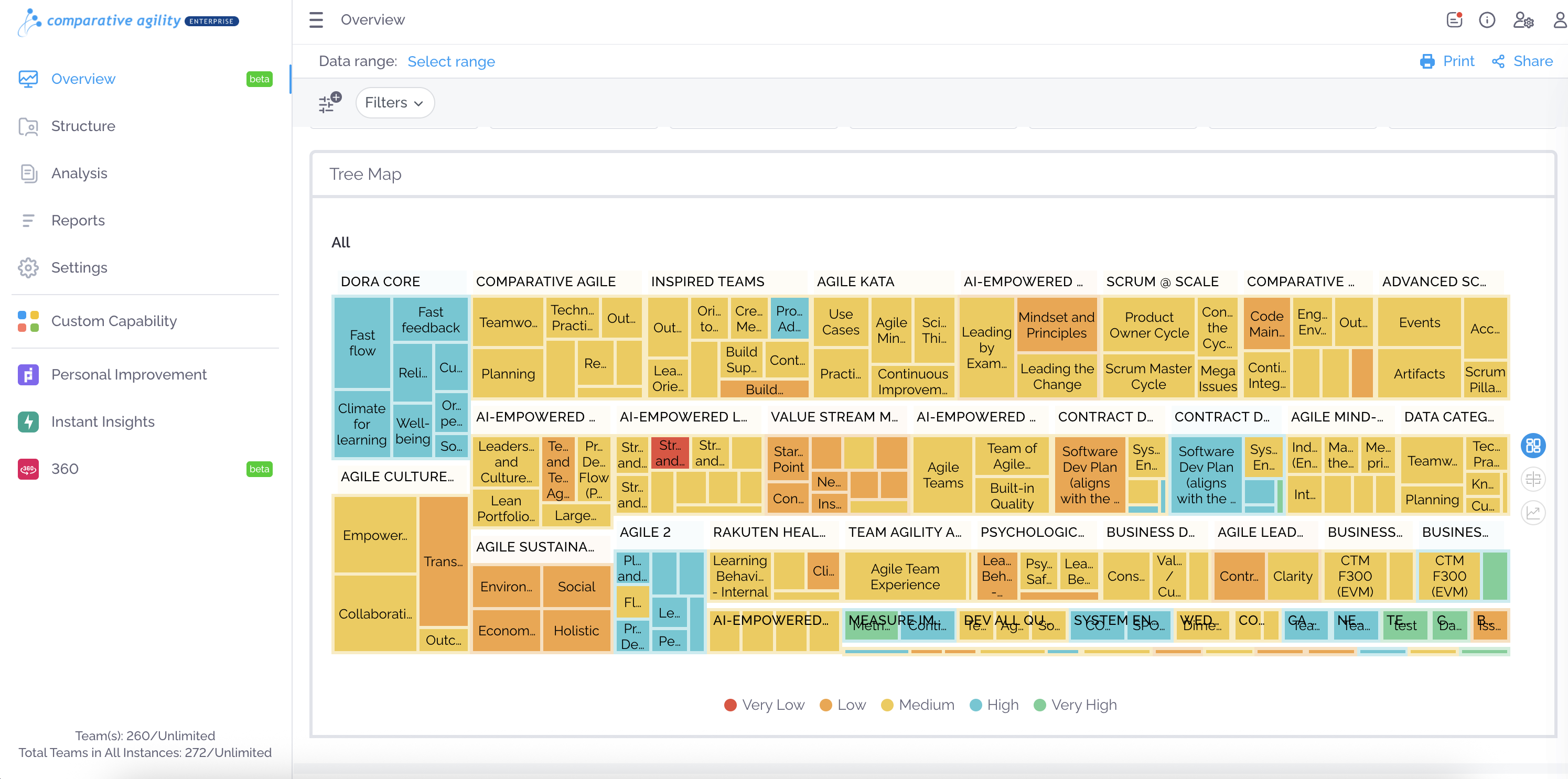
Explore Results with the Tree Map
Section titled “Explore Results with the Tree Map”The Tree Map gives a bird’s-eye view of every survey and dimension in one place. Each block represents a dimension grouped under its survey, and the color shows its performance level, from red (Very Low) through orange, yellow, and blue to green (Very High). This makes it easy to spot clusters of strength or weakness across your whole organization at a glance.
Compare Teams with the Impact Matrix
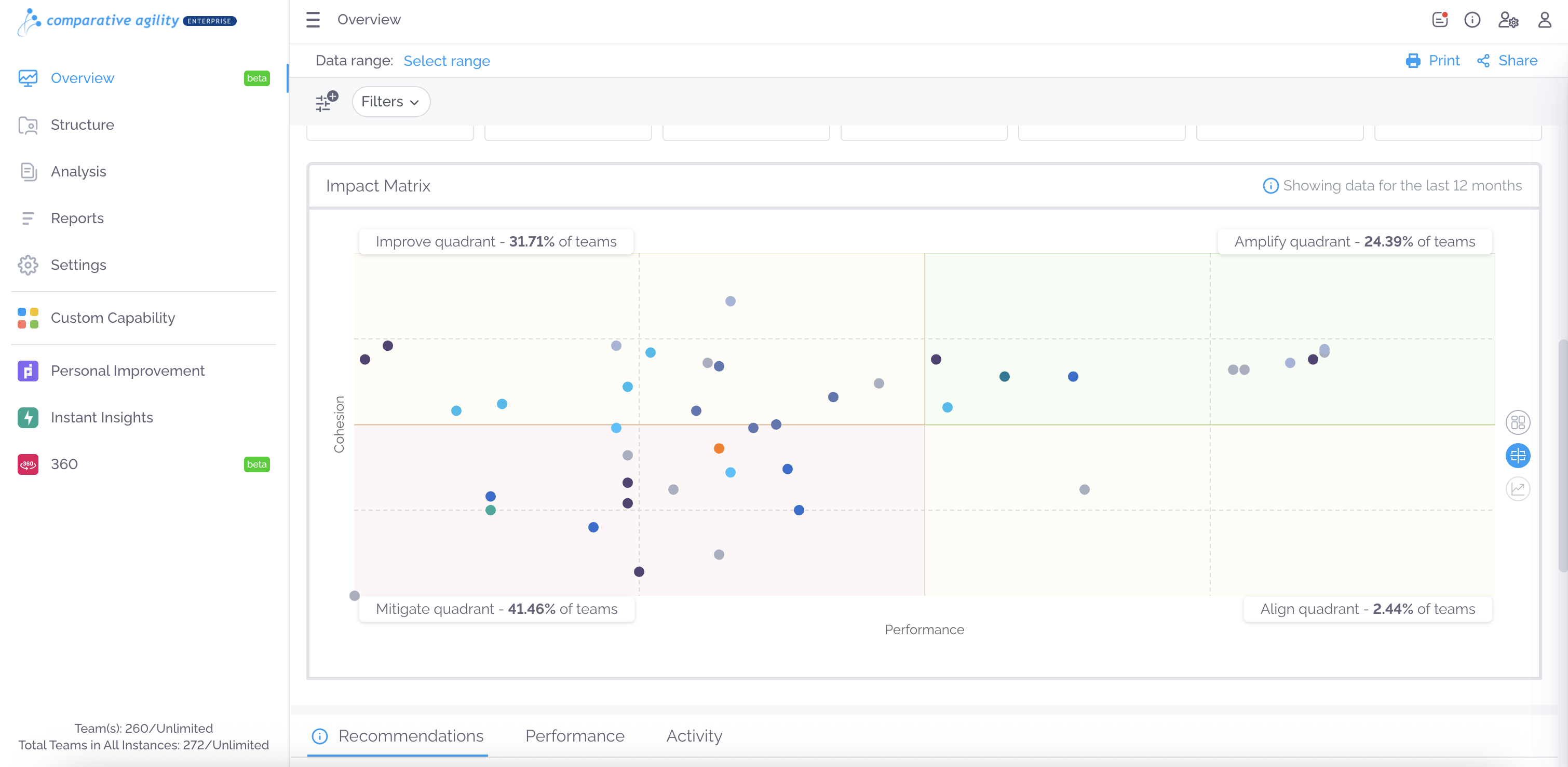
Section titled “Compare Teams with the Impact Matrix”The Impact Matrix plots every team by Performance (horizontal axis) and Cohesion (vertical axis), showing where each team stands and what kind of support it needs. Teams fall into four quadrants:
- Amplify (high performance, high cohesion): strong teams whose practices are worth sharing across the organization.
- Improve (high cohesion, lower performance): teams that work well together but need help raising their results.
- Align (high performance, lower cohesion): teams that deliver results but would benefit from stronger shared understanding.
- Mitigate (lower performance, lower cohesion): teams that need the most attention and support.
Each quadrant label shows the percentage of teams in it, giving you a quick read on where to focus your improvement efforts. Use the icons on the right side of the chart to switch between the Impact Matrix, Tree Map, and Trends views.
Act on Recommendations
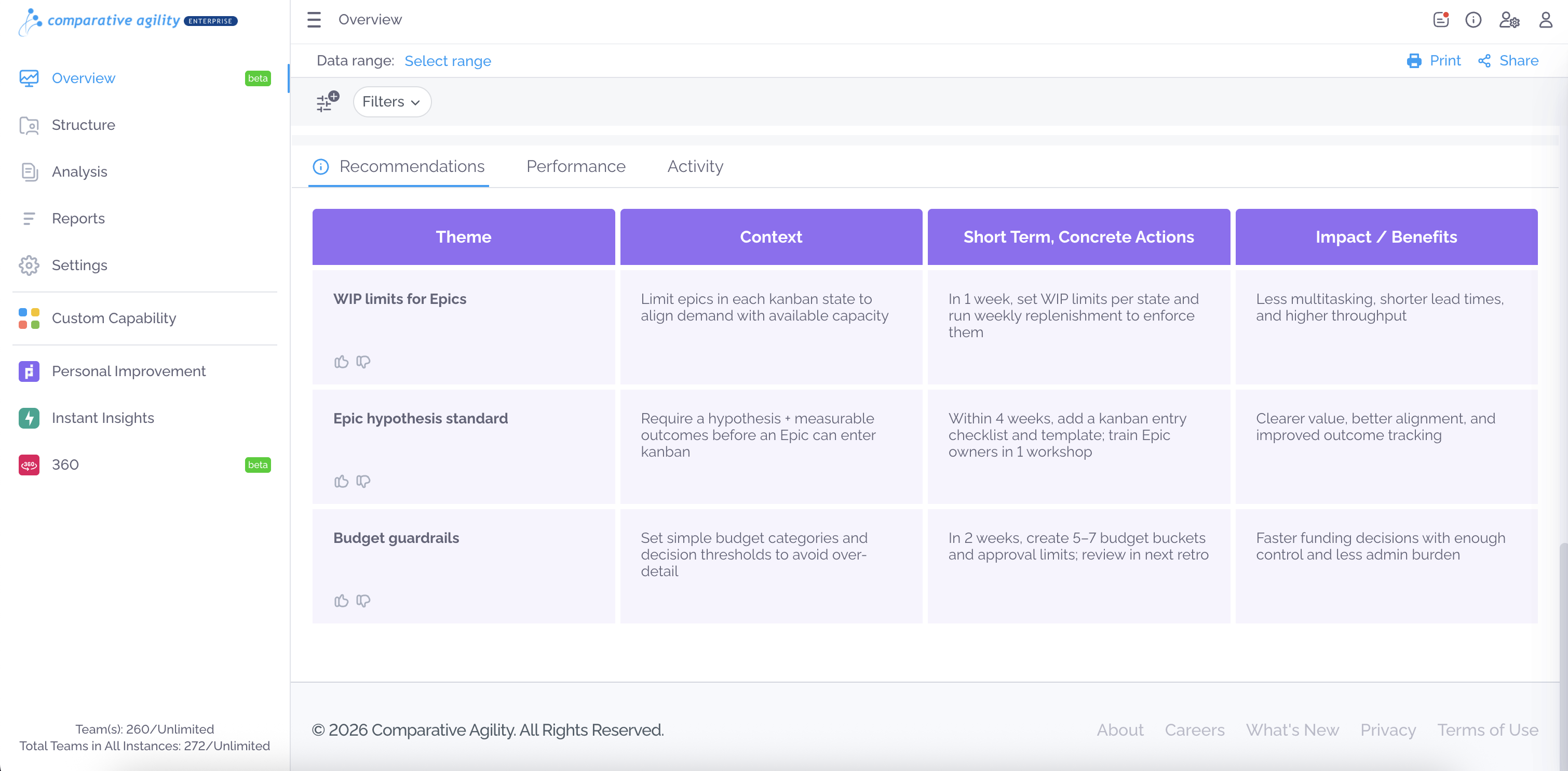
Section titled “Act on Recommendations”The Recommendations tab turns your results into practical next steps. Each recommendation includes a Theme, the Context behind it, Short-Term, Concrete Actions with suggested timeframes, and the expected Impact / Benefits. Use the thumbs up and thumbs down icons to rate each recommendation, which helps improve future suggestions.
Review Performance
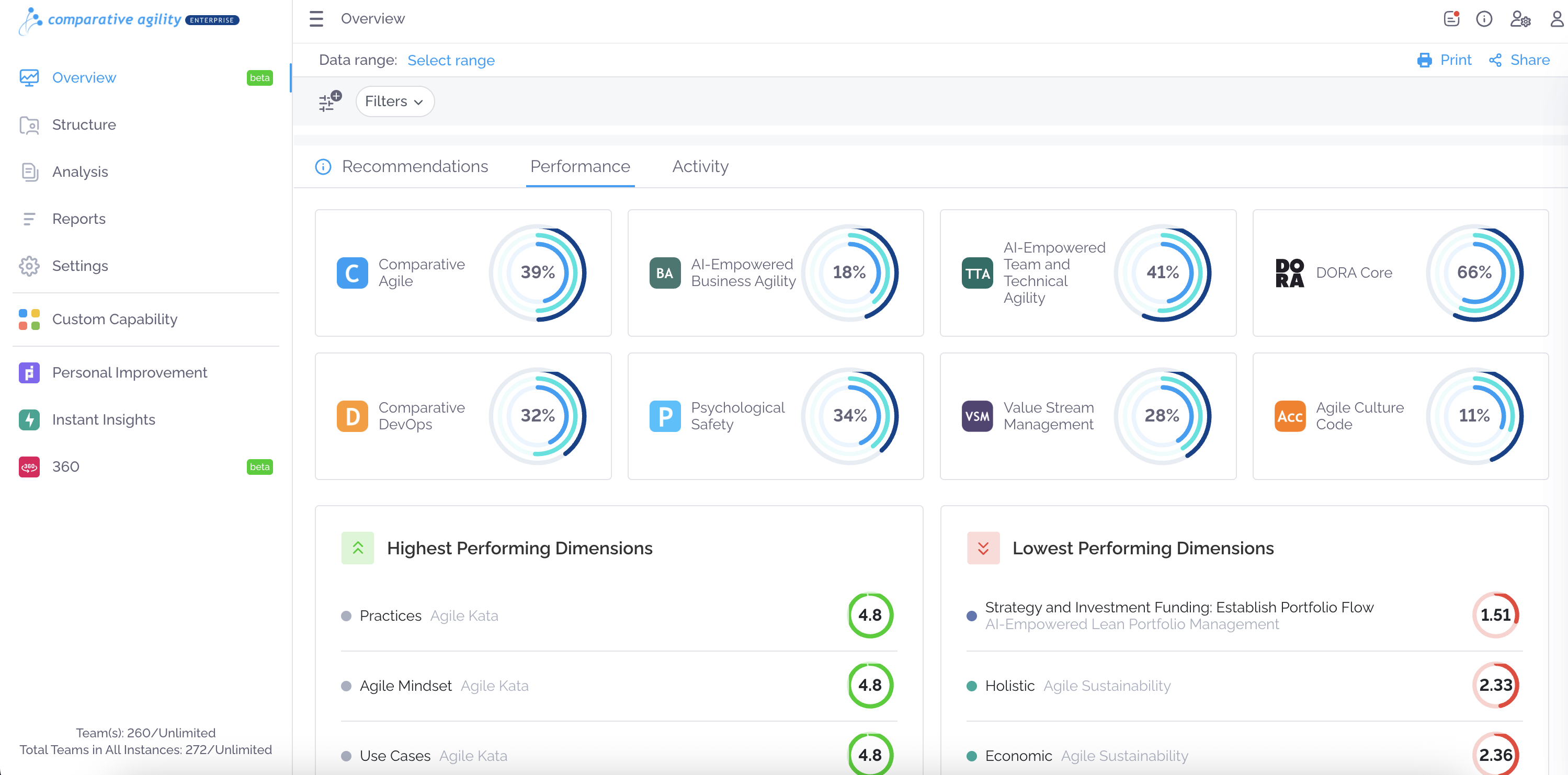
Section titled “Review Performance”The Performance tab gives you a snapshot of how your organization scores across each assessment, with a percentage shown for every survey type, such as Comparative Agile, DORA Core, or Psychological Safety. Below that, the Highest Performing Dimensions and Lowest Performing Dimensions lists highlight your strongest areas and the ones most in need of attention.
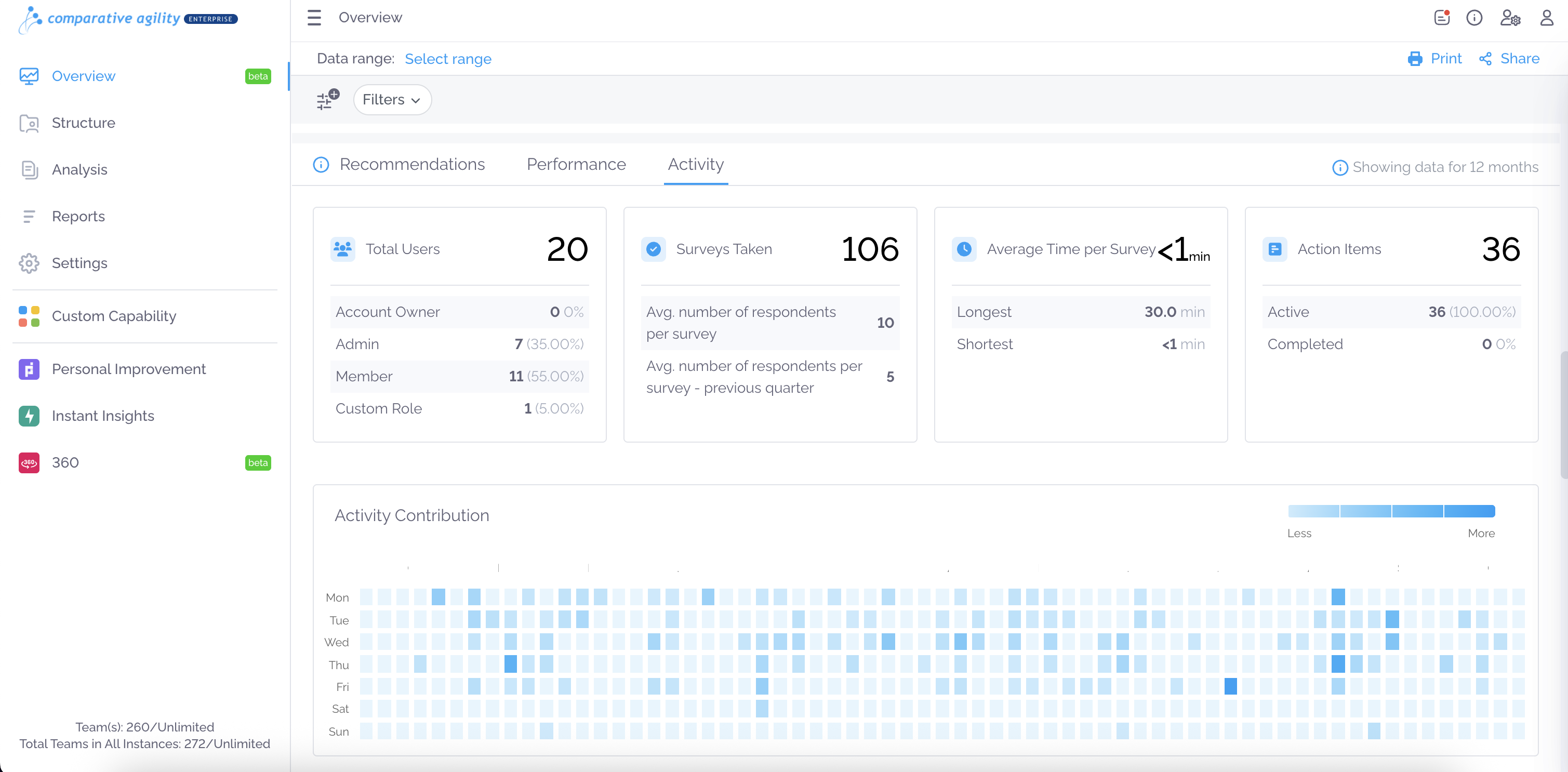
Monitor Activity and Engagement
Section titled “Monitor Activity and Engagement”The Activity tab shows how actively the tool is being used. Summary cards cover Total Users by role, Surveys Taken and average respondents per survey, Average Time per Survey, and Action Items split into active and completed. The Activity Contribution heatmap below shows which days had the most activity, with darker squares indicating higher engagement.