User Management
Overview
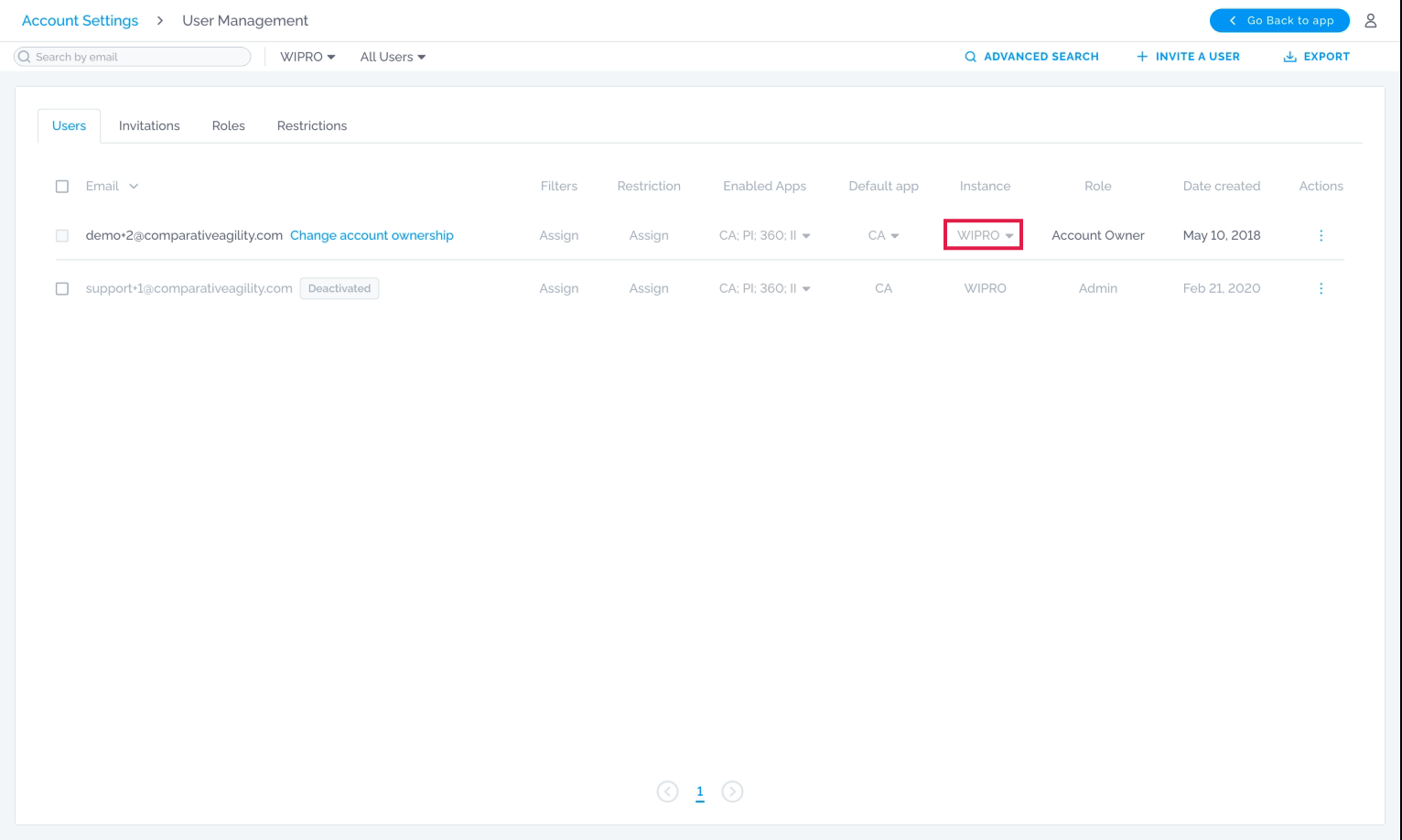
Section titled “Overview”The User Management screen allows administrators to manage users in their account, control their access, and assign roles and permissions. This is the central hub for user administration.
Additional information
- Click ACCOUNT SETTINGS
- Click User Management
Filtering and Searching Users
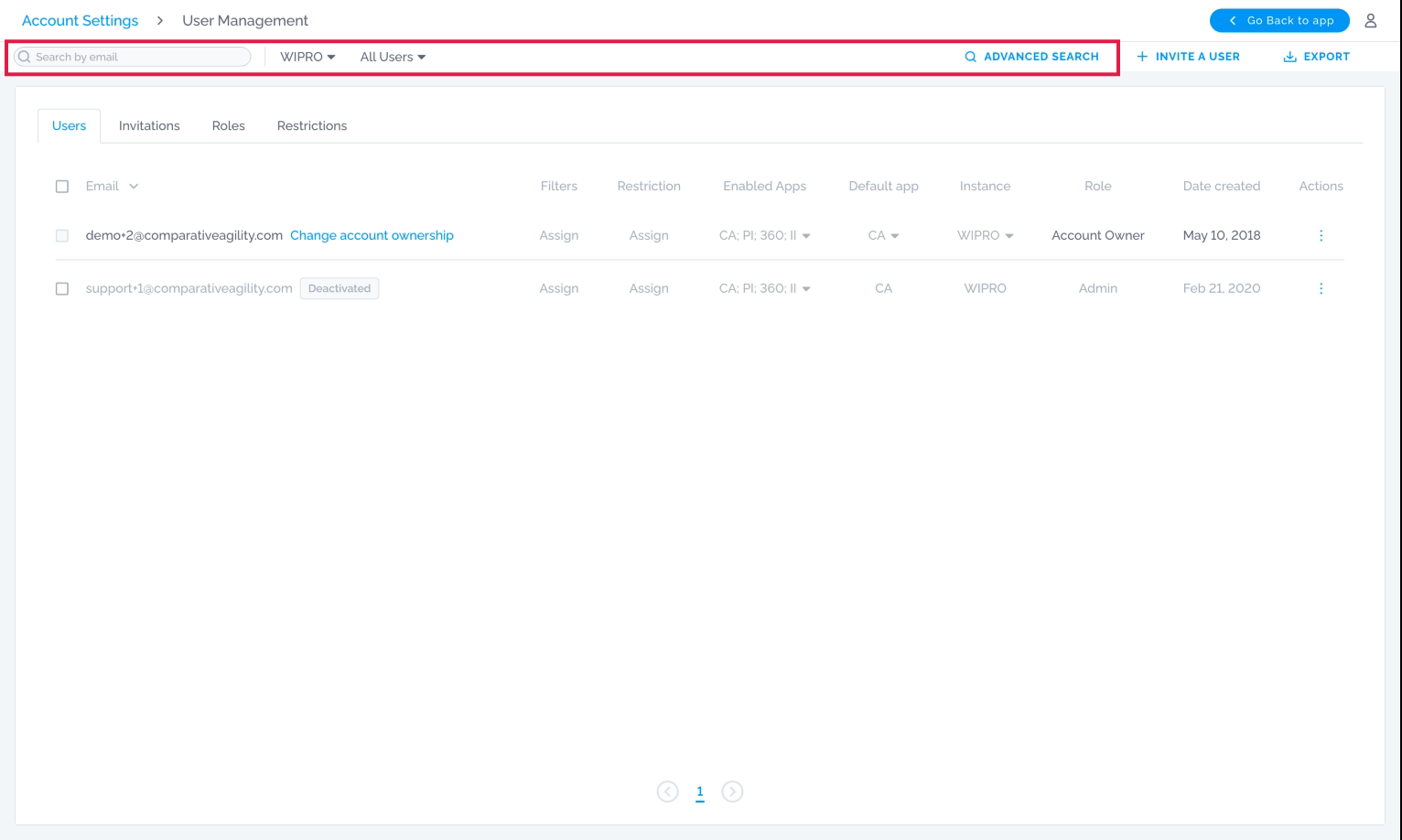
Section titled “Filtering and Searching Users”Use the search bar at the top left to quickly locate specific team members by their name or email address. You can also apply top-level dropdown filters or open Advanced Search to narrow down the directory based on specific criteria. This makes it easy to find and review targeted user groups instantly.
Inviting New Users
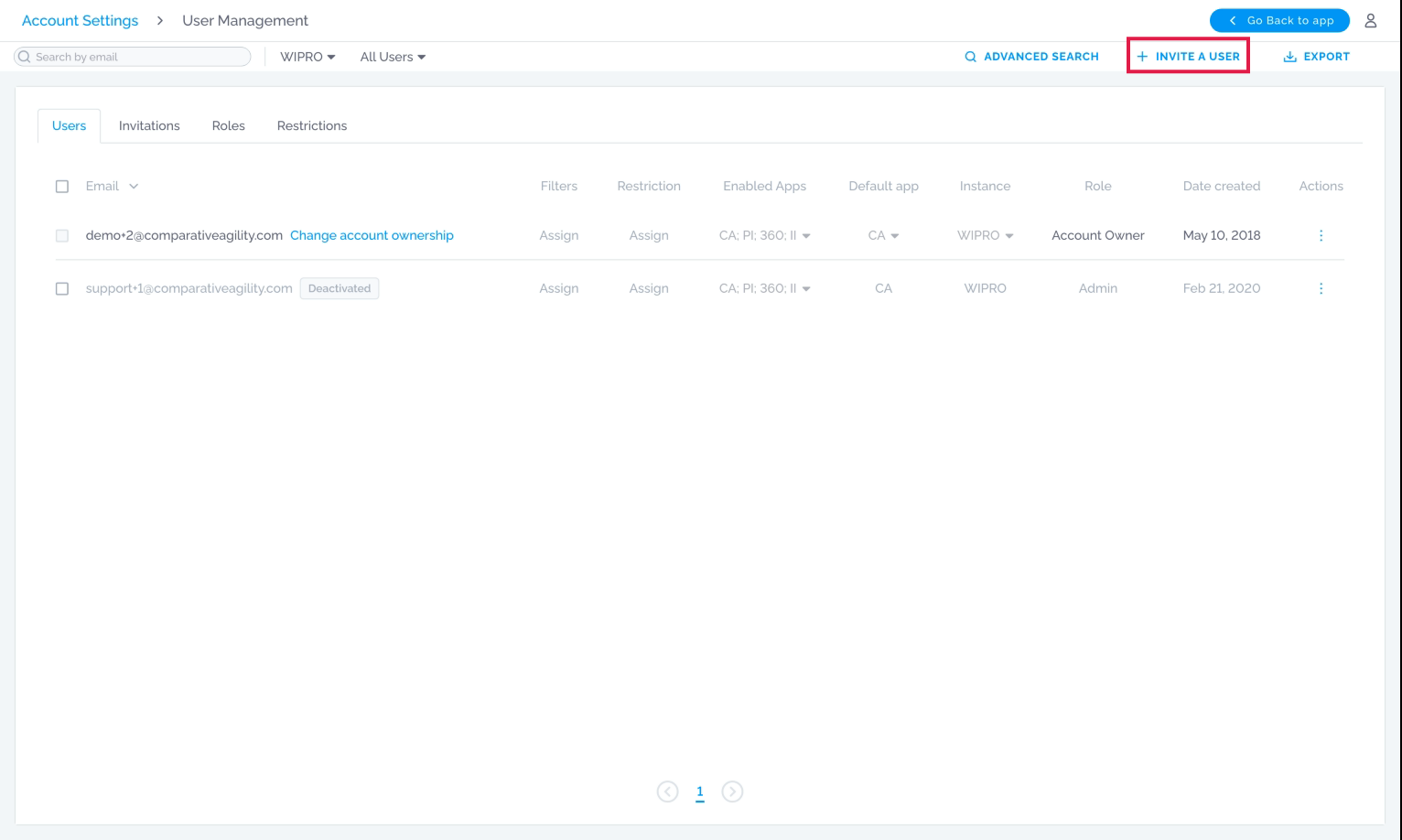
Section titled “Inviting New Users”Click the + INVITE A USER button in the top-right corner to open the invitation setup. You can enter the new user’s email and select their initial roles or permissions before sending the invite. Once sent, the user will receive instructions to set up their profile and log in.
For more detailed information on how to invite new users, please visit this article.
Exporting Users
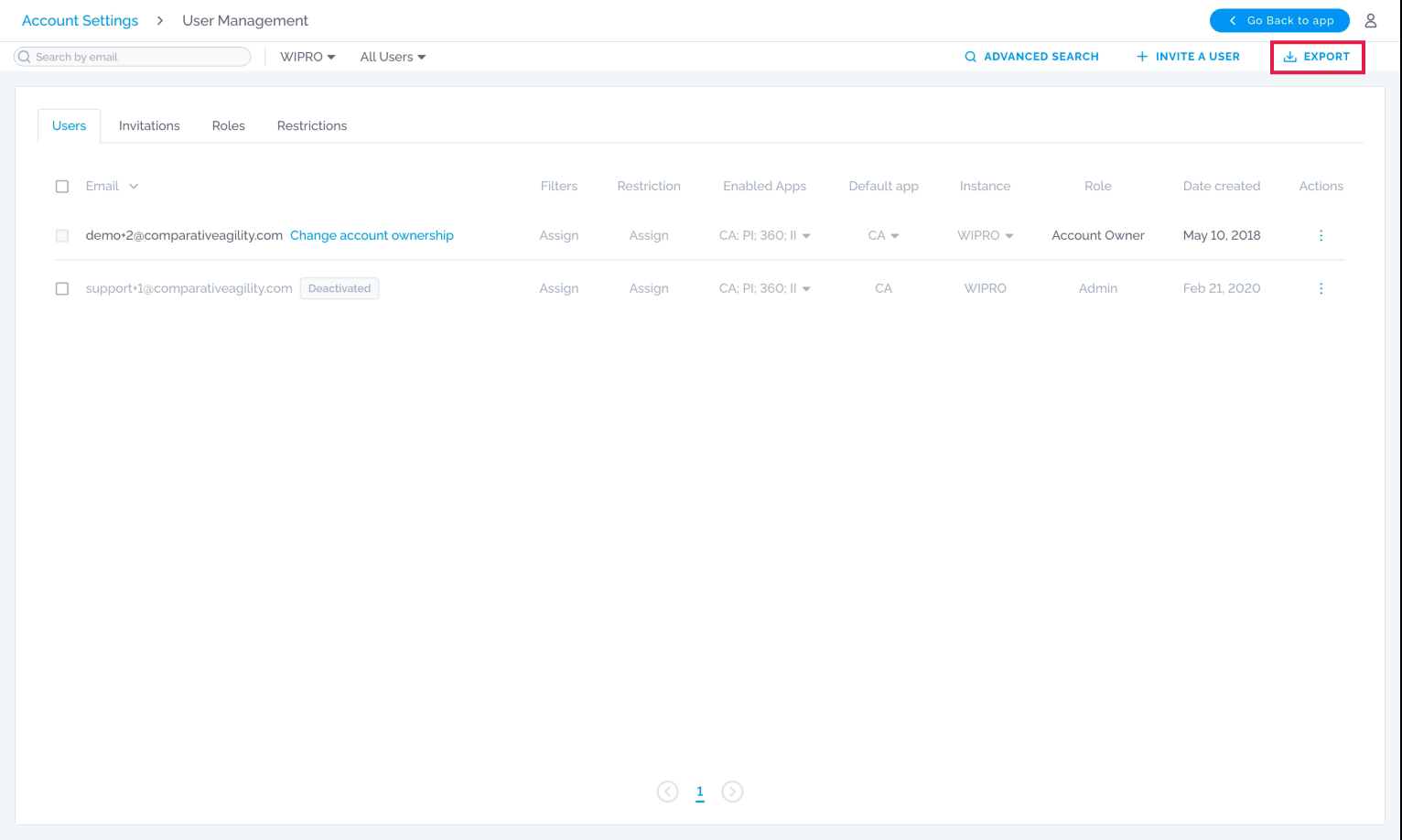
Section titled “Exporting Users”Click the EXPORT button in the top-right header to download your entire user directory. The generated file includes key account details, assigned roles, and current access permissions.
Changing Account Owner
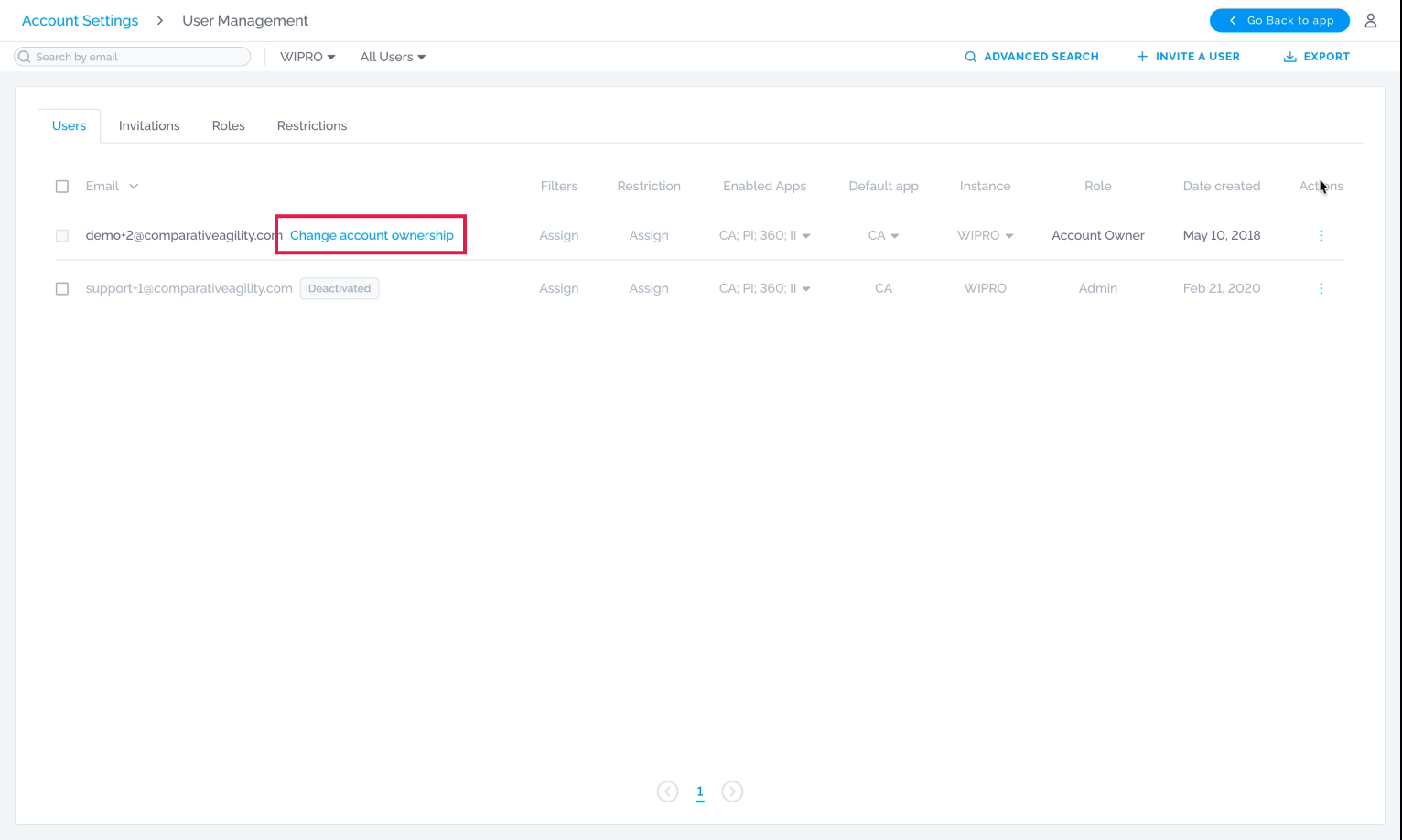
Section titled “Changing Account Owner”Click the Change account ownership option located next to the primary owner’s profile. This allows you to reassign primary account authority to another administrator when organizational roles shift.
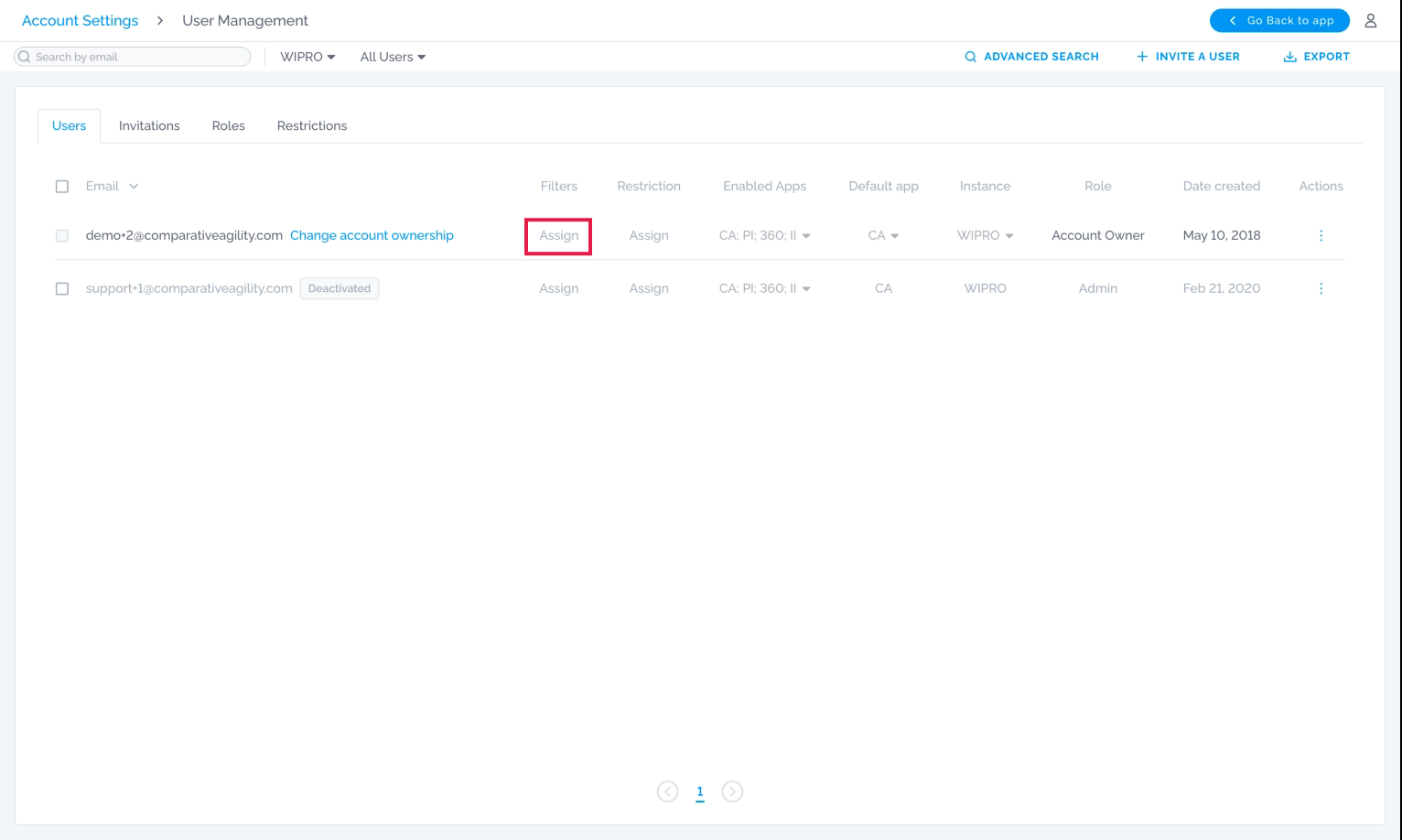
Assigning Filter
Section titled “Assigning Filter”Locate the user profile and click Assign under the Filter column. This lets you apply predefined data display filters directly to an individual user’s account. Applying a filter limits what specific data, projects, or views that user can see within the platform.
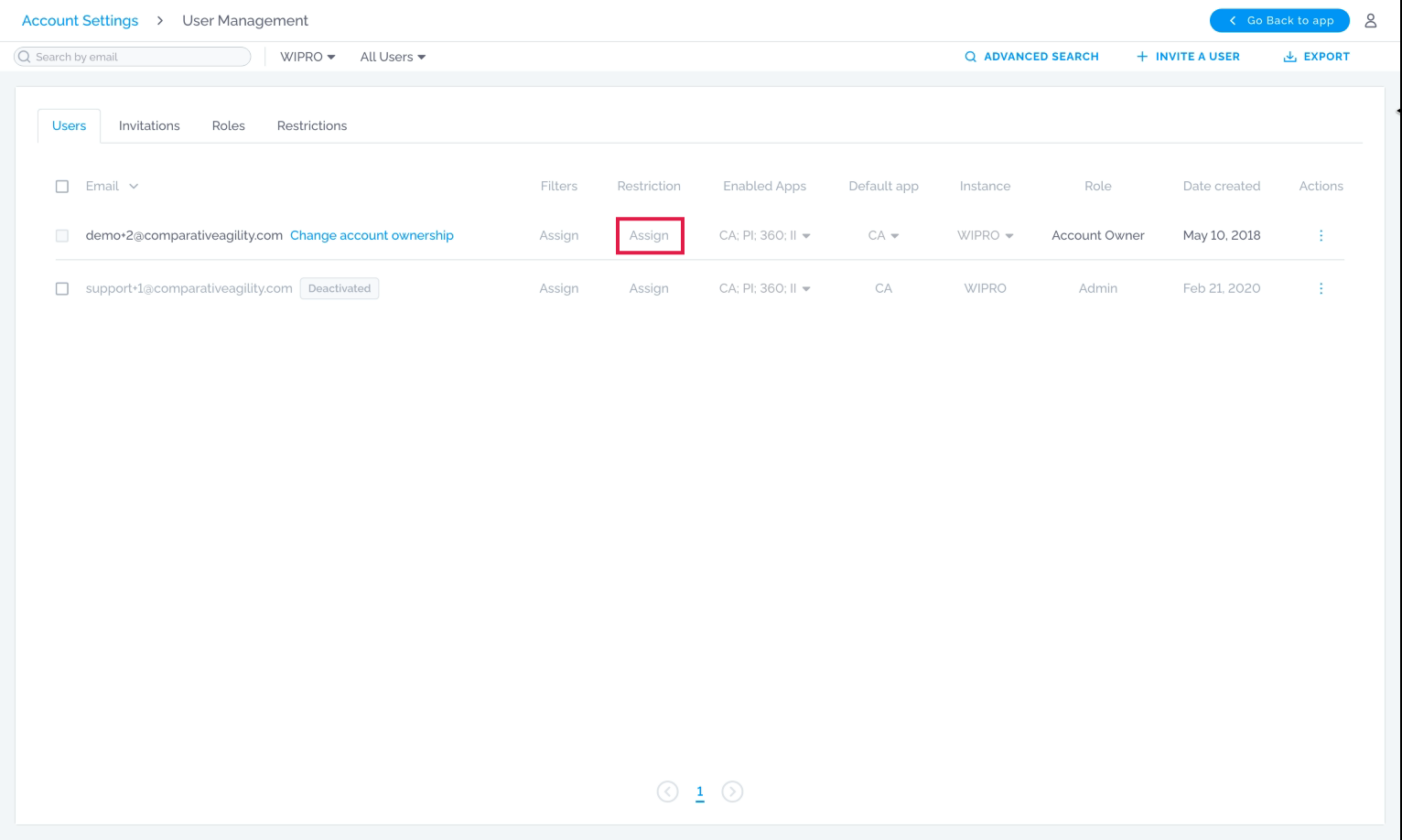
Assigning Restriction
Section titled “Assigning Restriction”Click Assign under the Restrictions column for a specific user. Here, you can apply already created security or feature restrictions directly to their profile. This ensures the user is bounded by your organization’s specific compliance or access guidelines.
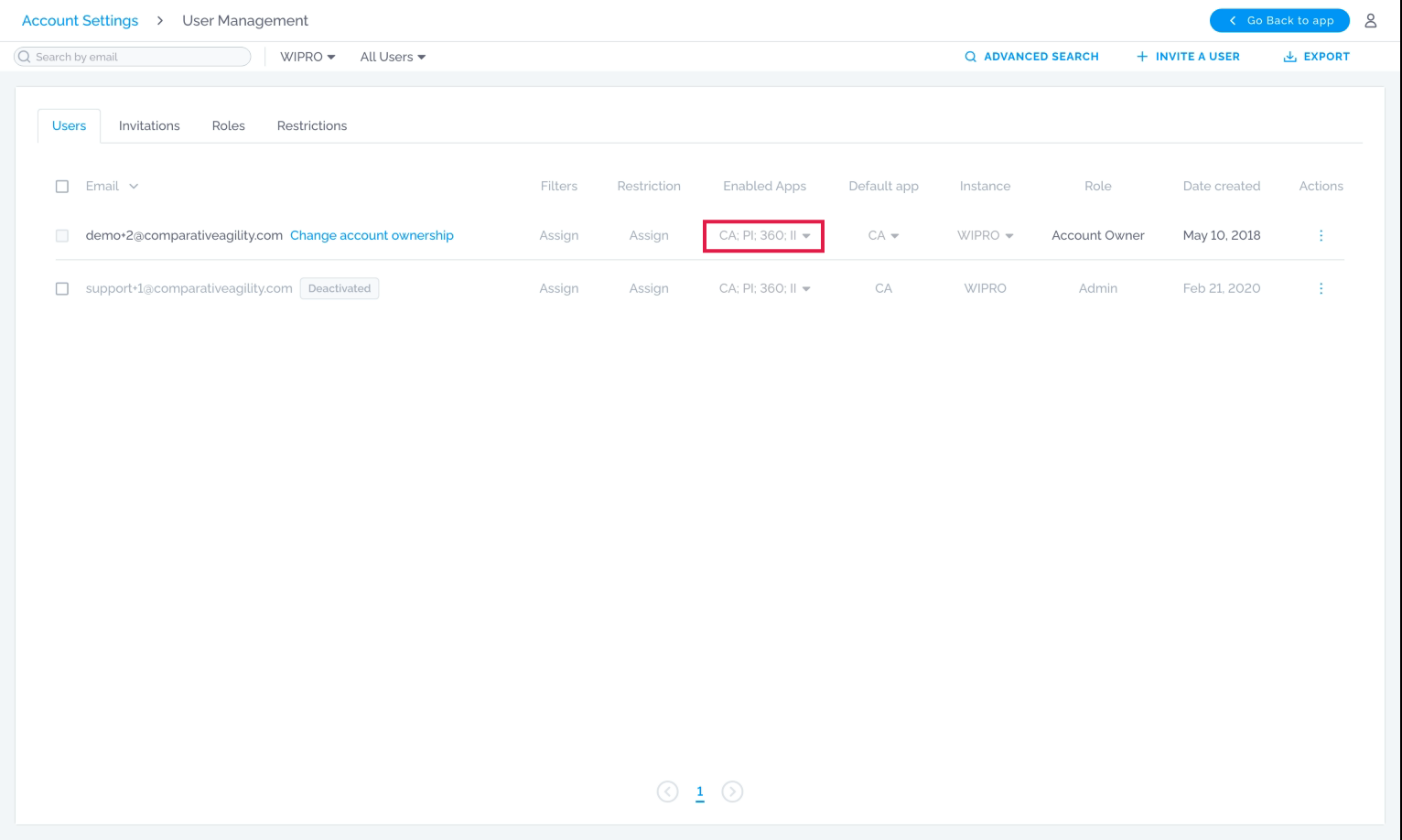
Managing Access to Applications
Section titled “Managing Access to Applications”Use the Enabled Apps dropdown menu in a user’s row to manage their app permissions. You can check or uncheck specific applications to grant or revoke access instantly.
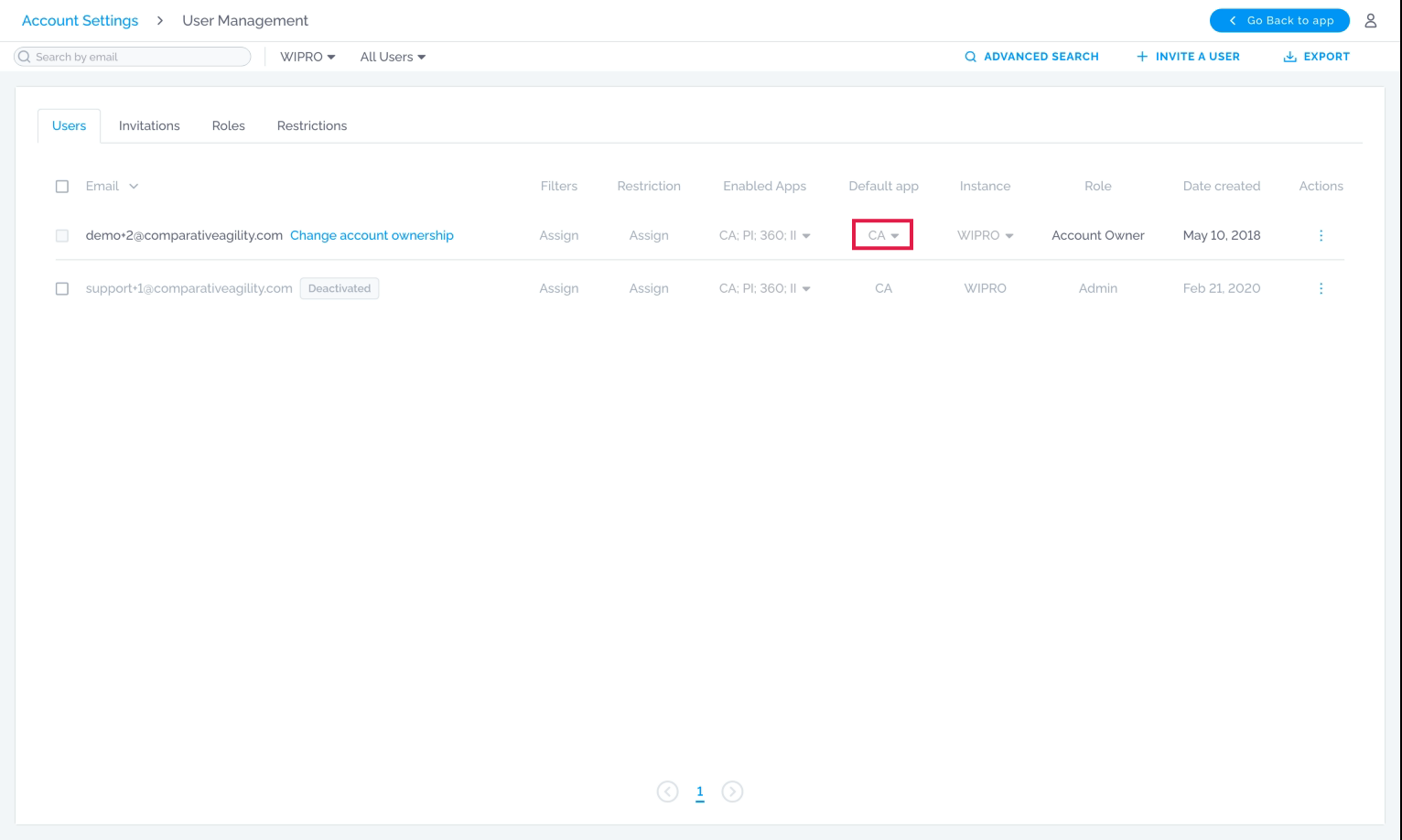
Assigning Default Login Application
Section titled “Assigning Default Login Application”Select an option under the Default App column for any user profile. This sets the exact application that automatically opens whenever that user logs into the platform. It helps streamline the workflow for users who primarily utilizing a single application.
Assigning Instance
Section titled “Assigning Instance”Use the Instance dropdown menu to map a user to a specific workspace or environment. Assigning the correct instance ensures they are working in the right organizational unit or data segment. Users will only interact with the resources linked to their designated instance.