Data Categories
Overview
Section titled “Overview”The Data Categories allow survey creators to define categories like location, preference, or role when setting up a survey. Upon completion of the survey, the feature allows for the aggregation of data not just as a whole but segmented according to these categories. This means that survey creators can filter the results based on these categories to analyze how different groups of respondents answered the survey. This article will demonstrate the process of creating and managing Categories.
Additional information
- Click Settings
- Click Data Categorization
Create category
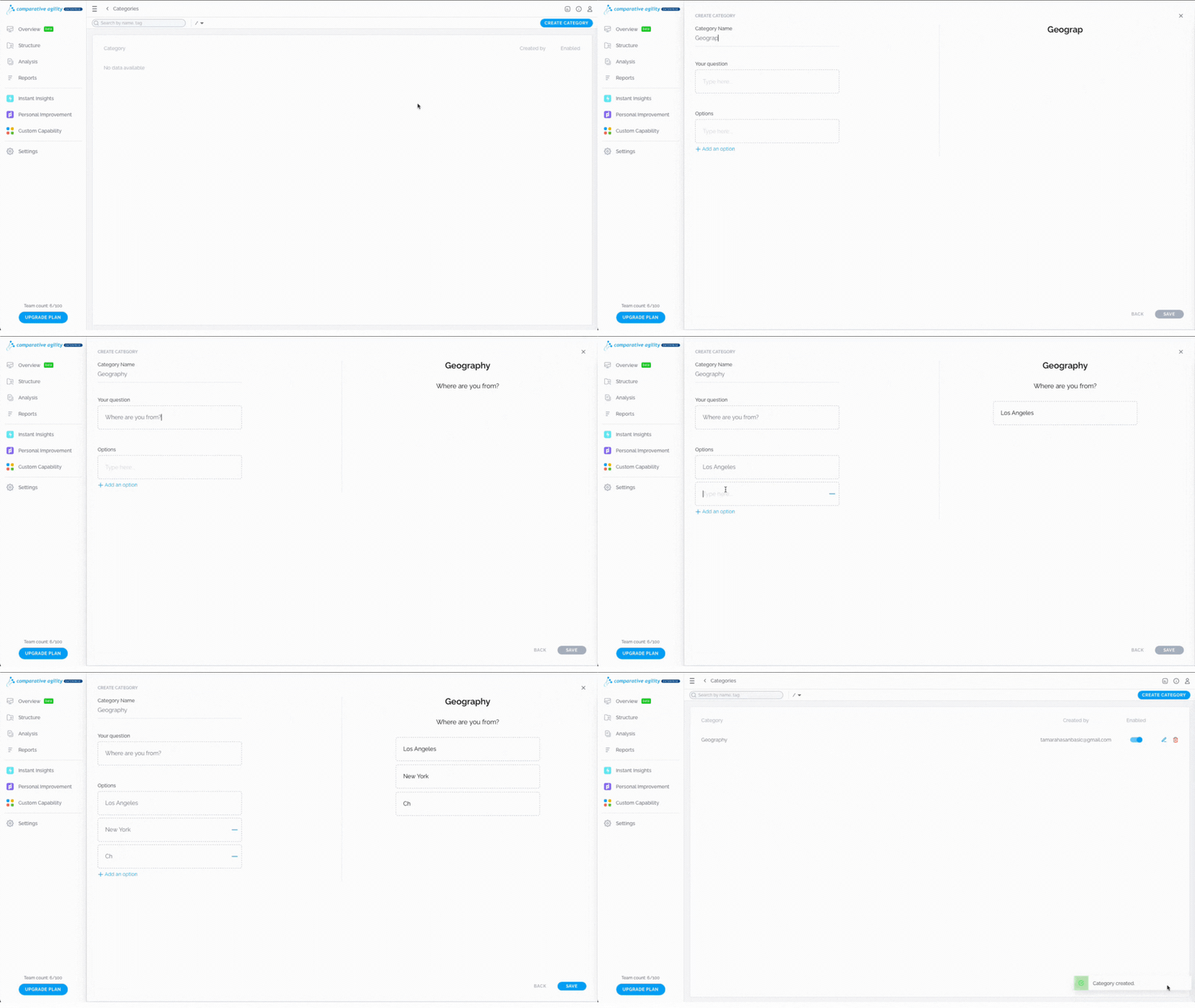
Section titled “Create category”To create a new category:
- Click on Create Category
- Type in the name
- Add your question
- Fill out the options that participants can choose from
- Click on Add an option to include more fields
- In case you would like to delete an option, click on the Remove Answer icon
- Click on Save
Note: On the right side of your display, you can preview the appearance of your category within the survey.
Including category in a survey
There are two options for incorporating a category into a survey from the Capabilities Screen
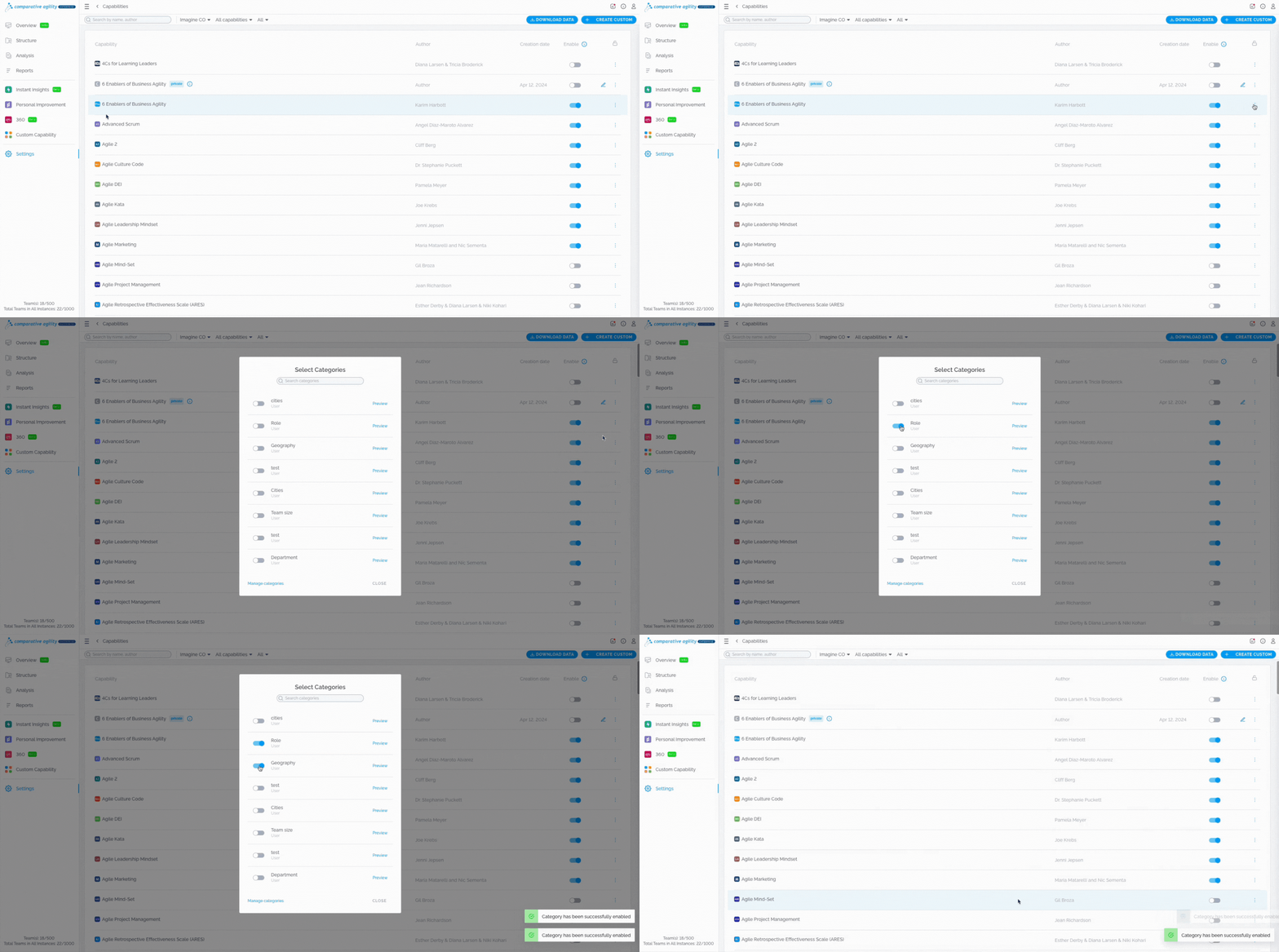
Option 1
Section titled “Option 1”Click on the three dots next to the capability, then Add data categories, and enable the categories you want to display in the survey.
Option 2
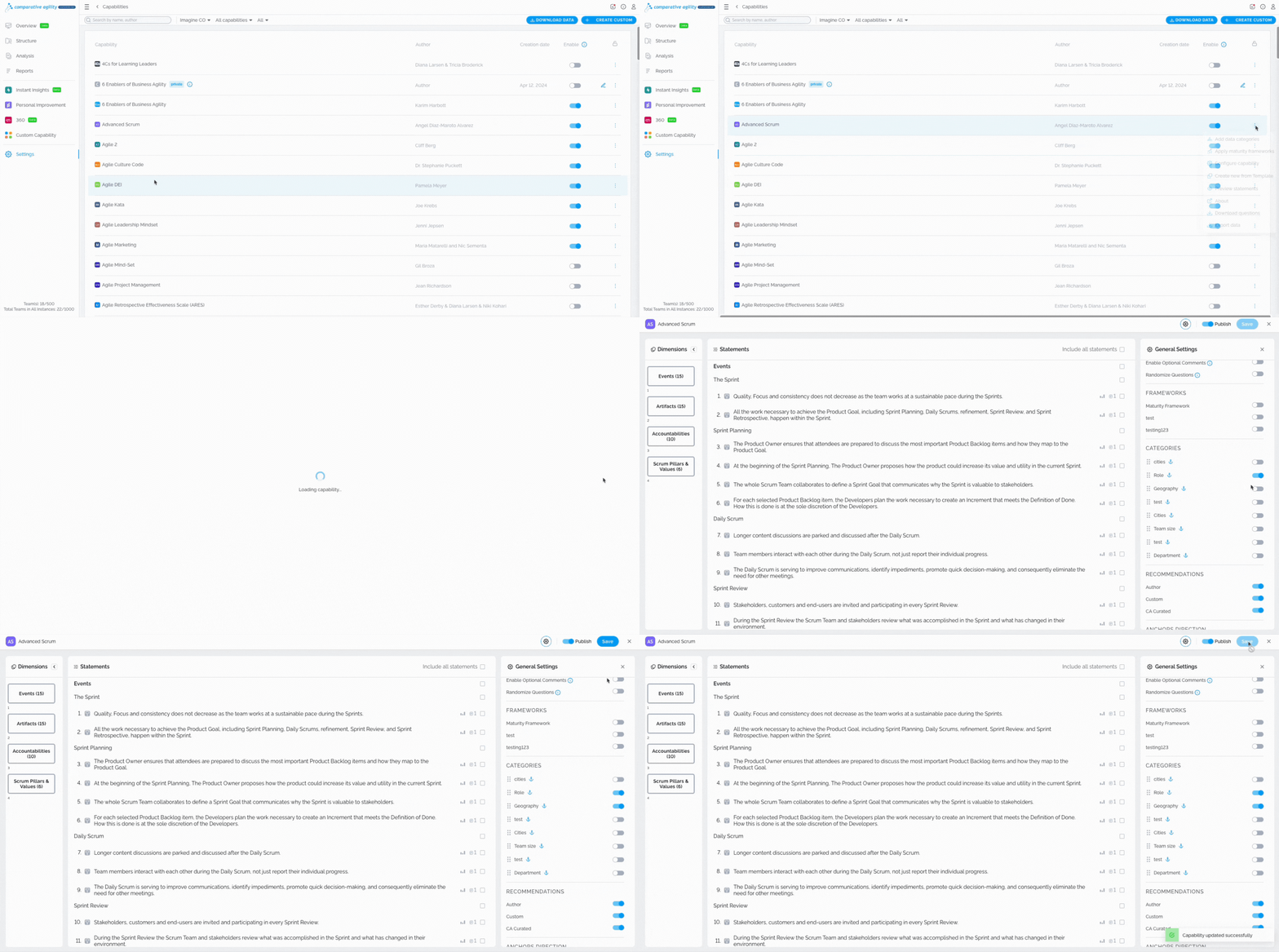
Section titled “Option 2”Choose the relevant capability, click on the three dots, Configure Capability, scroll to the Categories section, and enable a category.
Cloning a category
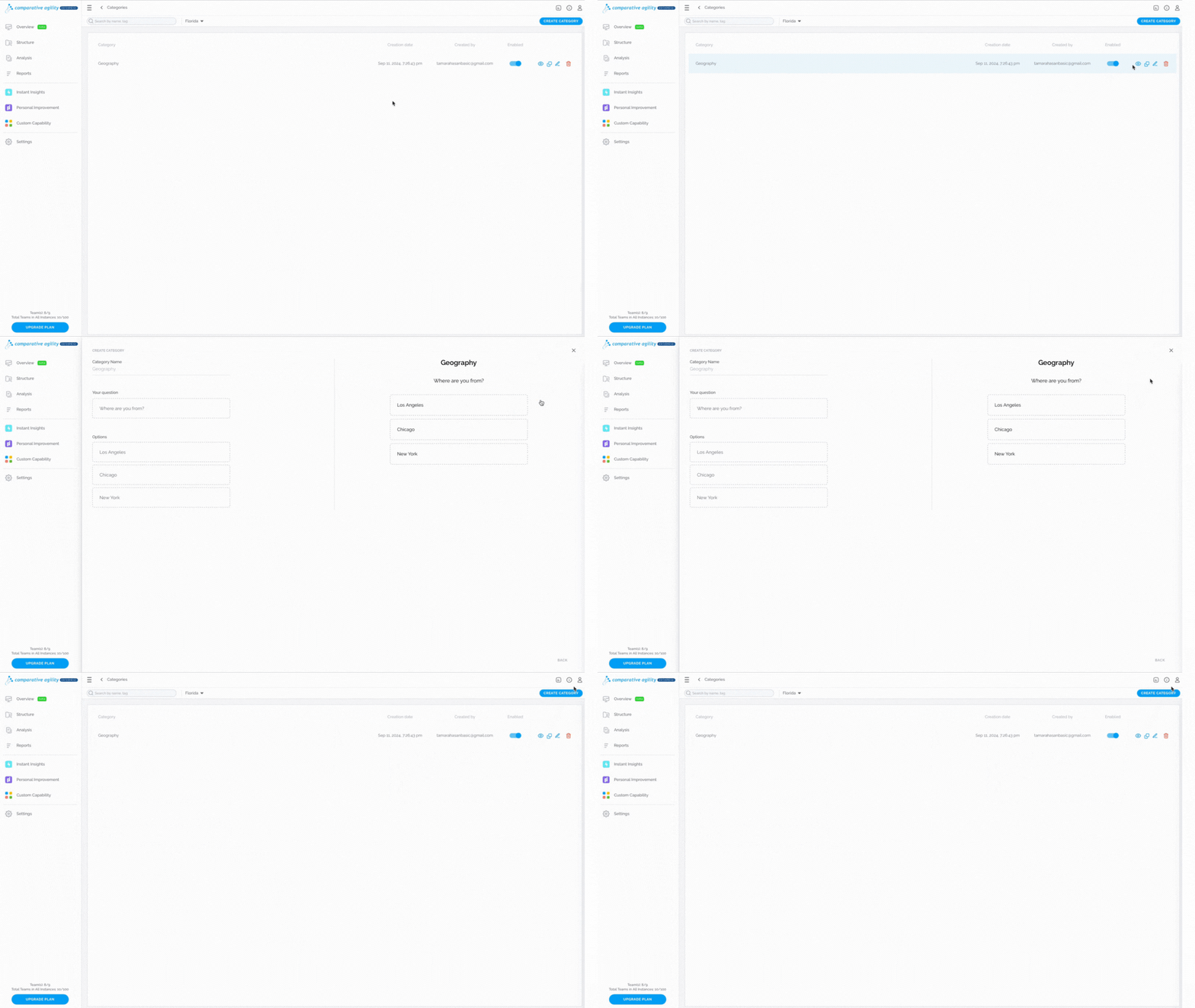
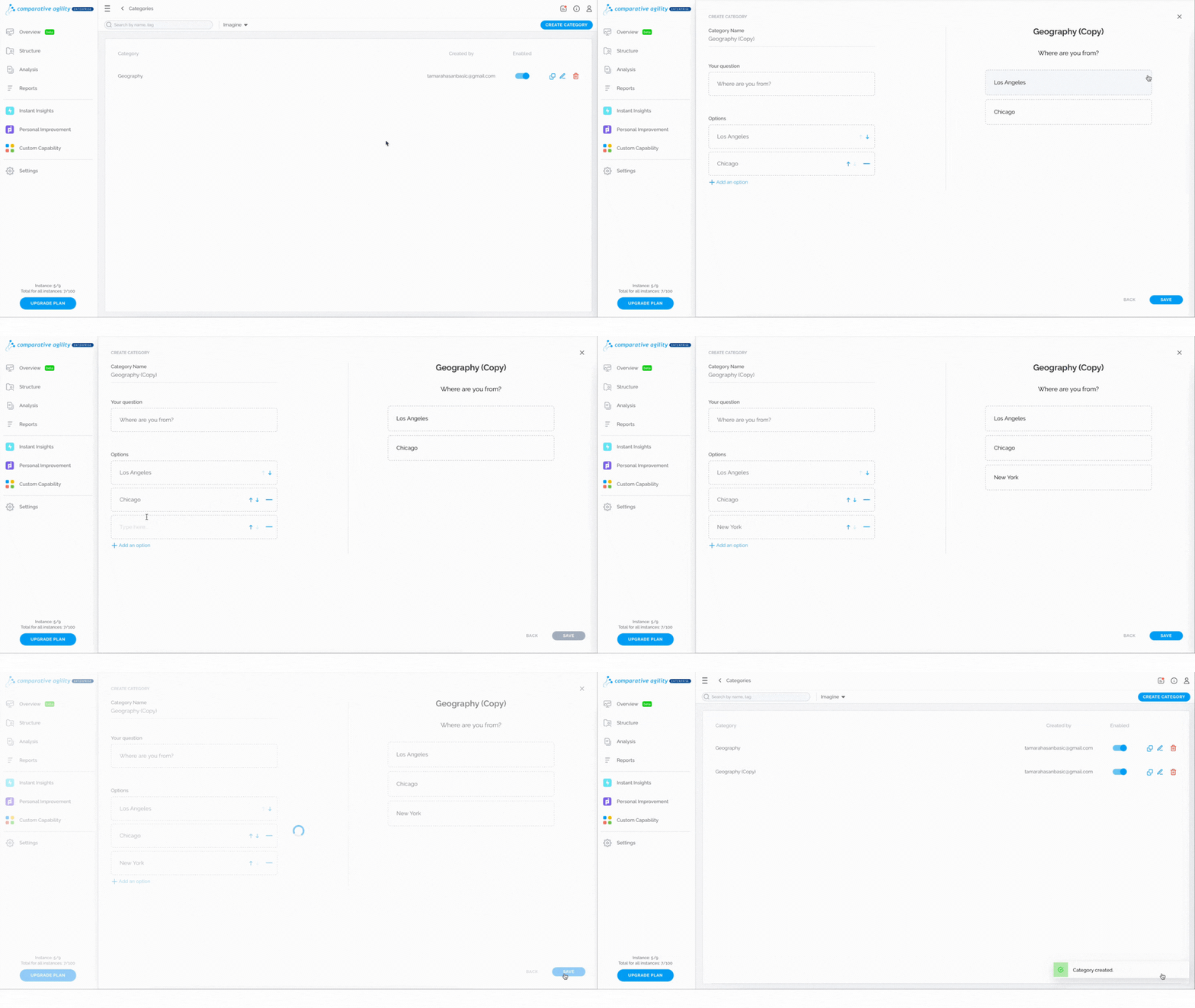
Section titled “Cloning a category”You have the ability to clone a specific category, and to do that, follow these steps:
- Navigate to the Category you would like to clone
- Click on the Clone option
- Update the Category based on your preferences
- Proceed with the Save button
Editing or deleting a category
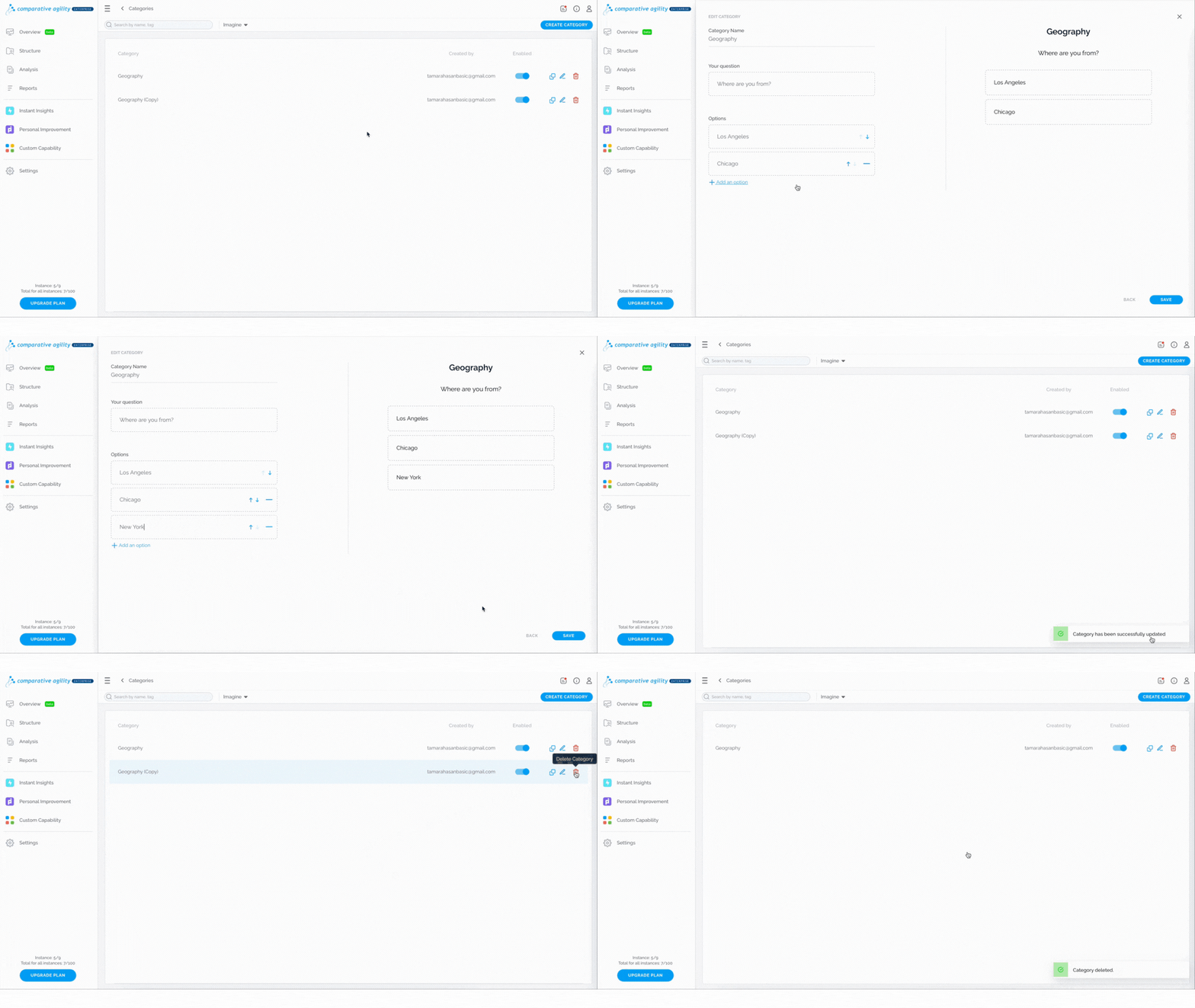
Section titled “Editing or deleting a category”If you would like to edit a category, navigate to the Data Categorization screen, click on the editing button, and save once ready. However, in case of deleting a category, click on the trash icon, and confirm it.
Preview a category
Section titled “Preview a category”In case you want to preview a category before proceeding with other options available, simply:
- Locate the Category you would like to preview
- Click on the Preview option