
Maturity Framework
Navigate to Settings
Section titled “Navigate to Settings”To start creating Maturity frameworks, first, navigate to Settings and open the Maturity framework Screen.
Create Maturity Framework
Section titled “Create Maturity Framework”From that point, simply:
- Click on the New Maturity Framework button in the upper right corner
- Type in the name
- Add levels, descriptions, and score range
- Save once ready
Enable Maturity Framework
Section titled “Enable Maturity Framework”There are two options for incorporating a maturity framework into a survey:
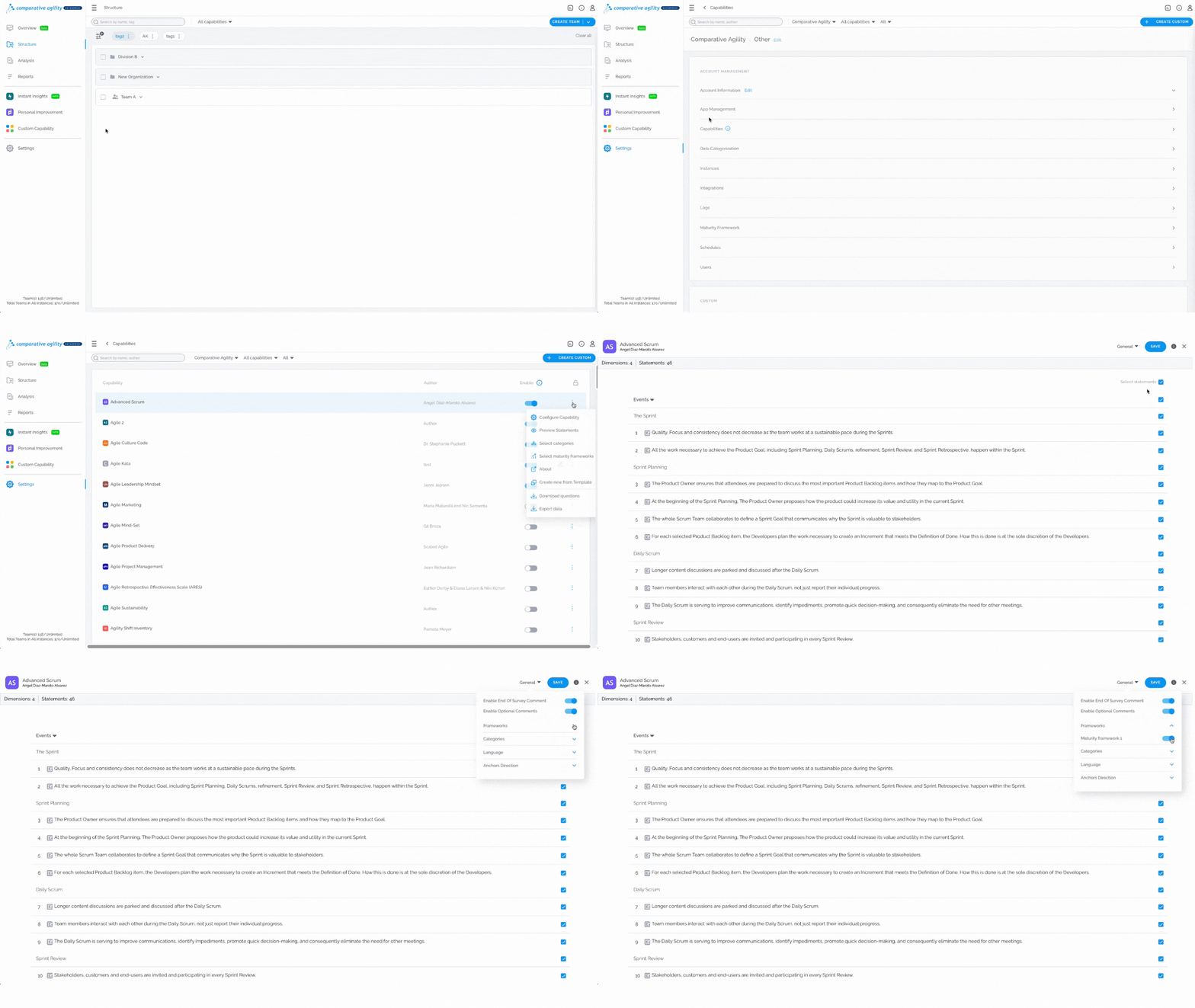
Access the Capabilities screen, click on the three dots next to the specific capability, then select the Configure Capability option, open the General dropdown menu, select Maturity Framework, and enable the one you prefer.
Enable Maturity Framework Option 2
Section titled “Enable Maturity Framework Option 2”Access the Capabilities screen, click on the three dots next to the specific capability, then select the Configure Capability option, open the General dropdown menu, select Maturity Framework, and enable the one you prefer.
Maturity Framework in Reports
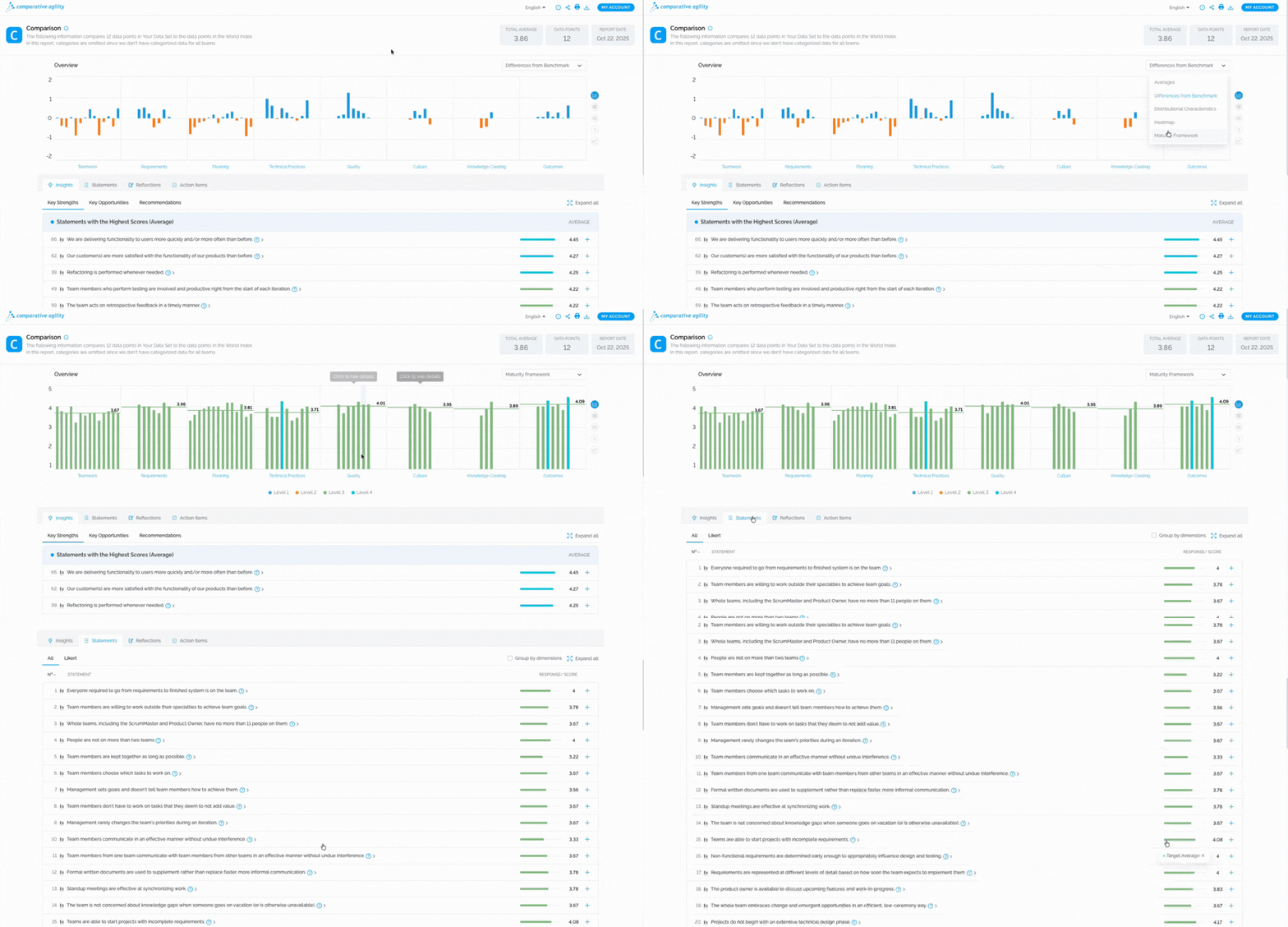
Section titled “Maturity Framework in Reports”By tracking maturity levels, teams are equipped to set achievable milestones, supporting their journey toward optimal performance at a personalized pace. While in the report, select the Maturity Framework chart. This way, you will be able to read results from the chart itself or scroll down to the Insights tab and see the average score.
If you ever need any assistance or have any questions please reach out to our support team at support@comparativeagility.com and we will be more than happy to assist you.